Showing the basics of chat
The chat is where you do basic analysis and work with an agent. You attach a file and ask about it in plain language, and the agent answers and writes code you can run. This page walks through it with 1,537 Dallas police incidents.
Follow along: download NearbyPark1500ft.csv (413 KB) and attach it to a new chat. It is a trimmed copy of public police incident records from the Dallas open data site.
1. Attach the file
Drag the file onto the chat, or press Attach under the message box and choose it. Vulcan Veil loads a CSV into a DuckDB file on this computer.
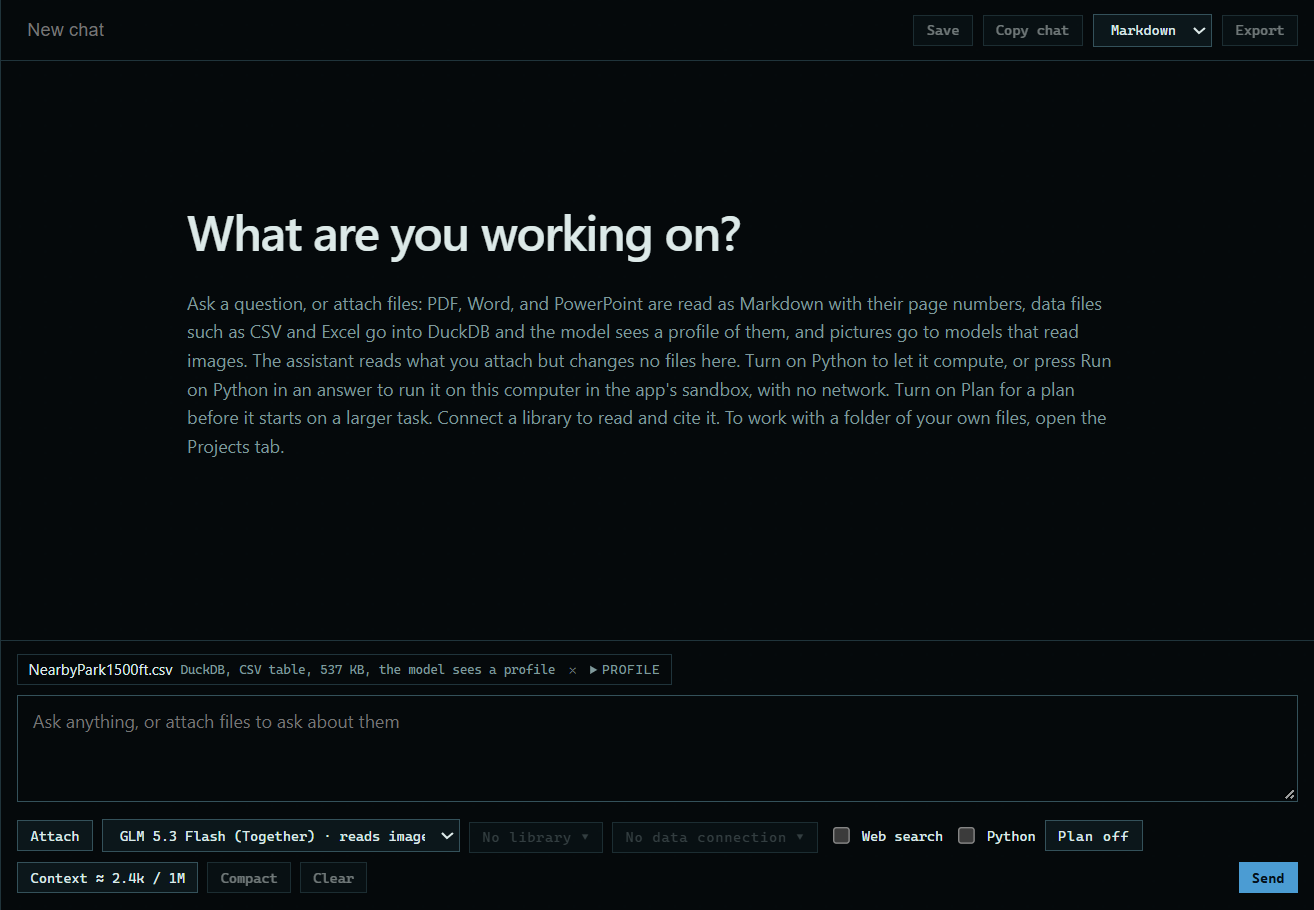 Expand
2. Check what the model sees
Open Profile. This is what the model gets: the field names and types, missing counts, and summaries of the values. It does not get the whole file.
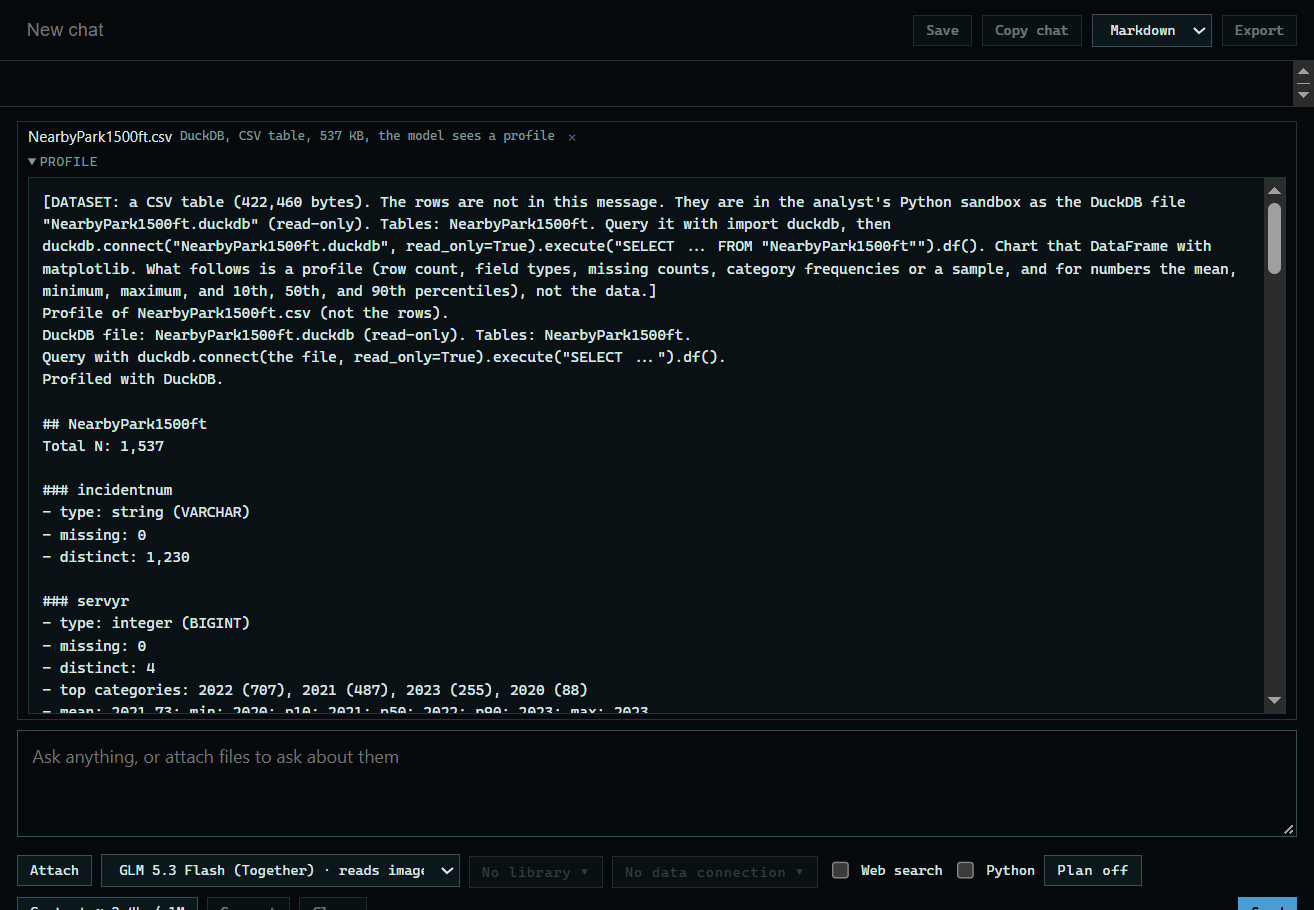 Expand
3. Ask a question
Type your question and press Send. Here: "Using nibrs_crime, what are the most common crime types? Show the top 10 with counts, with the names as they are in the data." The profile already holds counts for a field like this one, so the assistant can answer right away. It also writes Python to work out the counts from the data.
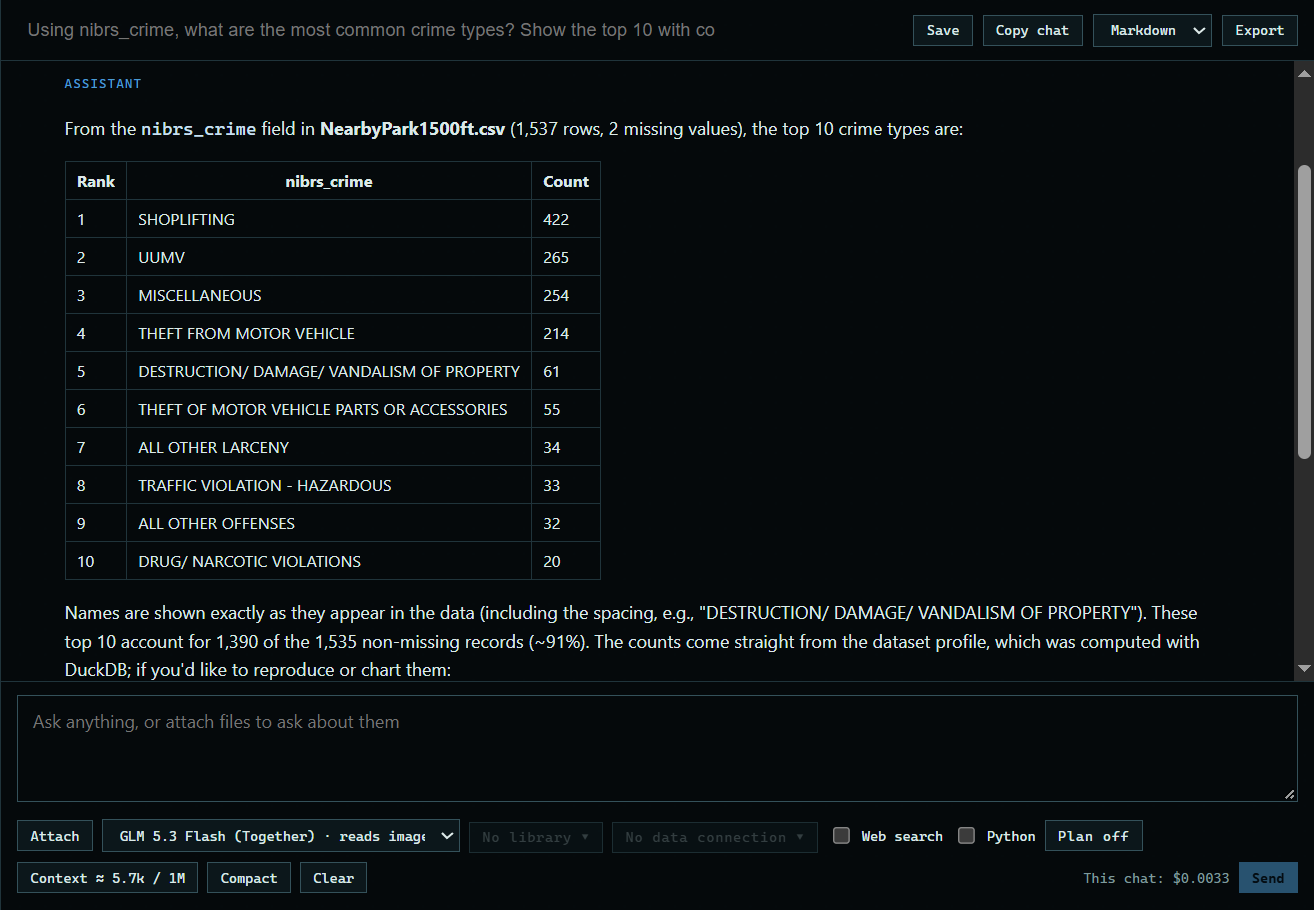 Expand
4. Press Run
Nothing has run until you press Run. The code runs in a sandbox on this computer, with no network, against every row in the file.
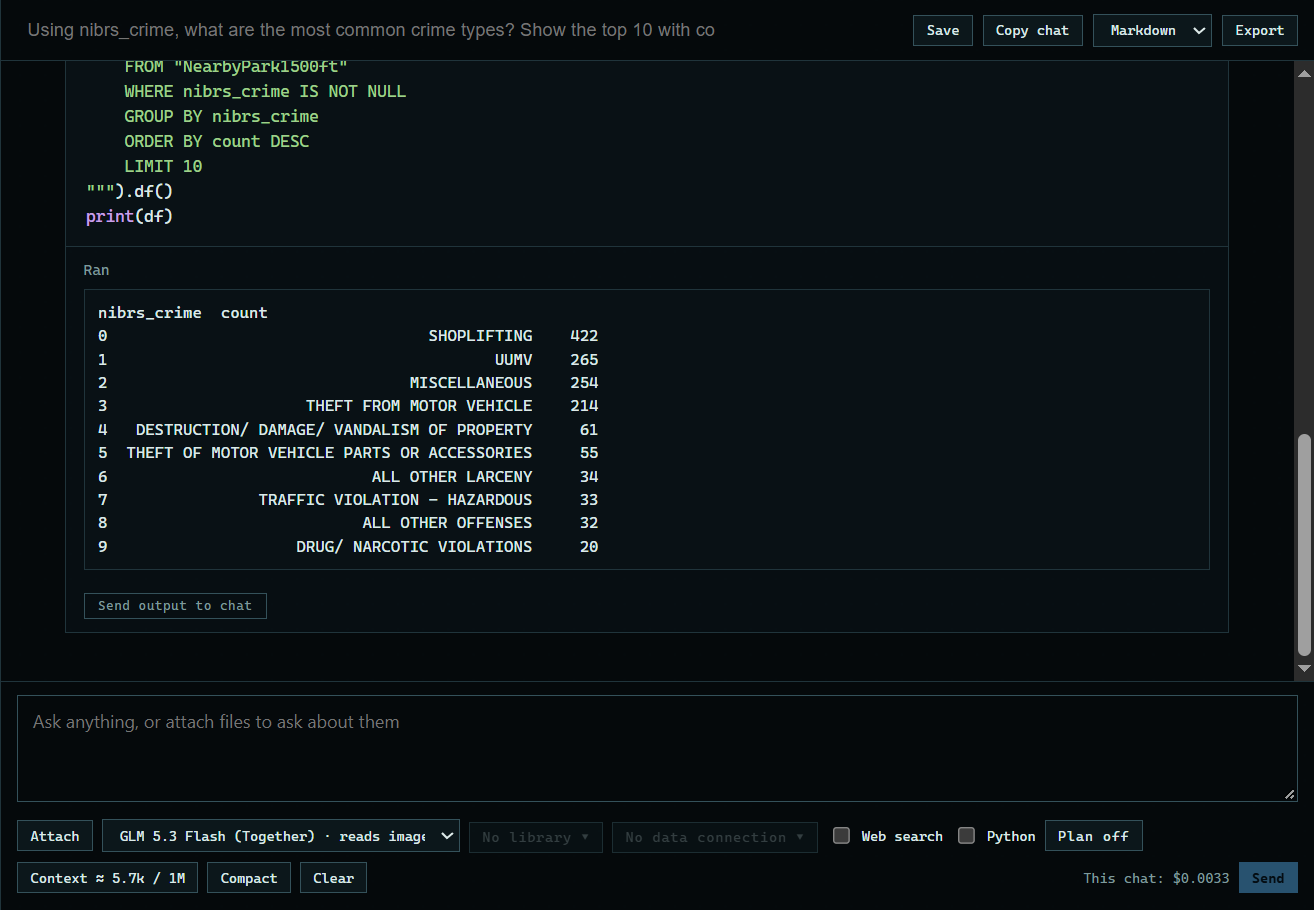 Expand
5. Ask for a map
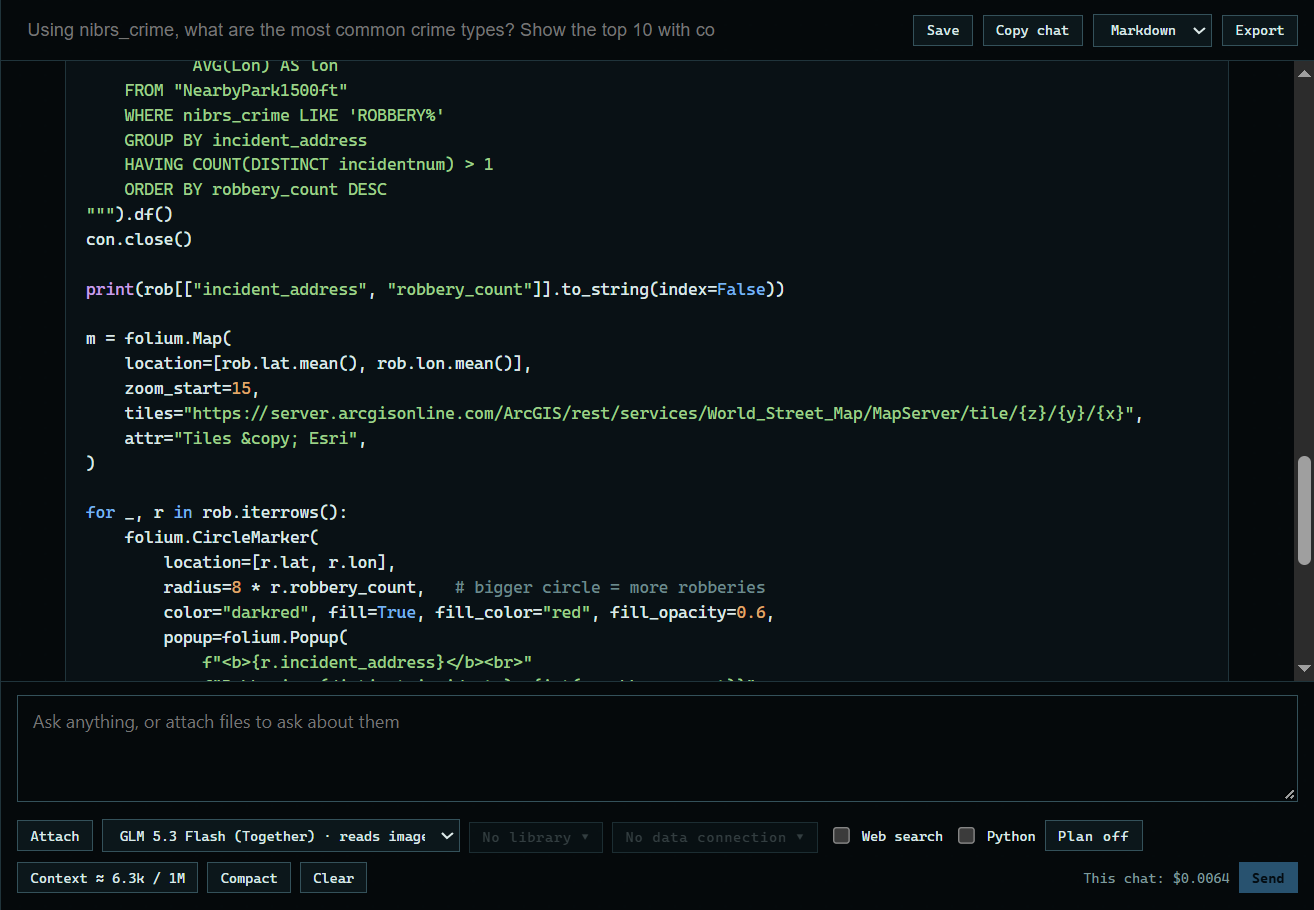
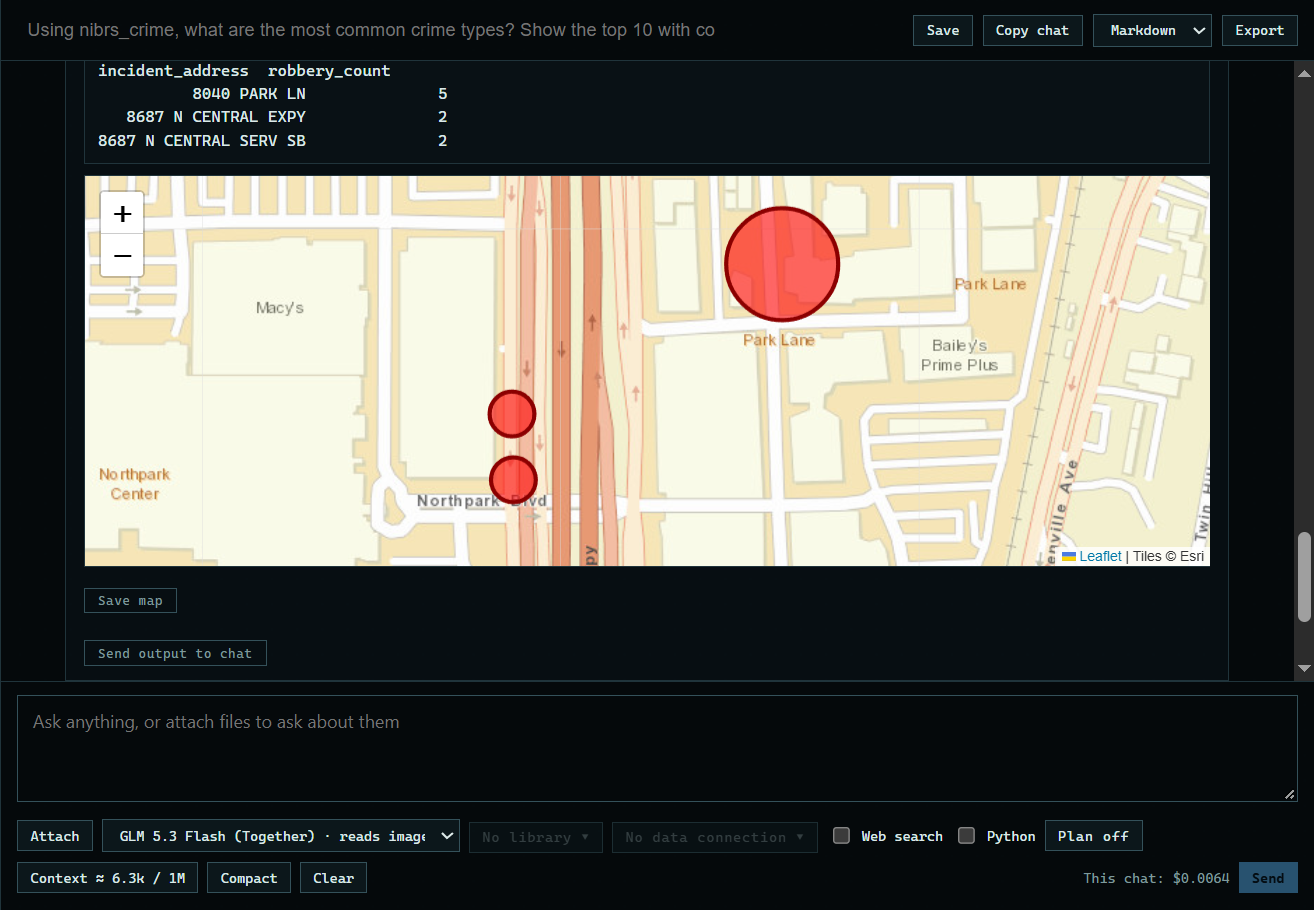
Ask a follow-up in the same chat: "Make a map of the addresses with more than one robbery, counting distinct incidentnum. Print the counts, use bigger circles for more robberies, put the address and count in each popup, and zoom to fit all the circles." The profile cannot answer this one, so the answer is Python.
 Expand
6. Press Run again
The map appears in the chat. You can zoom it and click a circle.
 Expand
Good to know
- To let the assistant run its Python by itself, tick Python under the message box.
- CSV, Excel, Parquet, SQLite, Stata, and SAS files all work the same way.
- The download leaves out officer names, apartment numbers, and other personal fields.