Exporting a chat
A chat can leave the app as a file, charts and maps included. Markdown is plain text, HTML keeps everything in one page, and PDF is ready to print or send. This page exports a chat about 1,537 Dallas police incidents.
Follow along: download NearbyPark1500ft.csv (413 KB) and attach it to a new chat. It is a trimmed copy of public police incident records from the Dallas open data site.
1. Make something worth keeping
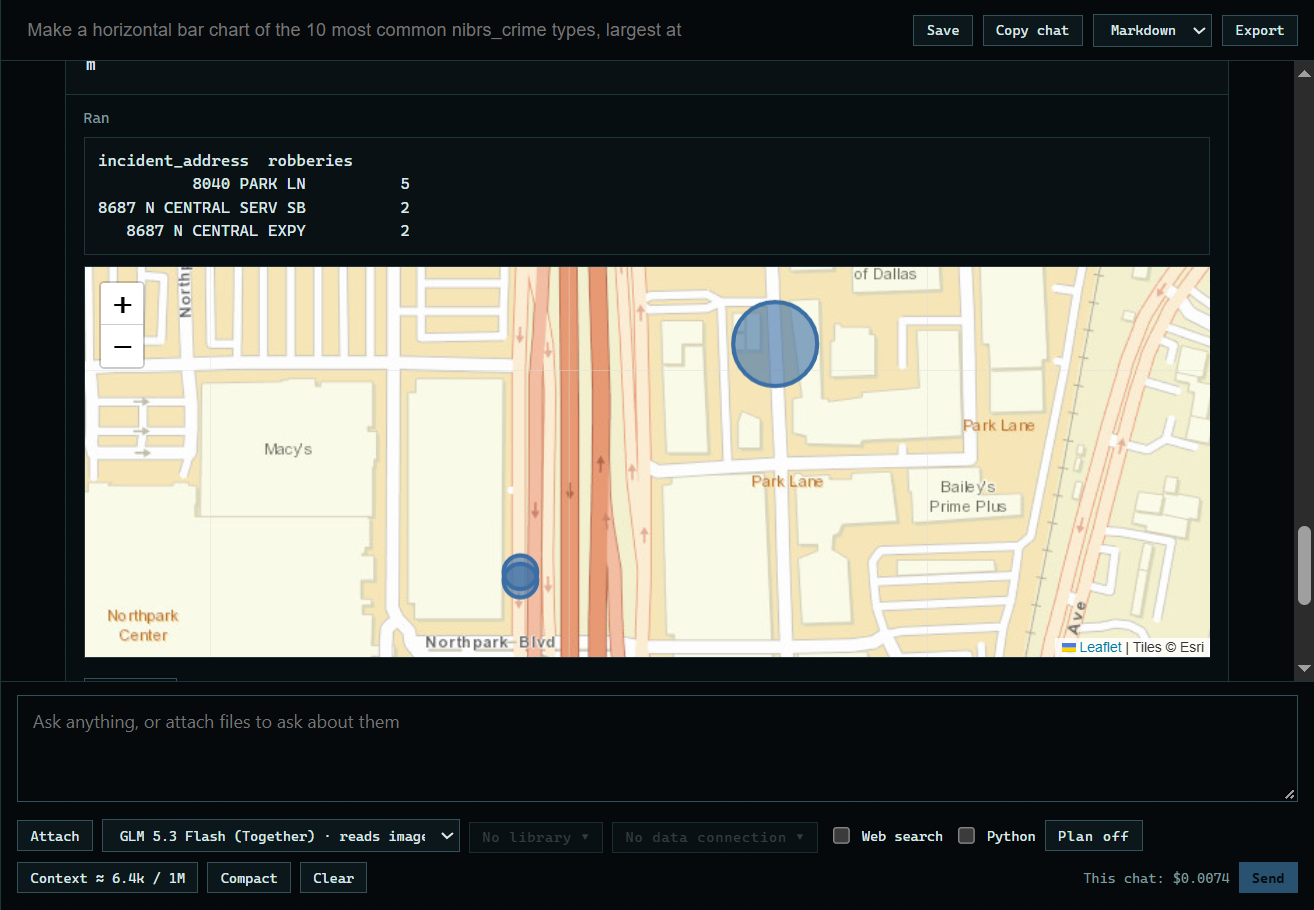
Attach the file, ask for a chart, and press Run. Here: "Make a horizontal bar chart of the 10 most common nibrs_crime types, largest at the top, titled Top 10 crime types, and print the counts." Then ask for a map of repeat robbery addresses and run that too. Showing the basics of chat has these steps in detail.
 Expand
2. Choose a format
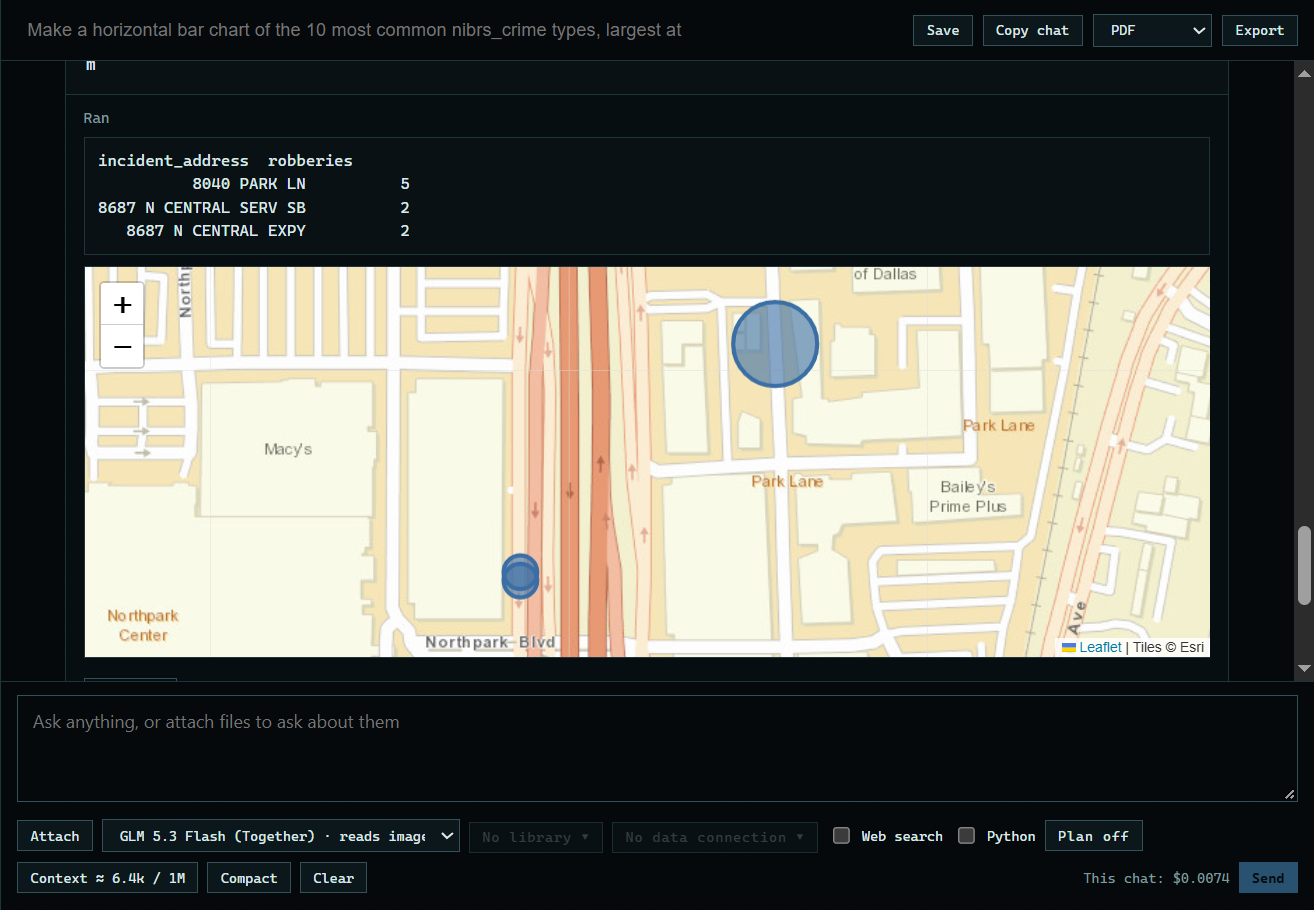
Pick Markdown, HTML, or PDF from the list at the top of the chat, and press Export.
 Expand
3. See the PDF
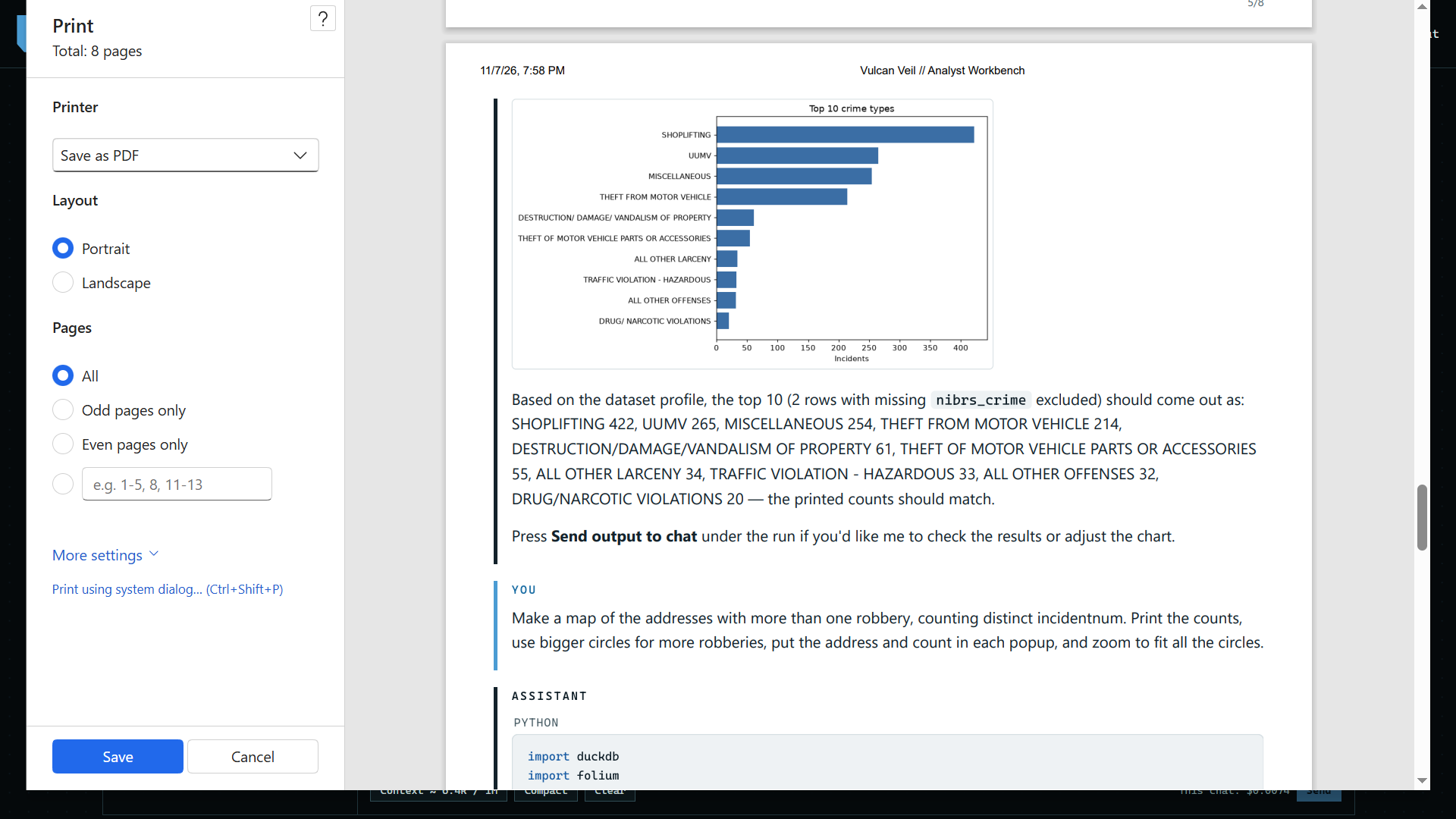
For PDF, the print window opens and shows the pages as they will print: the Vulcan Veil header, your questions, the answers and their code, and the chart.
 Expand
4. Maps come too
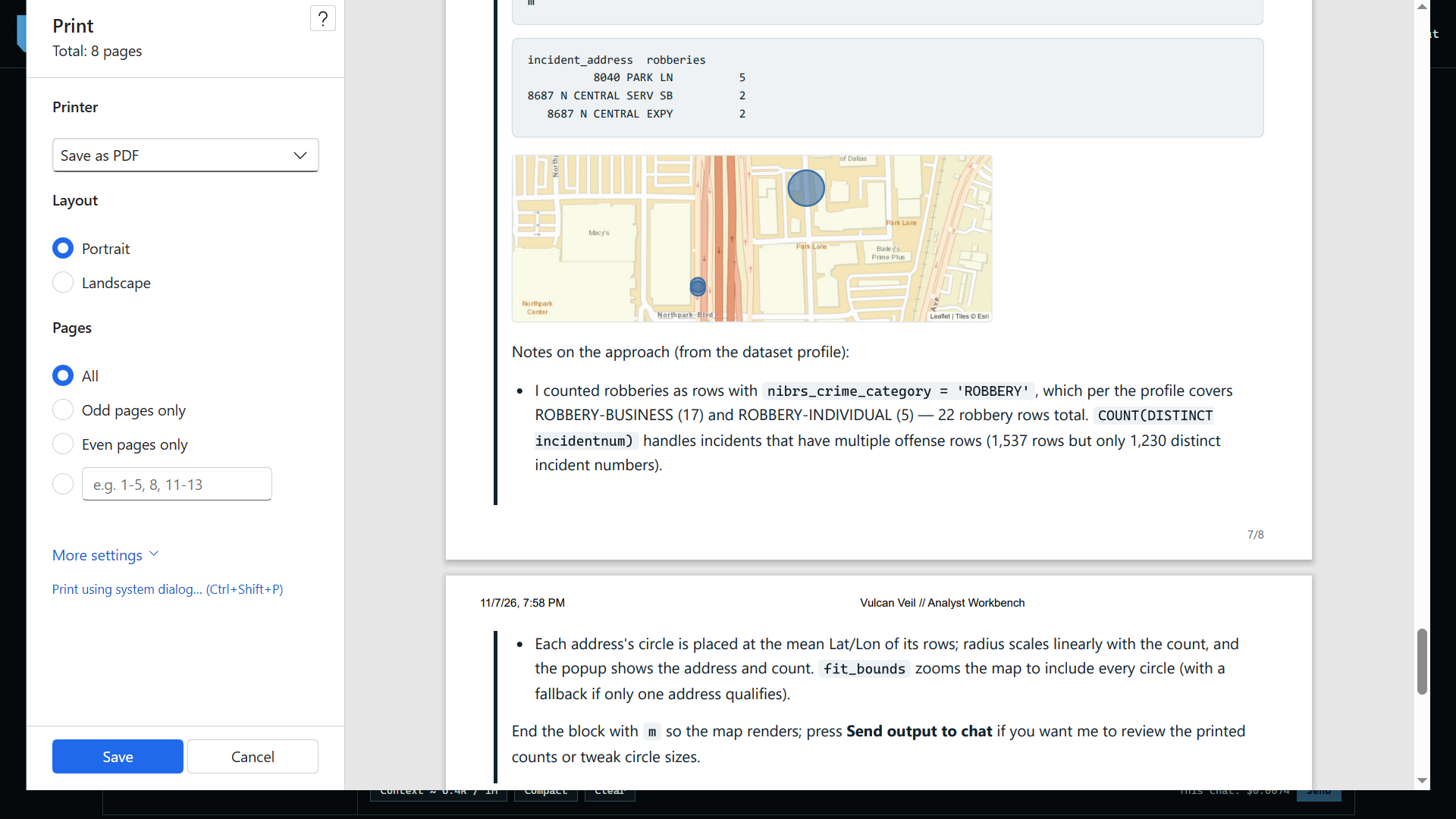
Scroll down the pages to see the map, drawn as a picture of what the chat showed.
 Expand
5. Save it
Choose Save as PDF as the printer, press Save, and choose where the file goes. Markdown and HTML skip the print window: Export asks where to save the file.
Good to know
- An export holds what you see in the chat: your messages, the answers, and the code and output of each run.
- Under More settings in the print window you can turn off the date and title printed at the top of each page.
- A project's chat has the same list, above its messages.