Writing SQL
The SQL tab runs queries on your local copy by default, so you can try anything without touching the live system. The AI helper writes a query from a plain question, and you press Run yourself. All the data on this page is made up.
1. Ask for a query
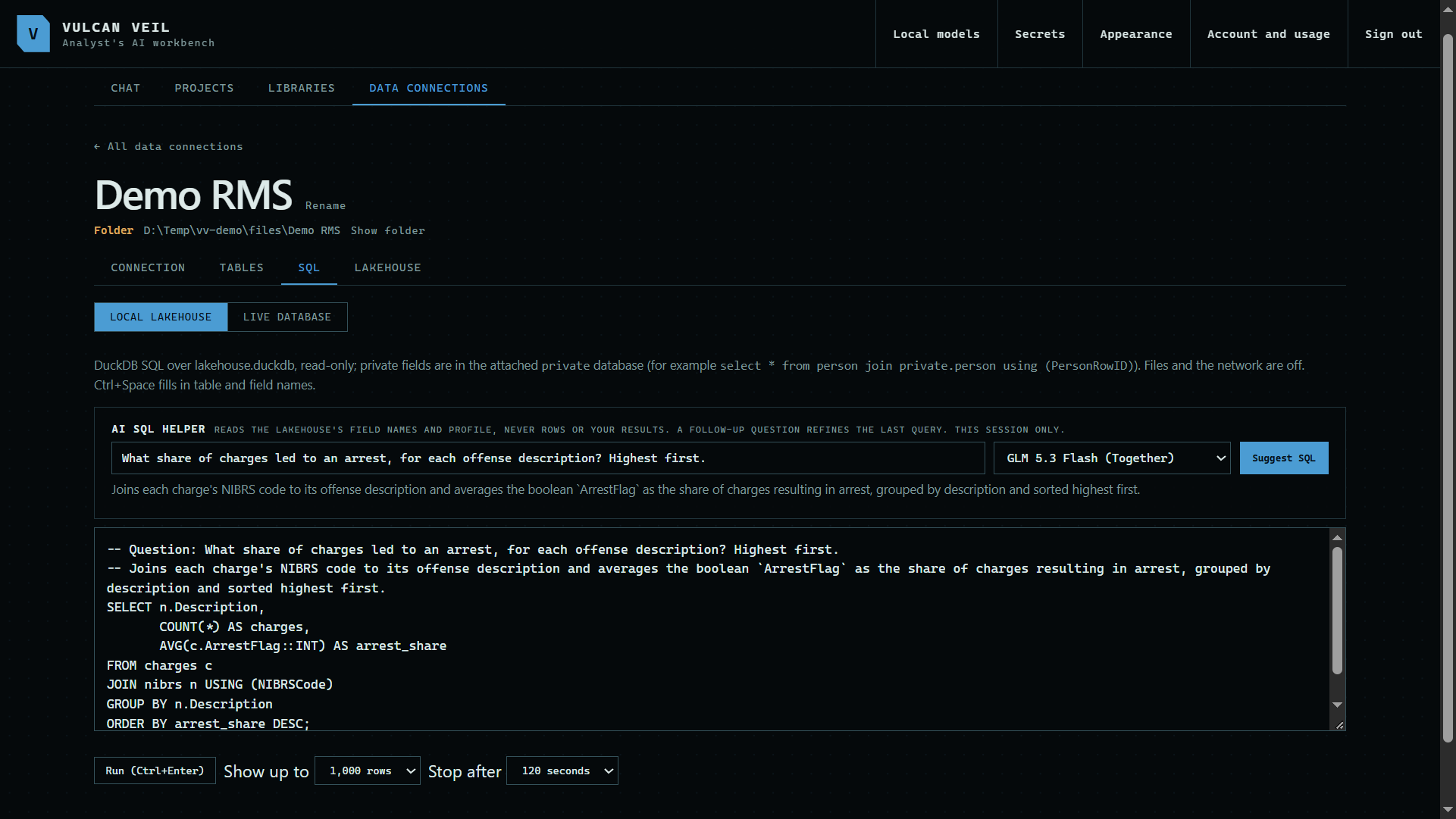
Type a question beside Suggest SQL. Here: "What share of charges led to an arrest, for each offense description? Highest first." The helper reads your tables' field names and profile, never their rows, and writes the query into the box.
 Expand
2. Run it
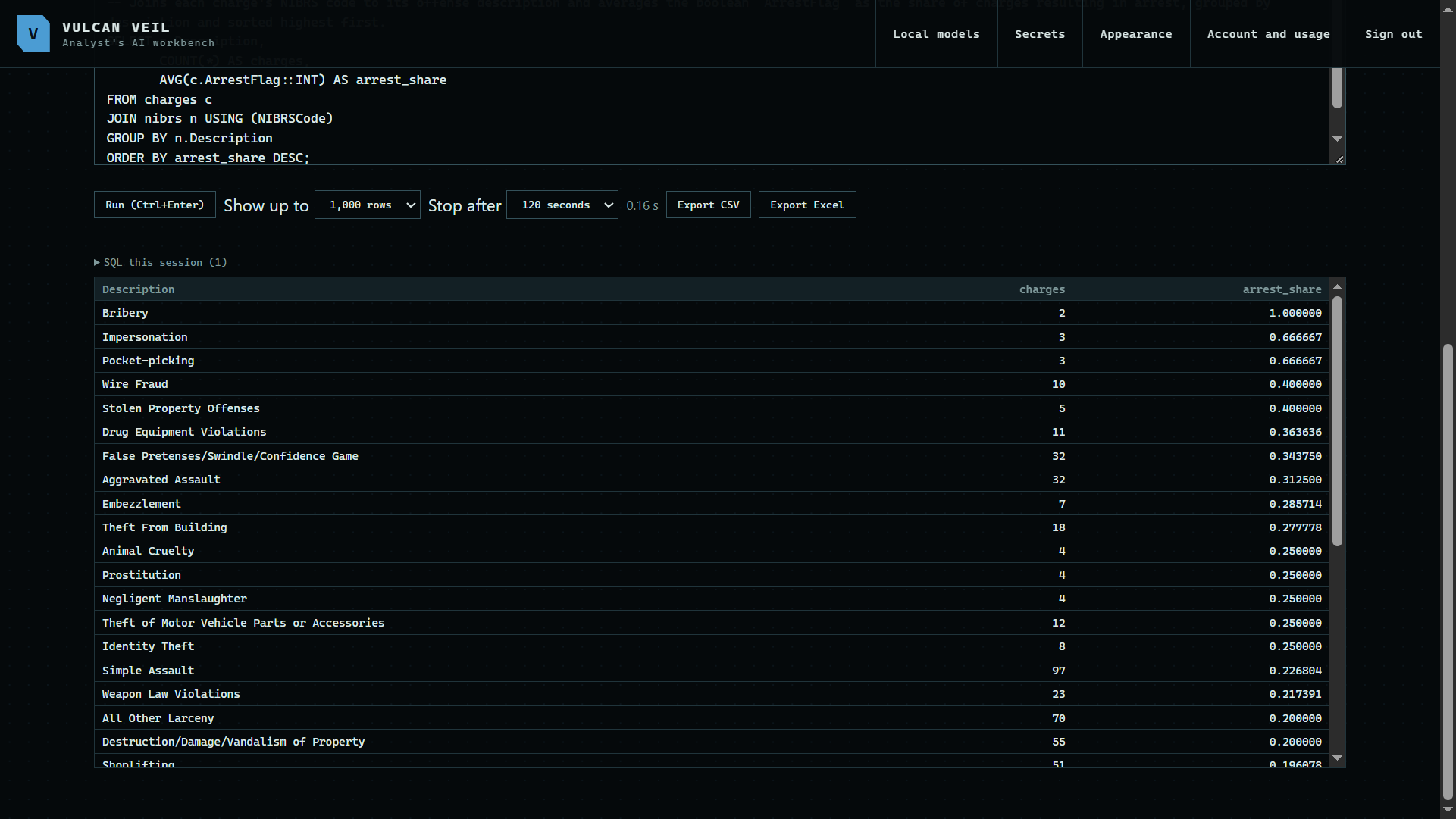
Press Run, or Ctrl+Enter. Only you see the result. Export CSV and Export Excel save it.
 Expand
3. Let autocomplete help
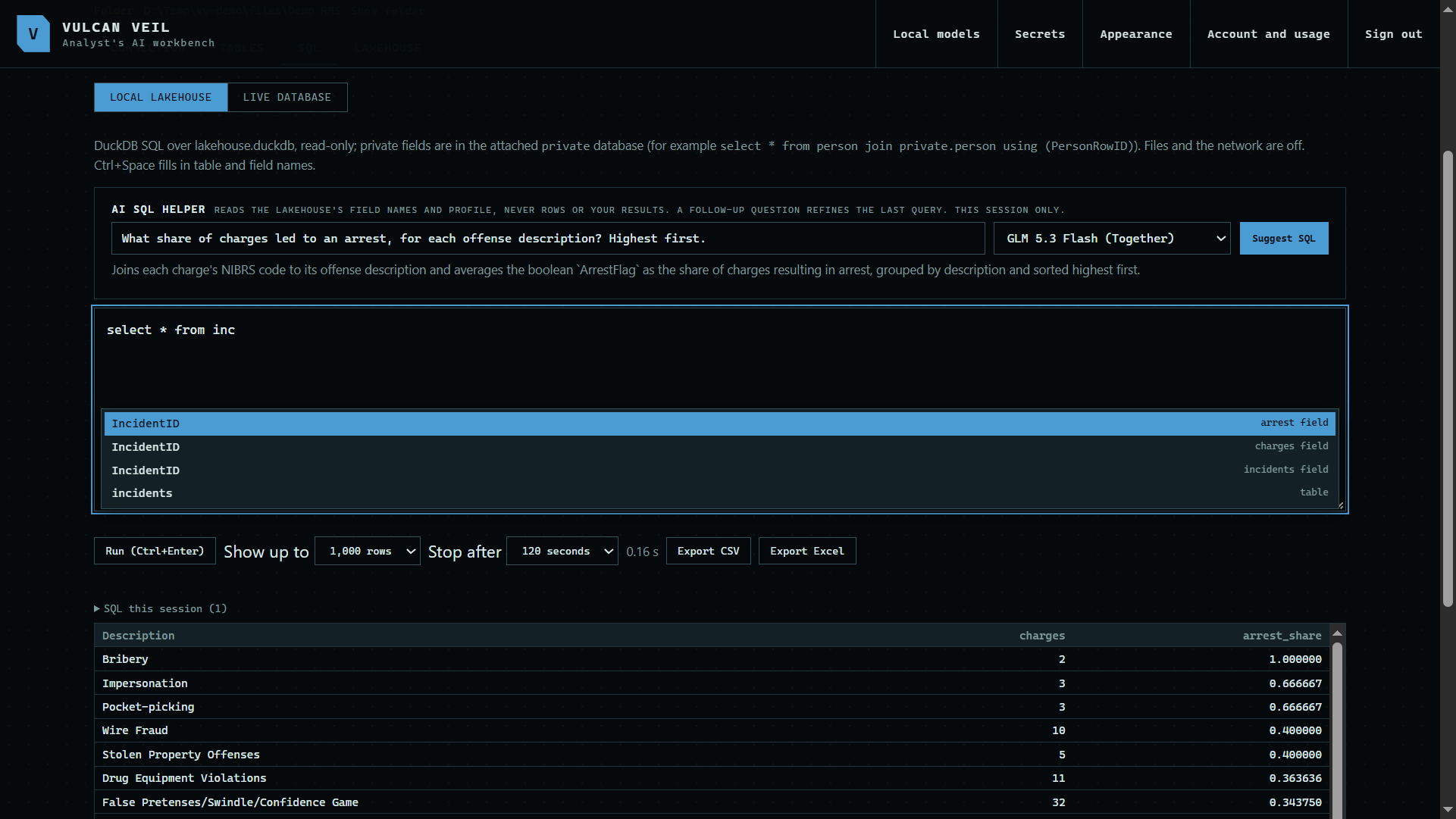
Start typing and the box offers table and field names. Ctrl+Space shows them at any time.
 Expand
4. Count coded fields
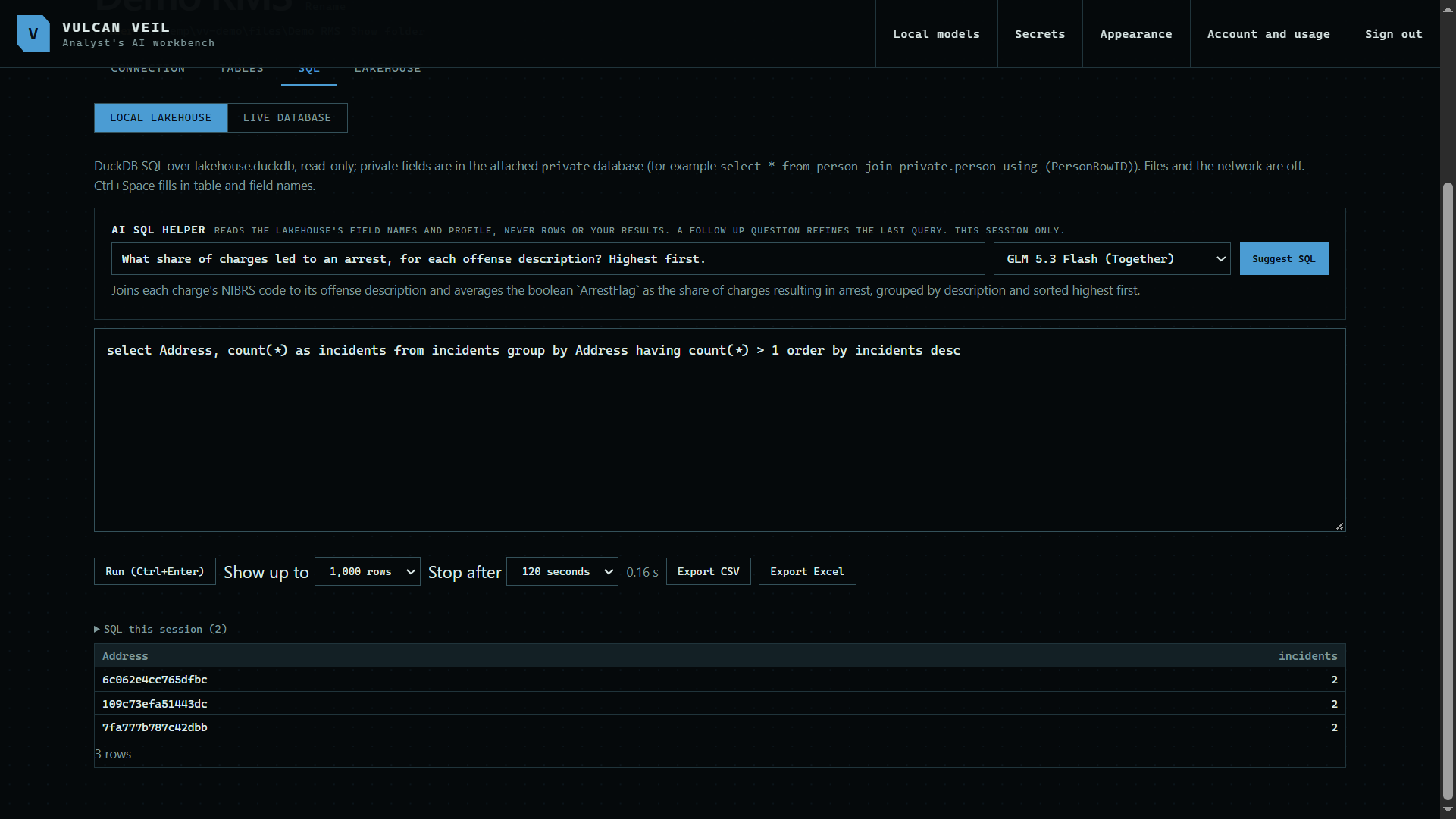
A coded address is the same code each time, so you can find repeat addresses without anyone reading one.
 Expand
5. Query the live database
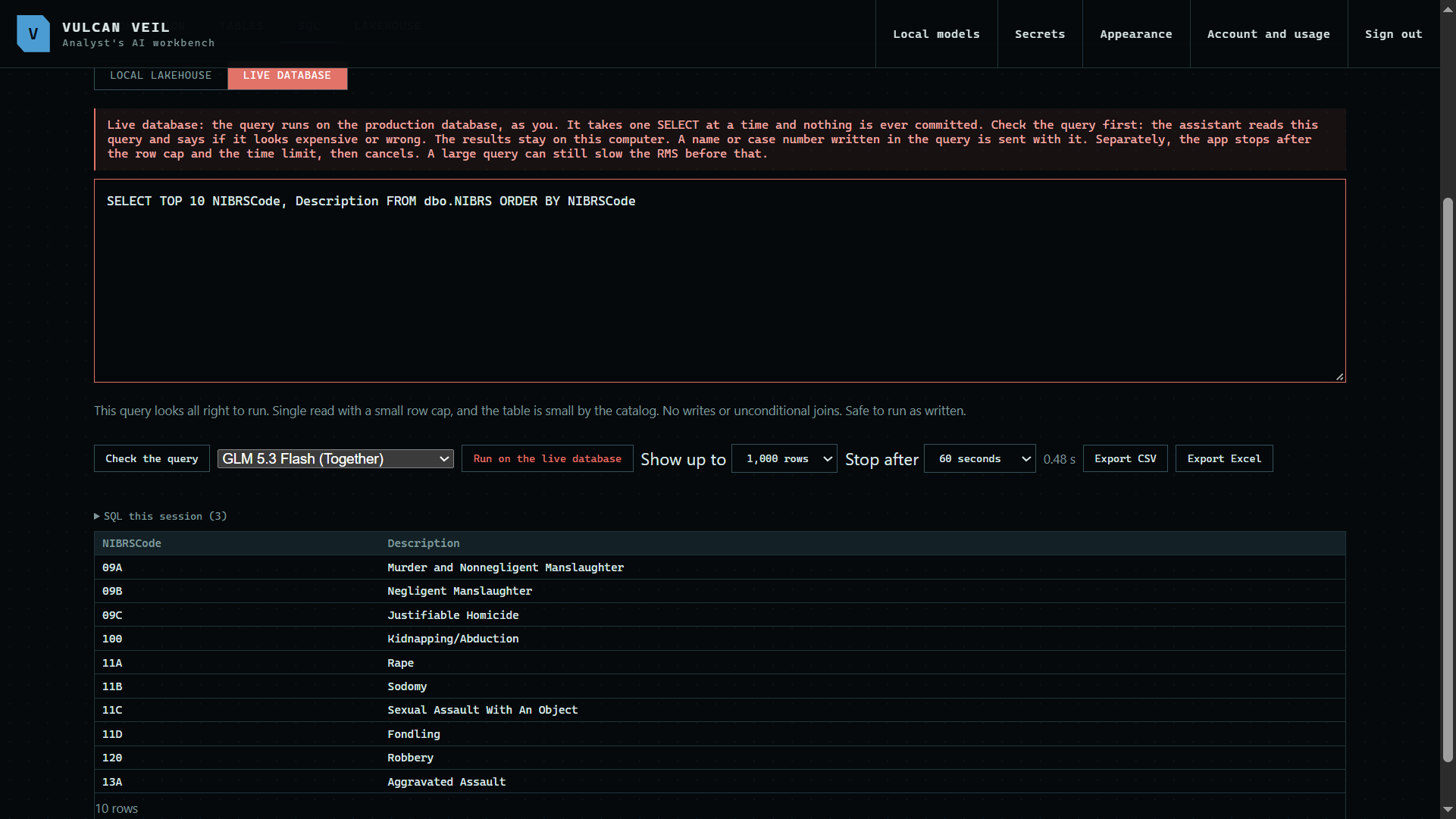
Press Live database when you need the newest rows. Press Check the query, and the assistant reads the query and your tables' sizes, then says if it looks expensive or wrong. It does not see the result.
 Expand
Good to know
- A live query must be one SELECT or WITH. The app refuses anything else, rolls back, stops after at most 5,000 rows, and cancels at the time limit.
- A value you type in a live query goes to the assistant with the query when you press Check the query. Choose No check to skip the review.
- Fields you hid from the AI are in a private database here, which only you can query.