Redacting an image
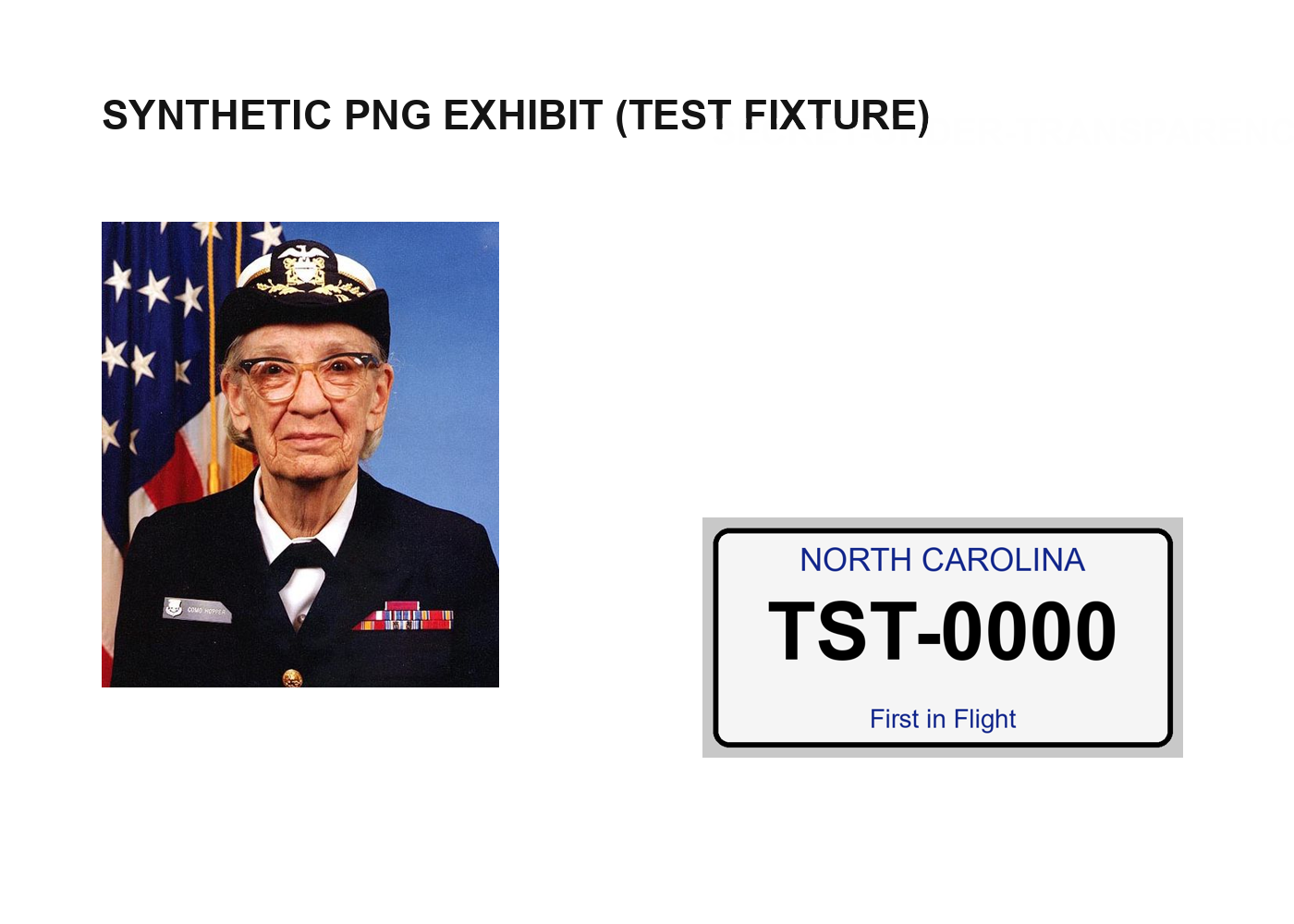
A photo can give away more than a face: a plate, a name tag, a badge. Redaction looks for these on your computer and makes a new picture with the details gone, and checks it before you can save. The picture on this page is a test exhibit.
Follow along: download demo_photo.png (452 KB) and put it in a project.
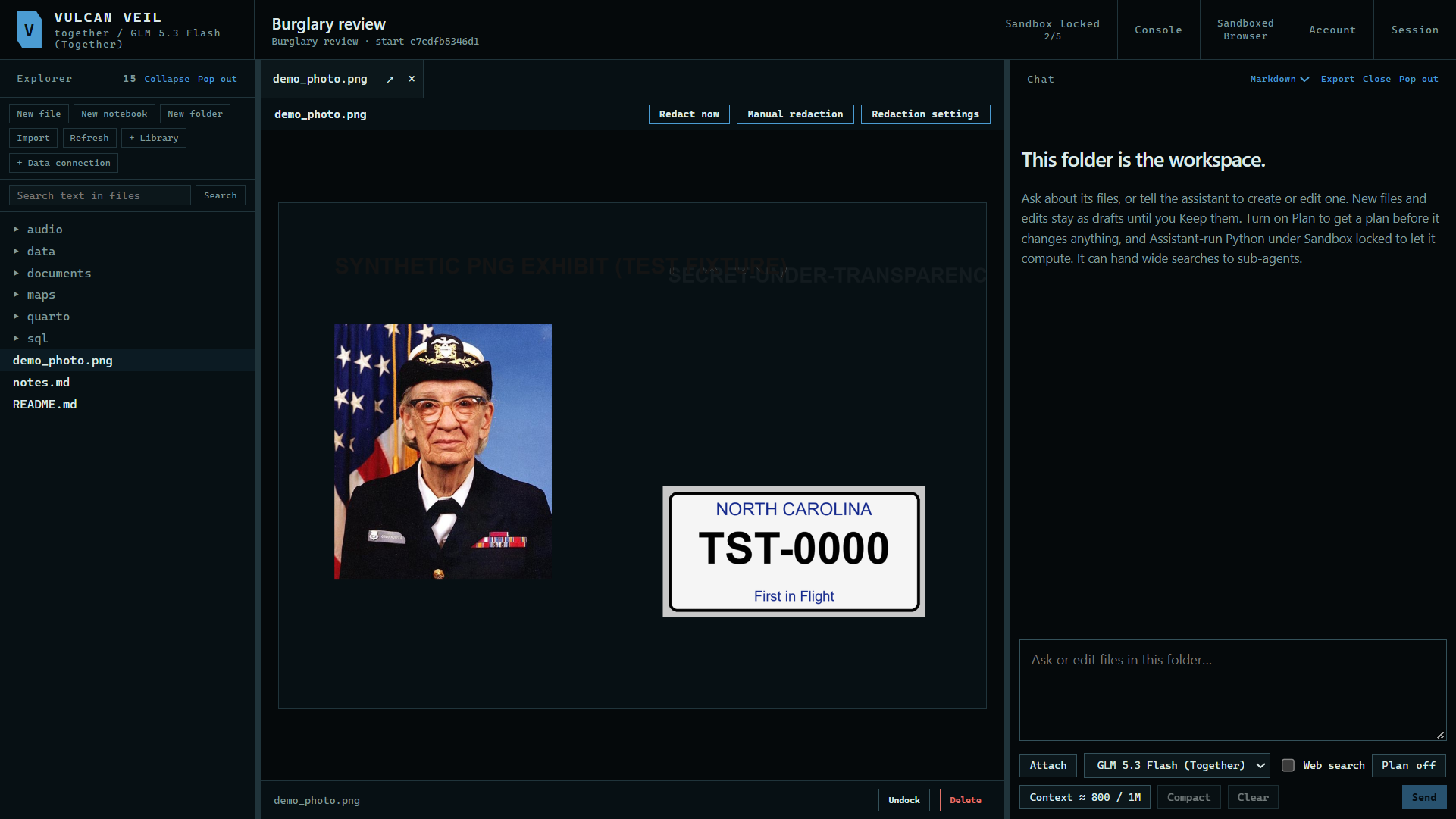
1. Start a redaction
Open a picture and press Redact now. The image models run on your computer, so this can take a minute or more.
 Expand
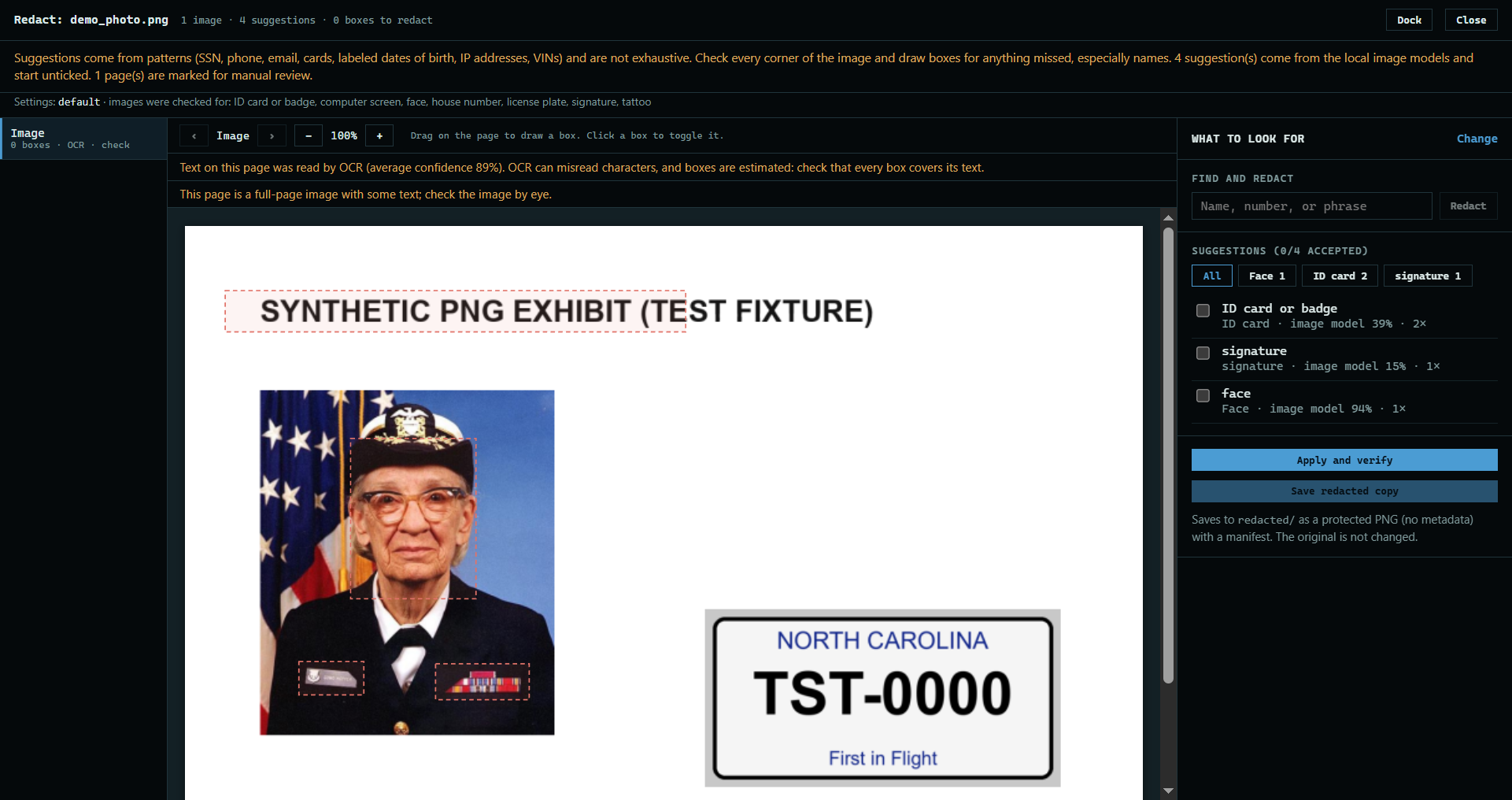
2. Read the suggestions
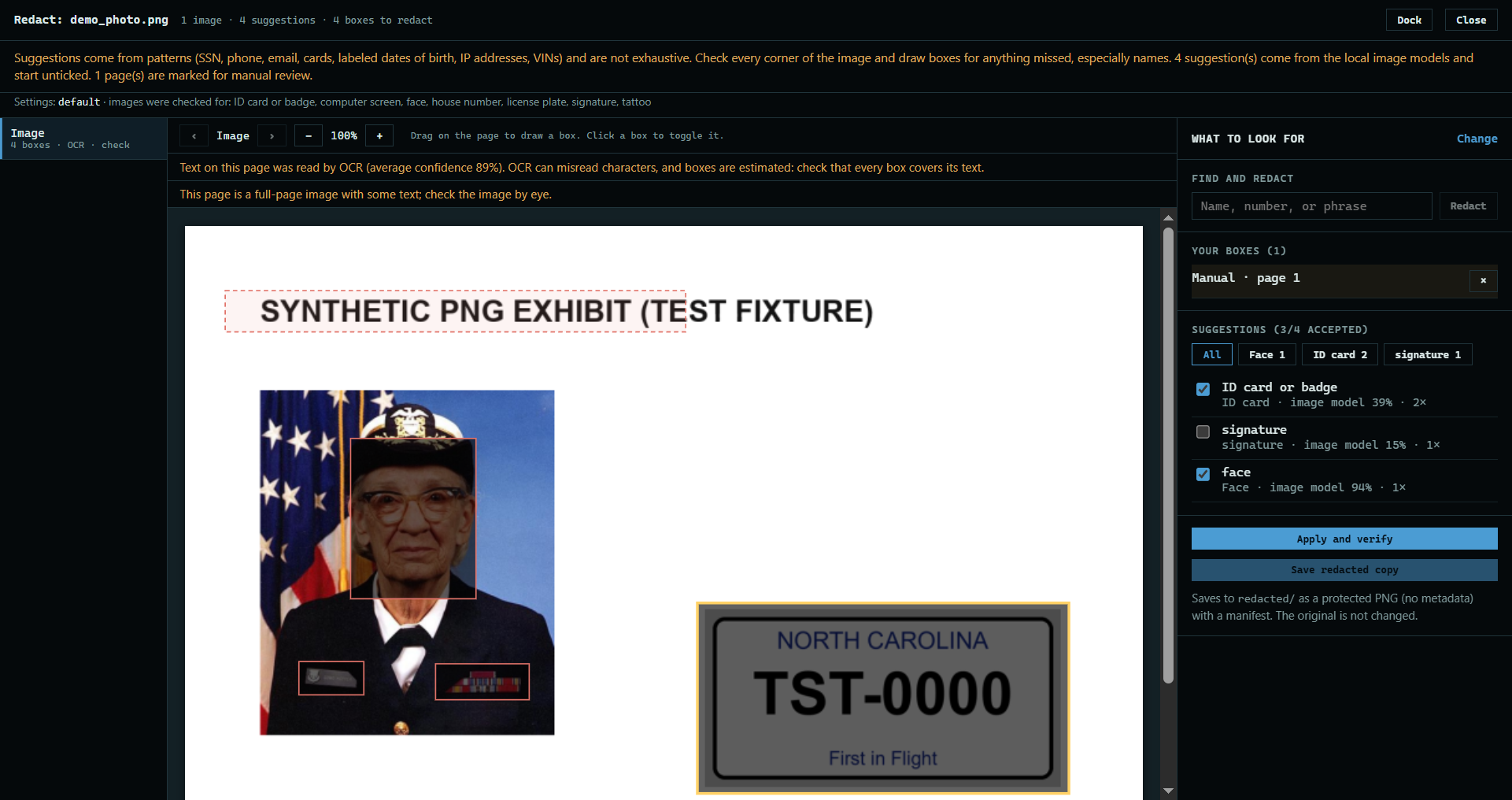
Each suggestion names what the model thinks it found, and how sure it is. Suggestions from a picture start unticked, because these models can be wrong.
 Expand
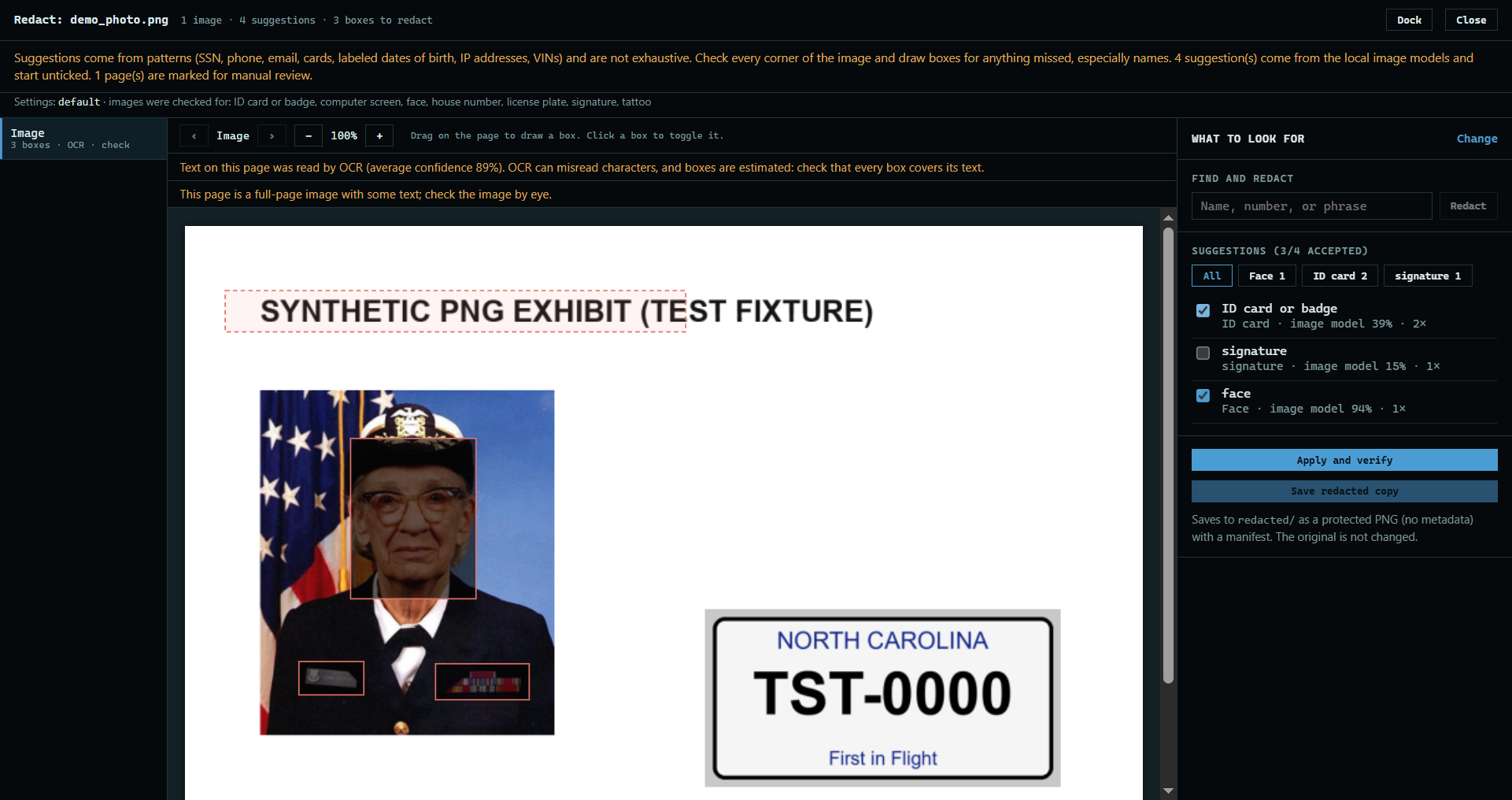
3. Tick what has to go
Tick a suggestion, or press its box on the picture, to redact it. Leave the wrong ones unticked.
 Expand
4. Draw what was missed
Drag a box over anything else that has to go. Here, the license plate, which the models did not find.
 Expand
5. Apply and verify
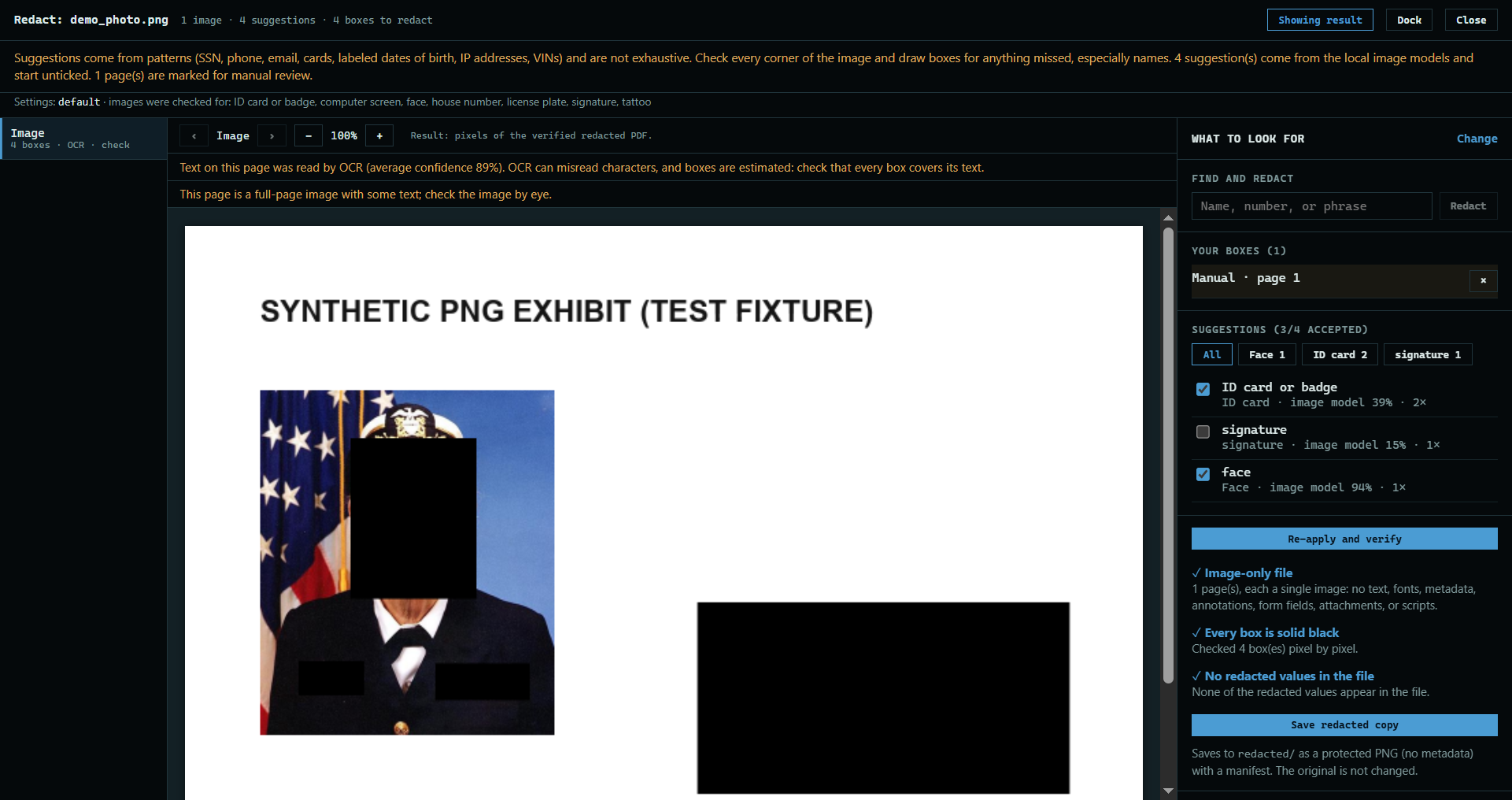
Press Apply and verify. The app makes the new picture, checks it, and shows you the result.
 Expand
6. Save the copy
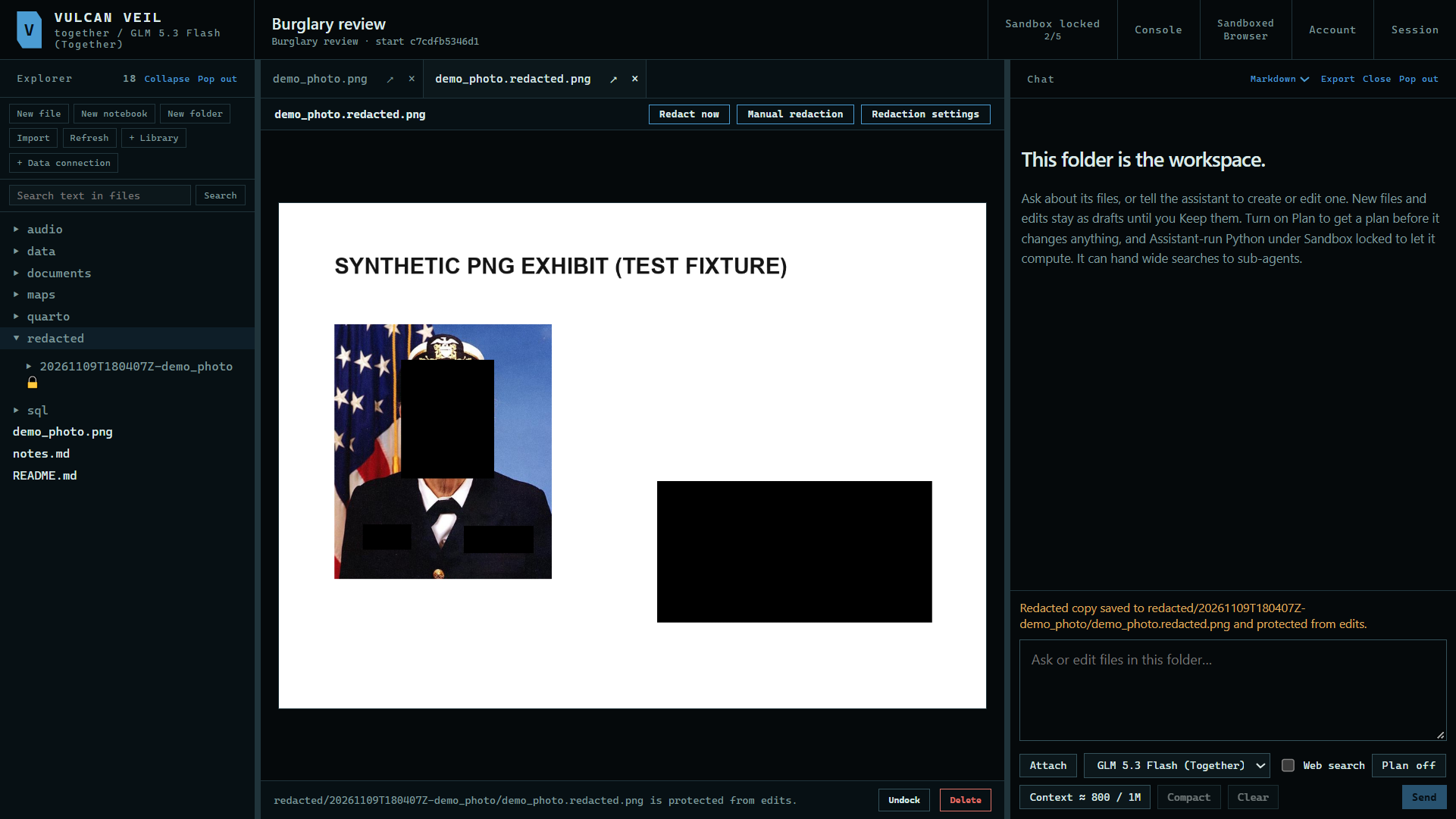
Press Save redacted copy. It goes under redacted/ as a new PNG with no metadata, with a manifest, protected from edits. Your original does not change.
 Expand
Good to know
- The models miss things and flag look-alikes. Here they missed a license plate and took a title for a signature, so look over the whole picture yourself.
- Faces are found quickly. License plates, signatures, ID cards and badges, tattoos, computer screens, and house numbers use a slower model.
- Text in a picture is read by OCR, so it can be misread, and the boxes are estimates. Check that each one covers its text.
- To have the models look for something else, see Changing what redaction looks for.