Connecting to a database
A data connection reaches a database through ODBC with your own login, usually a SQL Server behind an RMS or CAD. You need the server's name, the database's name, and a login with read access. This page uses a made-up police database.
1. Create the connection
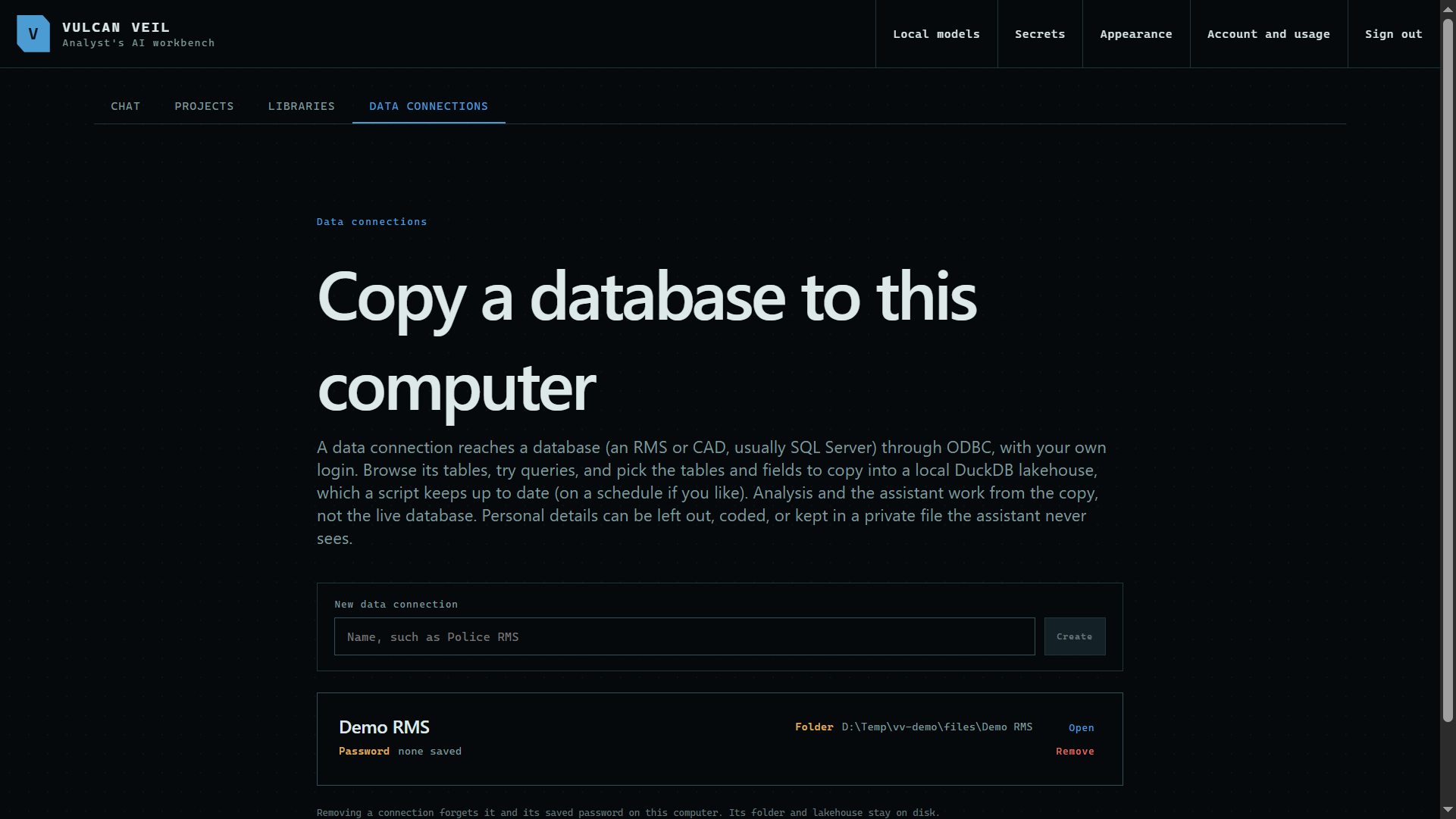
Open the Data connections tab, type a name, and press Create. Choose the folder its local copy and scripts will go in, then press Open.
 Expand
2. Say where the database is
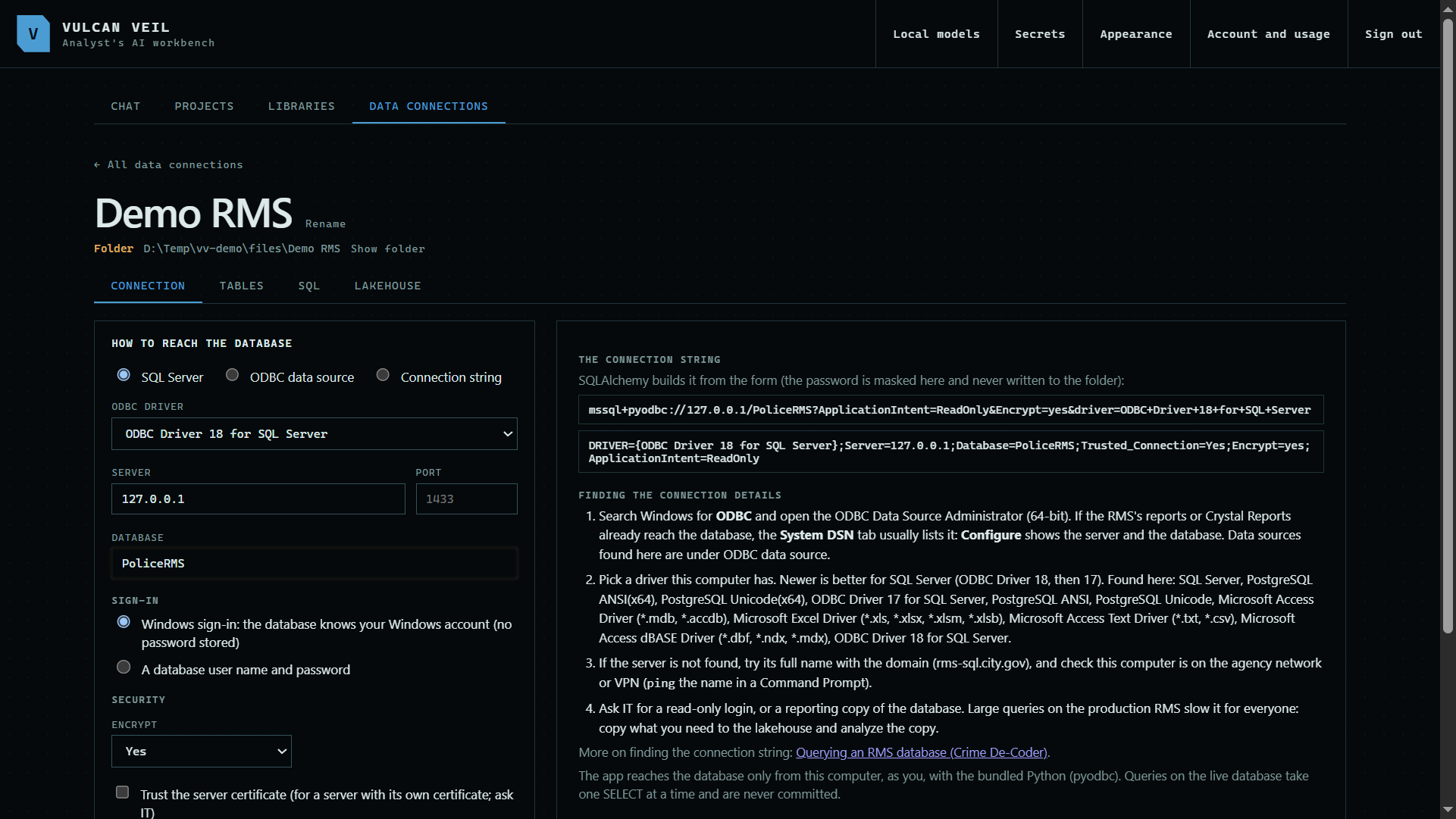
Choose the ODBC driver, then type the server and the database. Connection string and ODBC data source are there if IT gave you one of those instead.
 Expand
3. Sign in
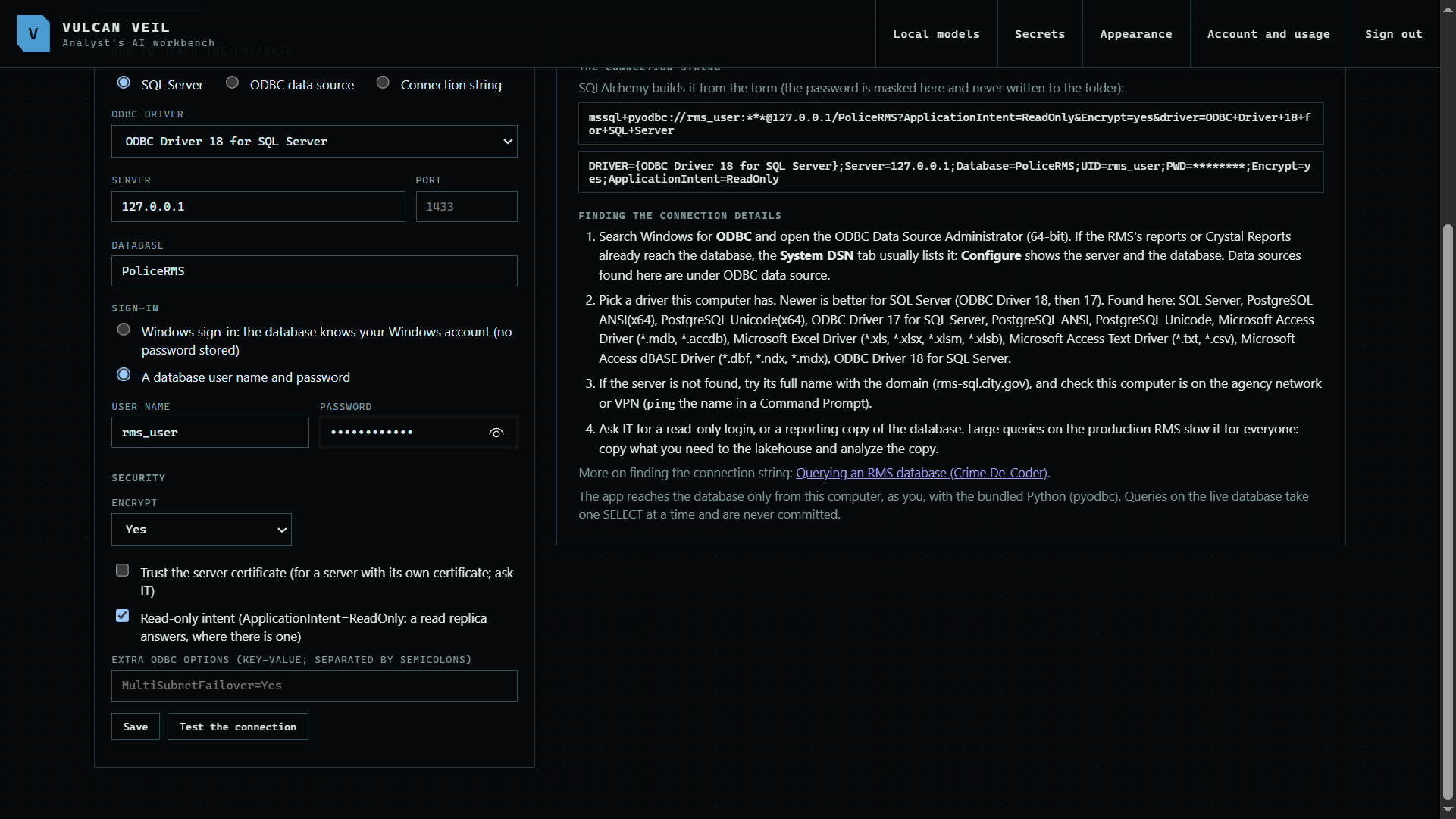
Use Windows sign-in if the database knows your Windows account. Otherwise type a user name and password.
 Expand
4. Save and test
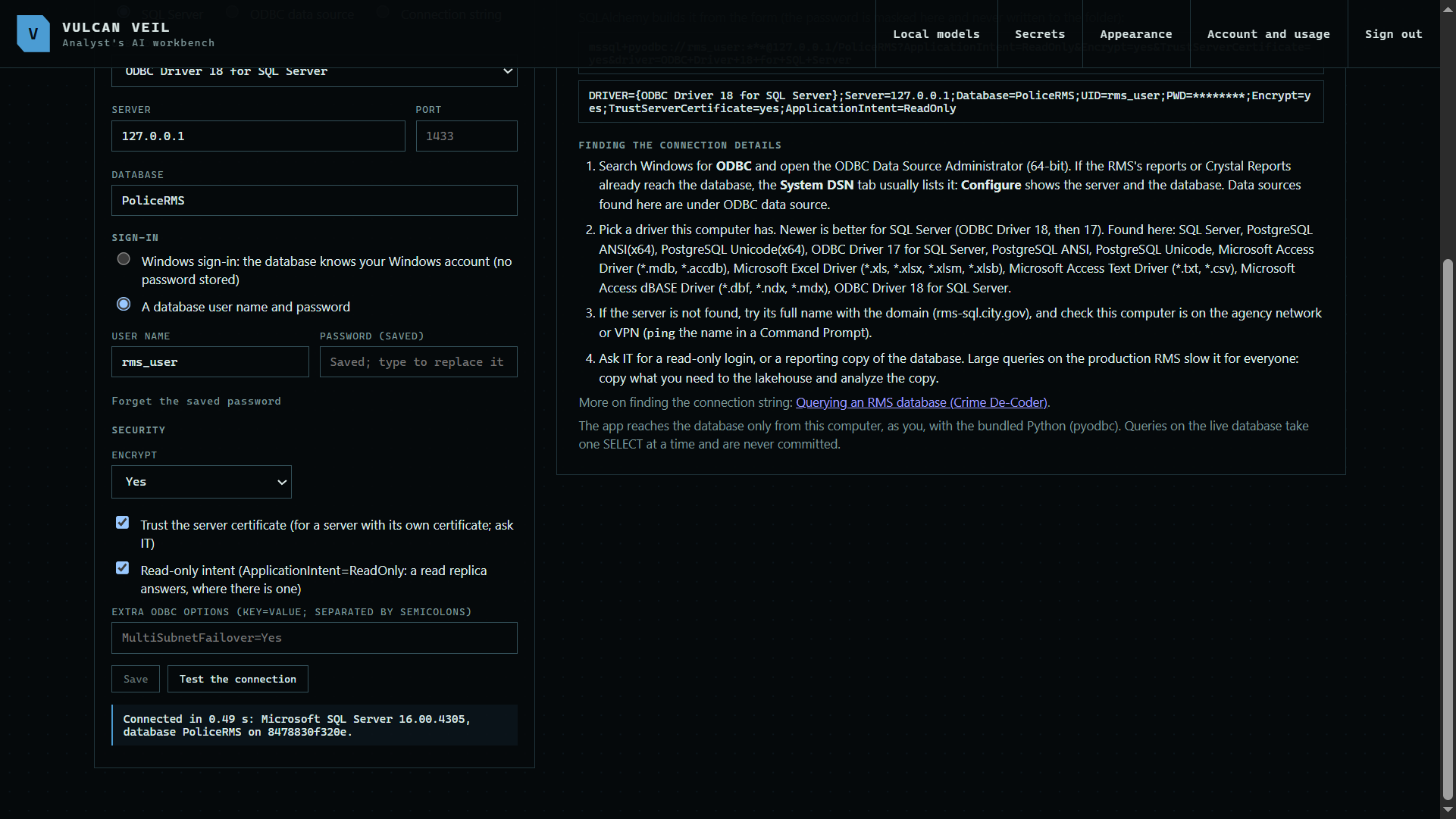
Press Save, then Test the connection. It reports the server's version and how long it took.
 Expand
Good to know
- The password is encrypted for your Windows account. It is never written to the connection's folder, and the assistant never sees it.
- Ask IT for a read-only login. The app only reads, but a read-only login makes that certain.
- Turn on Trust the server certificate only for a server with its own certificate, such as a test server.