Browsing tables
Before you copy anything, look at what is there. The Tables tab lists each table's fields, and it marks the ones that look like personal details in red. All the data on this page is made up.
1. Open the live database
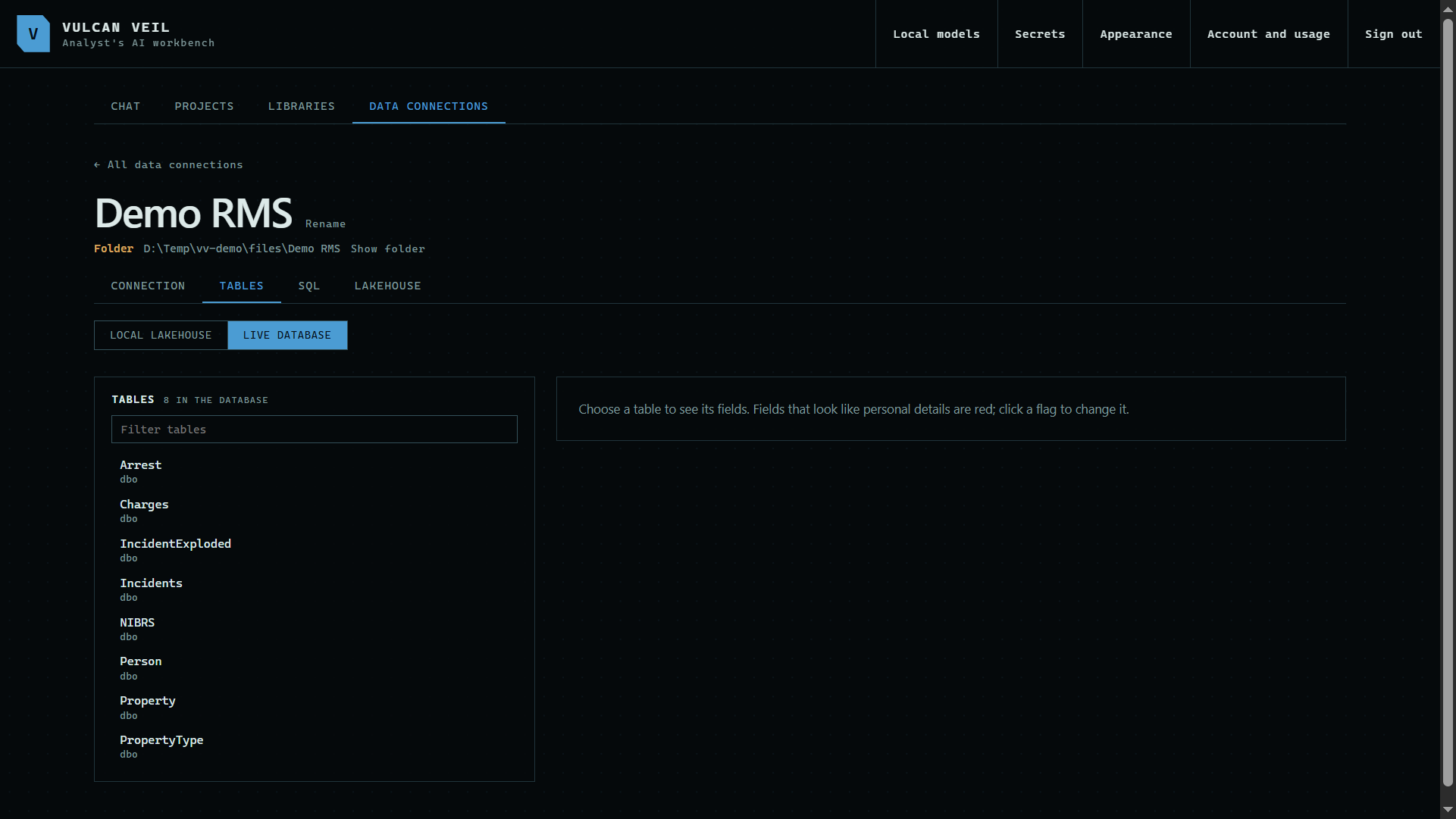
Open the Tables tab and press Live database. It lists the tables your login can read.
 Expand
2. Choose a table
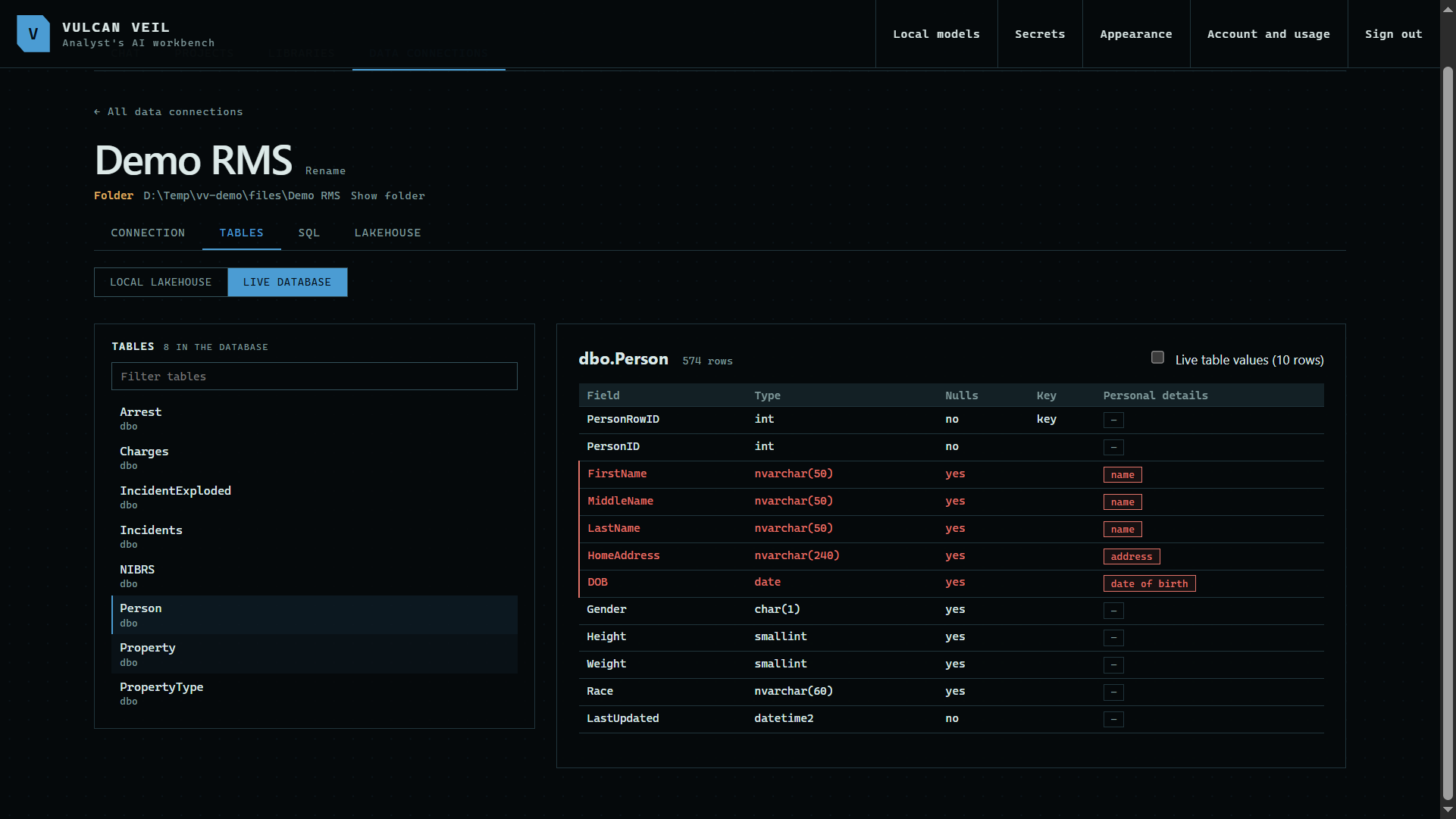
Press a table to see its fields, their types, and its size. Fields that look like personal details are red.
 Expand
3. See a few rows
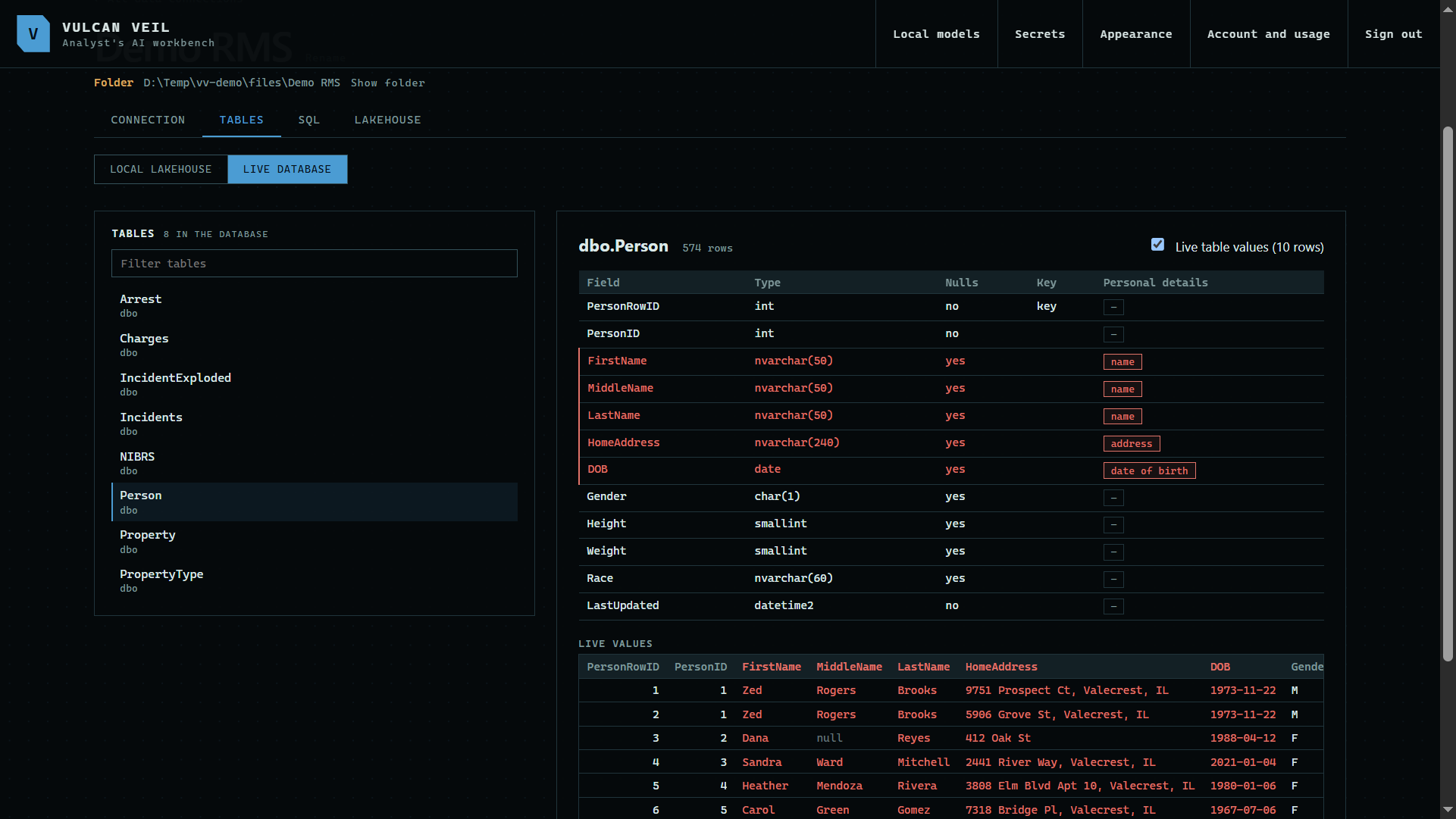
Tick Live table values to read the first 10 rows.
 Expand
4. Correct a flag
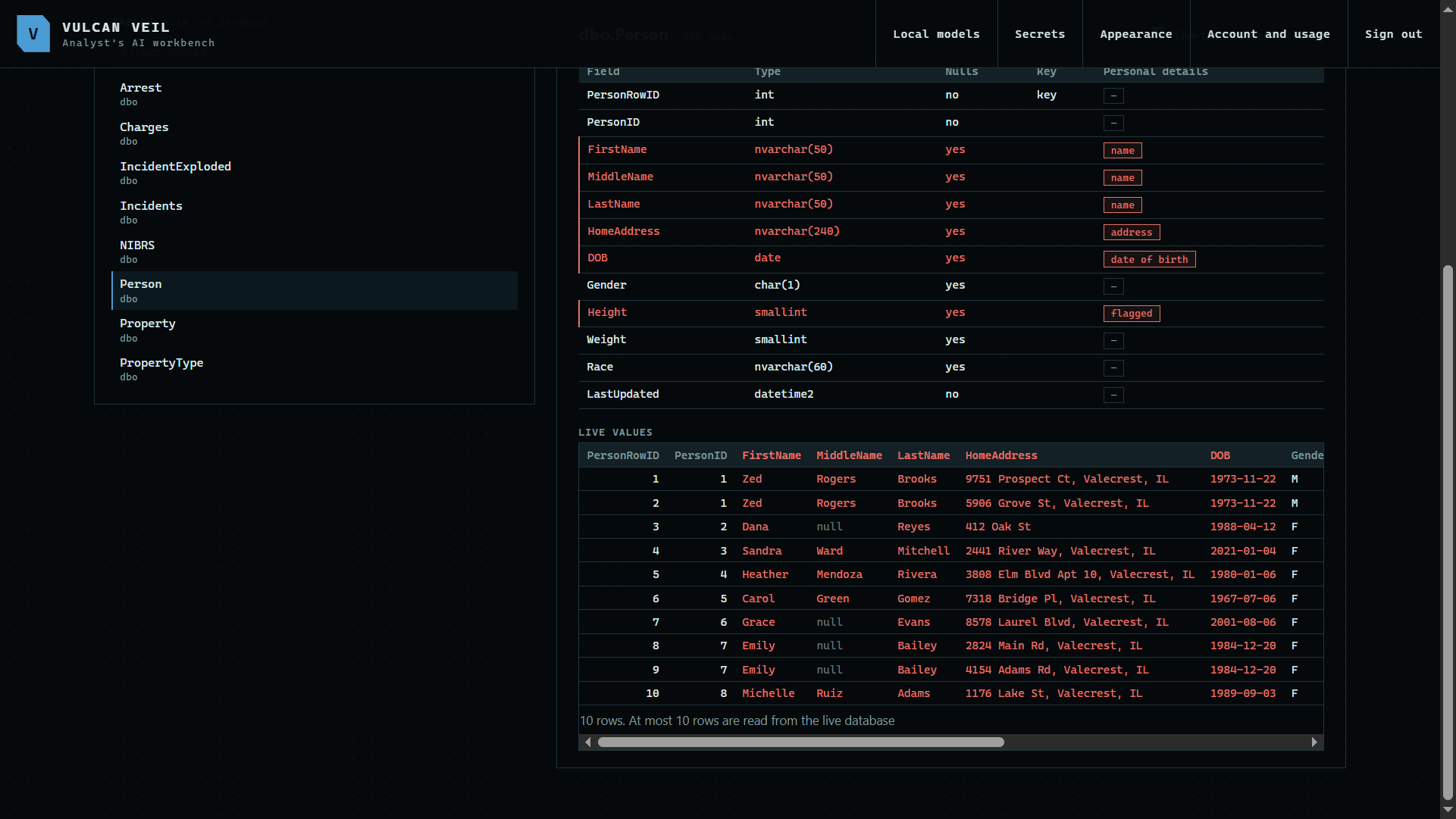
The app guesses from each field's name and values. Press a field's Personal details button to change it, and your choice stays with this connection.
 Expand
Good to know
- These rows come straight from the database to your screen. The assistant does not see them.