Adding a PDF
A library turns your documents into Markdown copies that the assistant can search and cite. Your original stays where it is. This page uses a public Raleigh police directive.
Follow along: download RaleighSearchSeizure.pdf (581 KB) and add it to a library.
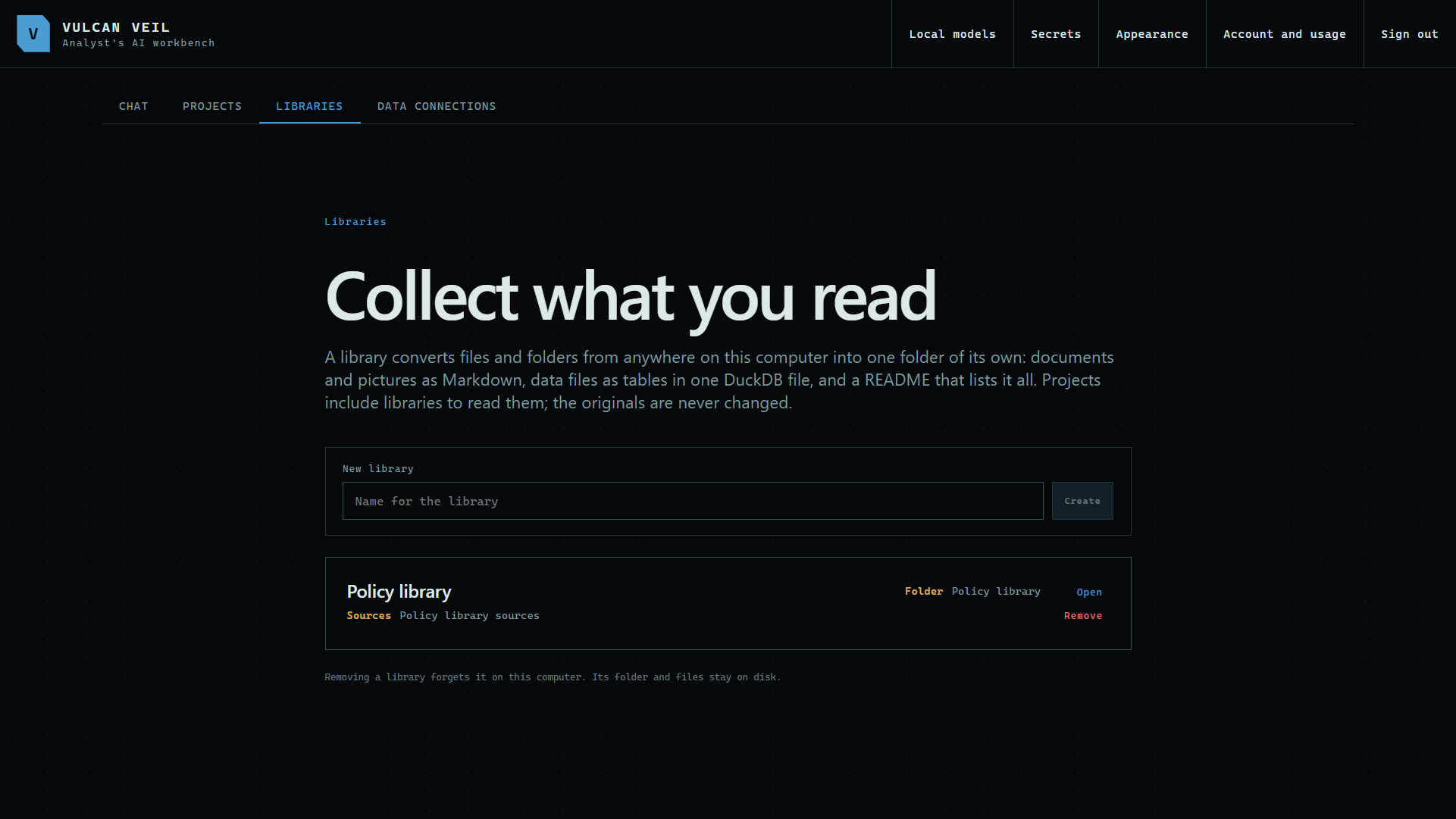
1. Open a library
Open the Libraries tab. Name a new library and choose where it saves its copies, or open one you already have.
 Expand
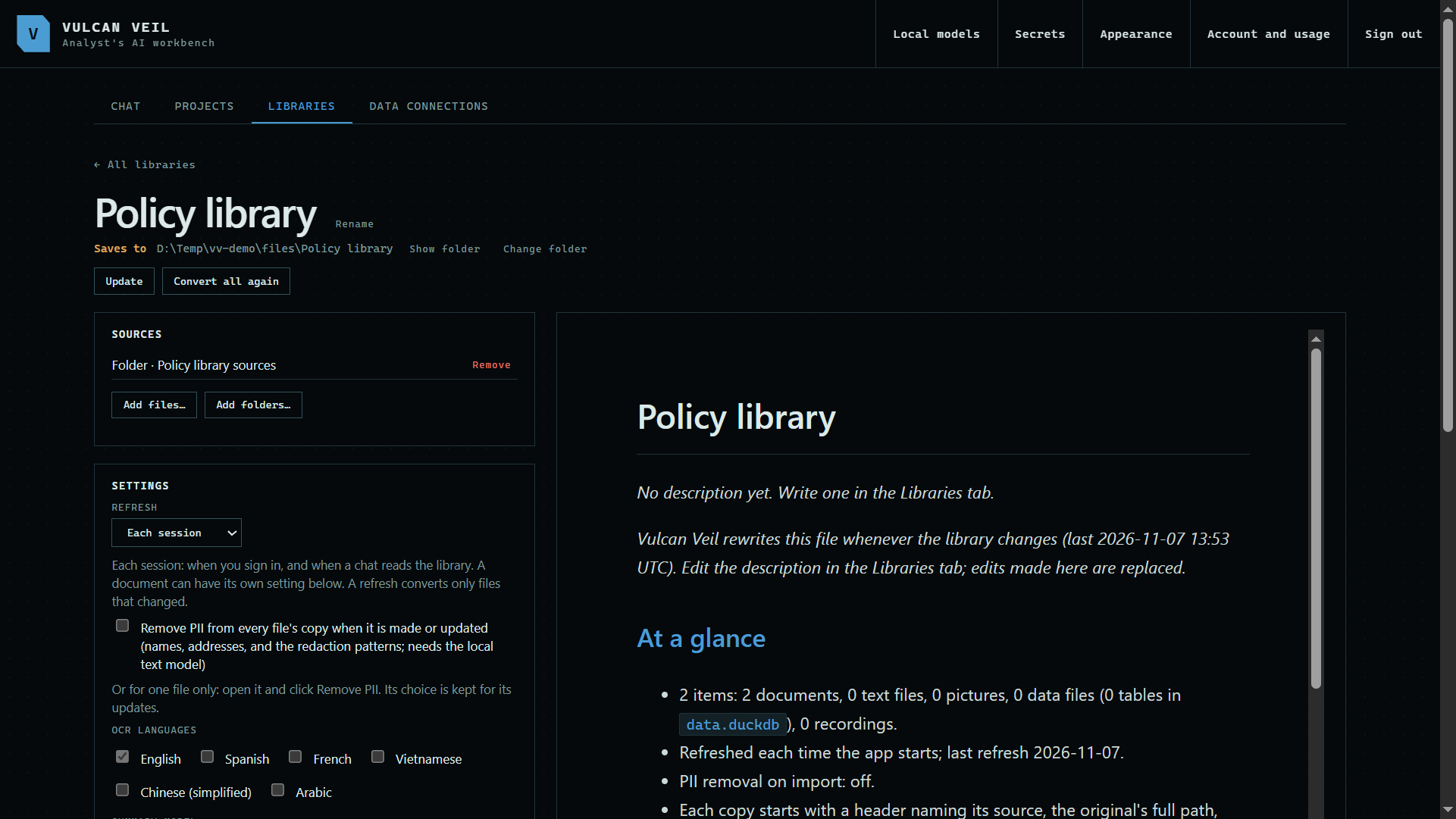
2. Add your files
Press Add files, or Add folders to keep a whole folder in step. The app makes a copy of each file on your computer, and the README lists what is in the library.
 Expand
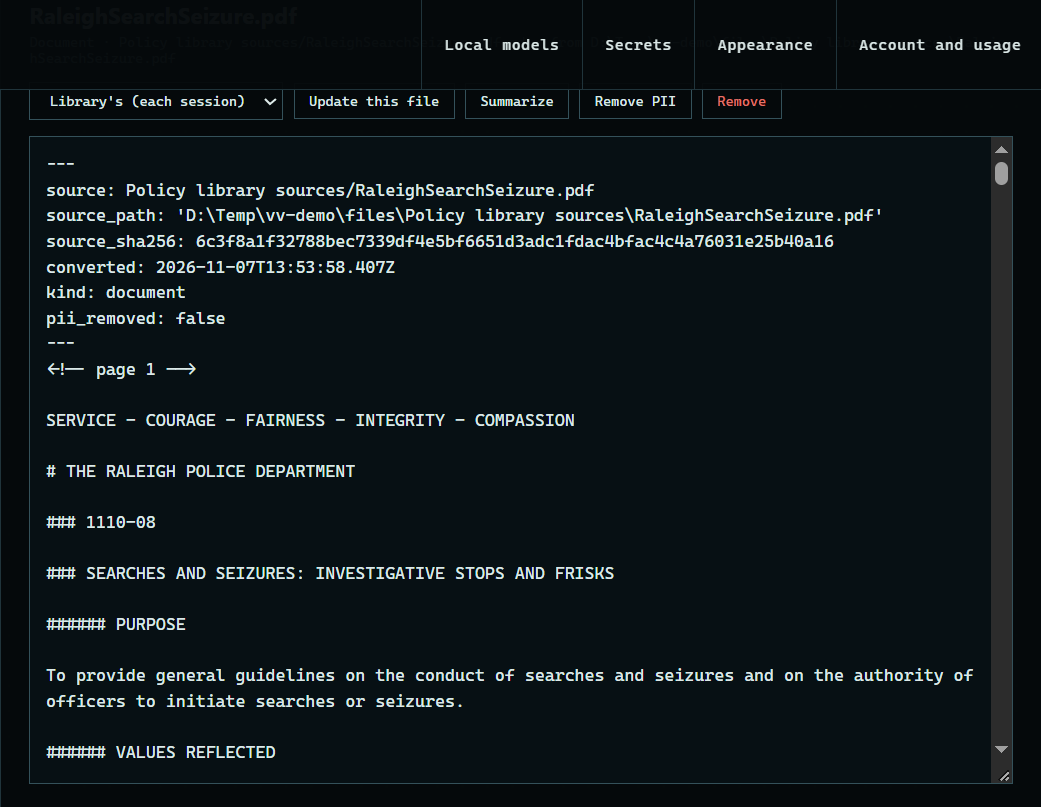
3. Read the copy
Press a document under Contents. Its copy opens as Markdown, with a header naming the original and its page numbers marked.
 Expand
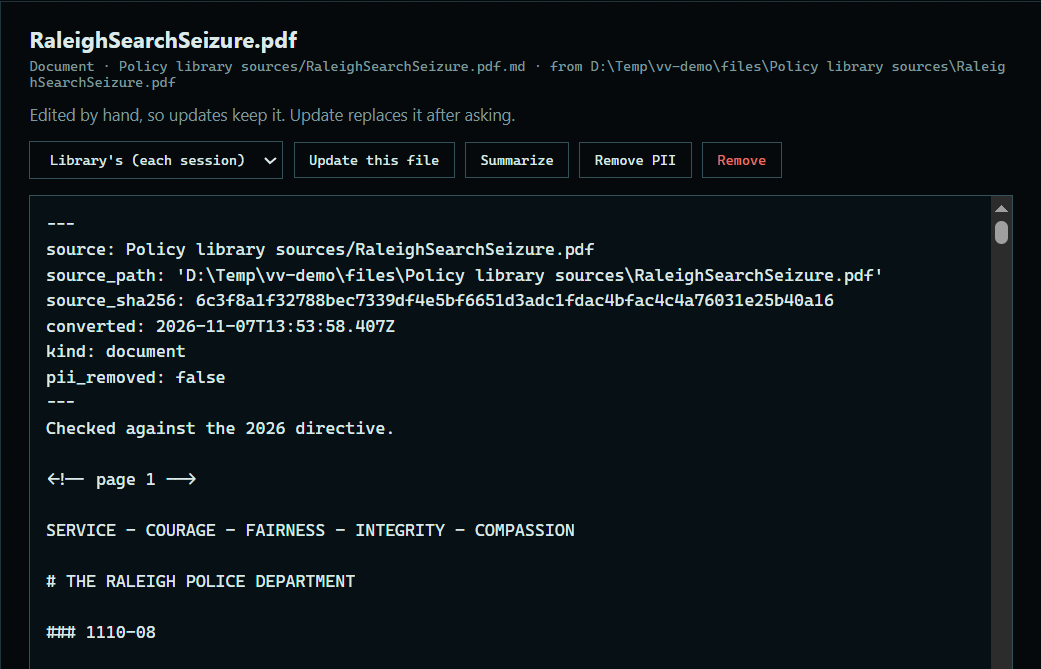
4. Edit the copy
Type in the copy to fix anything the conversion got wrong, then press Save. An edited copy is kept: an update replaces it only after asking.
 Expand
Good to know
- The library checks for changed files each time you sign in, and converts only the ones that changed. You can change that under Refresh.
- A library is separate from your projects. A project can include a library, read-only.
- A desktop library is the one for documents that keep changing, since it updates its copies when the files change. A web library keeps each document as you added it.