Allowing networks
If your team should only work from the office or over your agency's VPN, the owner can list those networks. Anyone on any other network can't sign in or keep working, on the website or in the desktop app. It's off until you turn it on.
1. Find Allowed networks
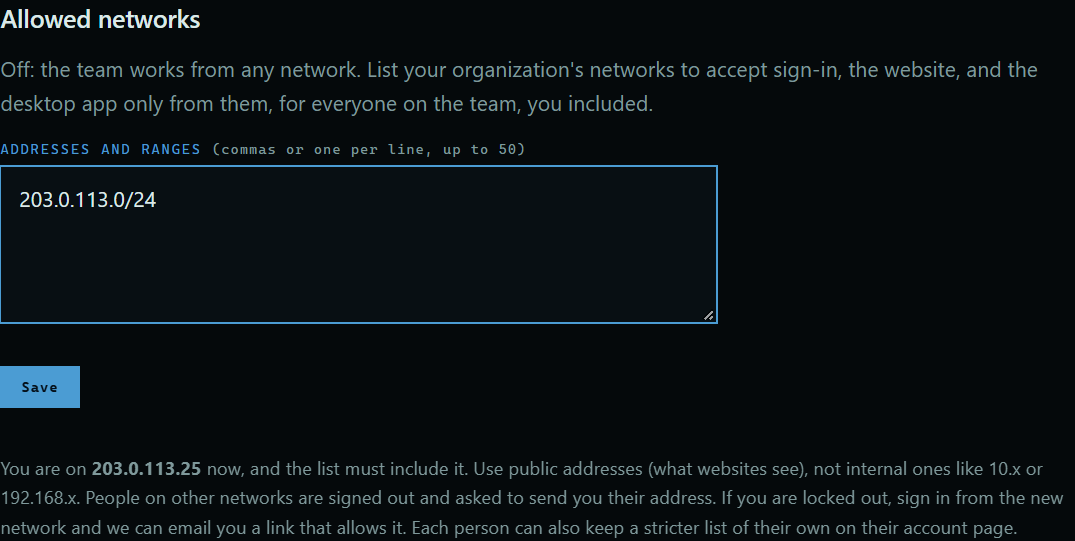
On the Team page, scroll to Allowed networks. It says whether the list is on, and which address you are on now.
 Expand
2. List your networks
Enter your organization's public addresses or ranges, with commas or one per line, then press Save. The list must include the address you are on now, so you can't lock yourself out by accident.
Good to know
- The list covers everyone on the team, you included, on the website and in the desktop app.
- Use public addresses, which are what websites see, and not internal ones like 10.x or 192.168.x.
- People on other networks are signed out and asked to send you their address.
- If you get locked out, sign in from the new network and we can email you a link that allows it.
- Each person can also keep a stricter list of their own. See Allowing networks under Account.
- The address on this page is an example.