Searching the web
Web search is off until you turn it on, and you choose where it may look. With a list of sites, the assistant cannot read anything else, even if you ask it to.
1. Turn on Web search
Tick Web search under the message box. A Sites button appears next to it.
 Expand
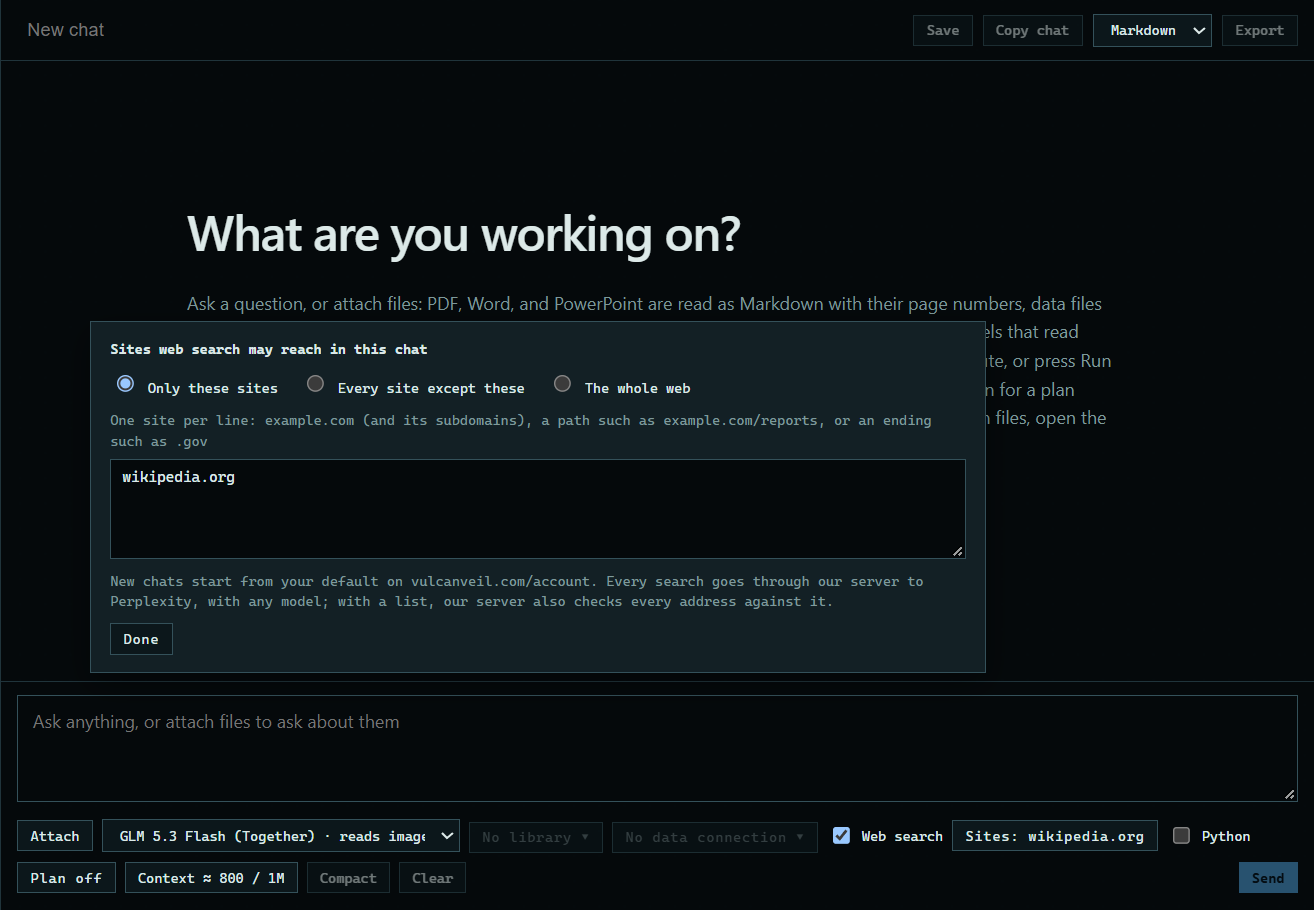
2. Choose the sites
Press Sites. You can allow only a list of sites, every site except a list, or the whole web. A line can be a site, a path, or an ending such as .gov.
 Expand
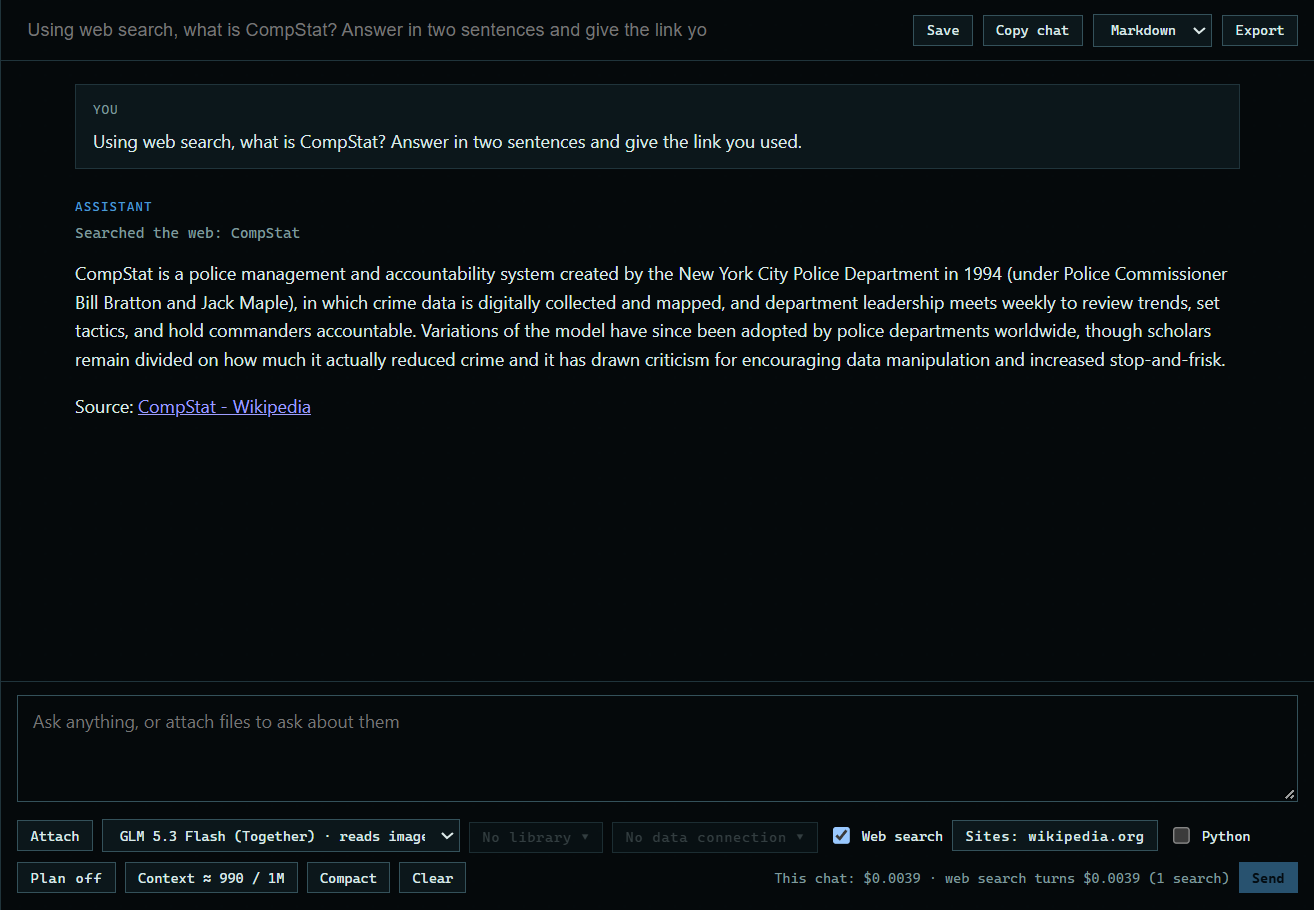
3. Ask your question
Type your question and press Send. Here: "Using web search, what is CompStat? Answer in two sentences and give the link you used." The answer links to where it came from.
 Expand
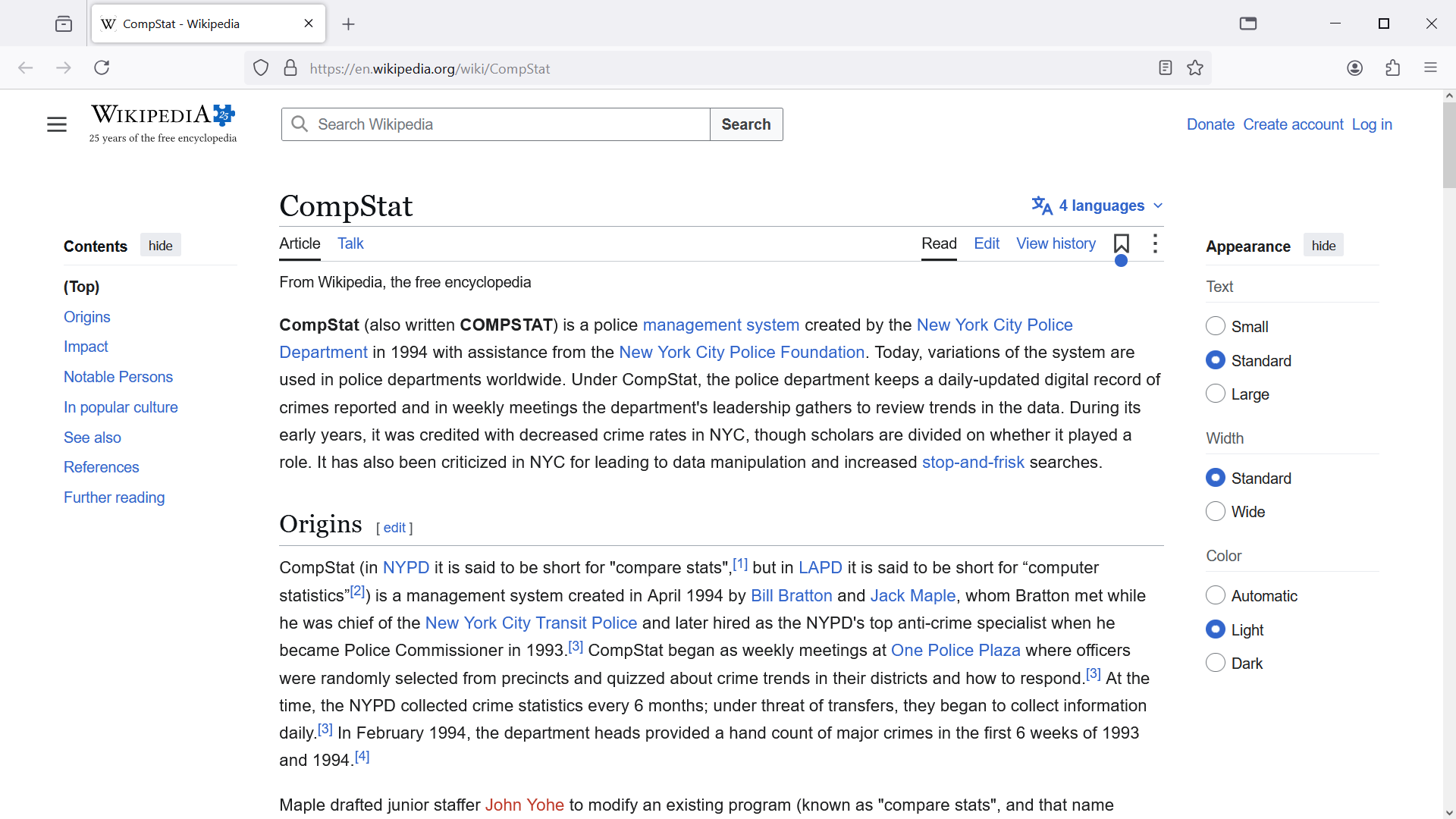
4. Press a link to check the source
A plain link opens at once in your own web browser, never inside the app.
 Expand
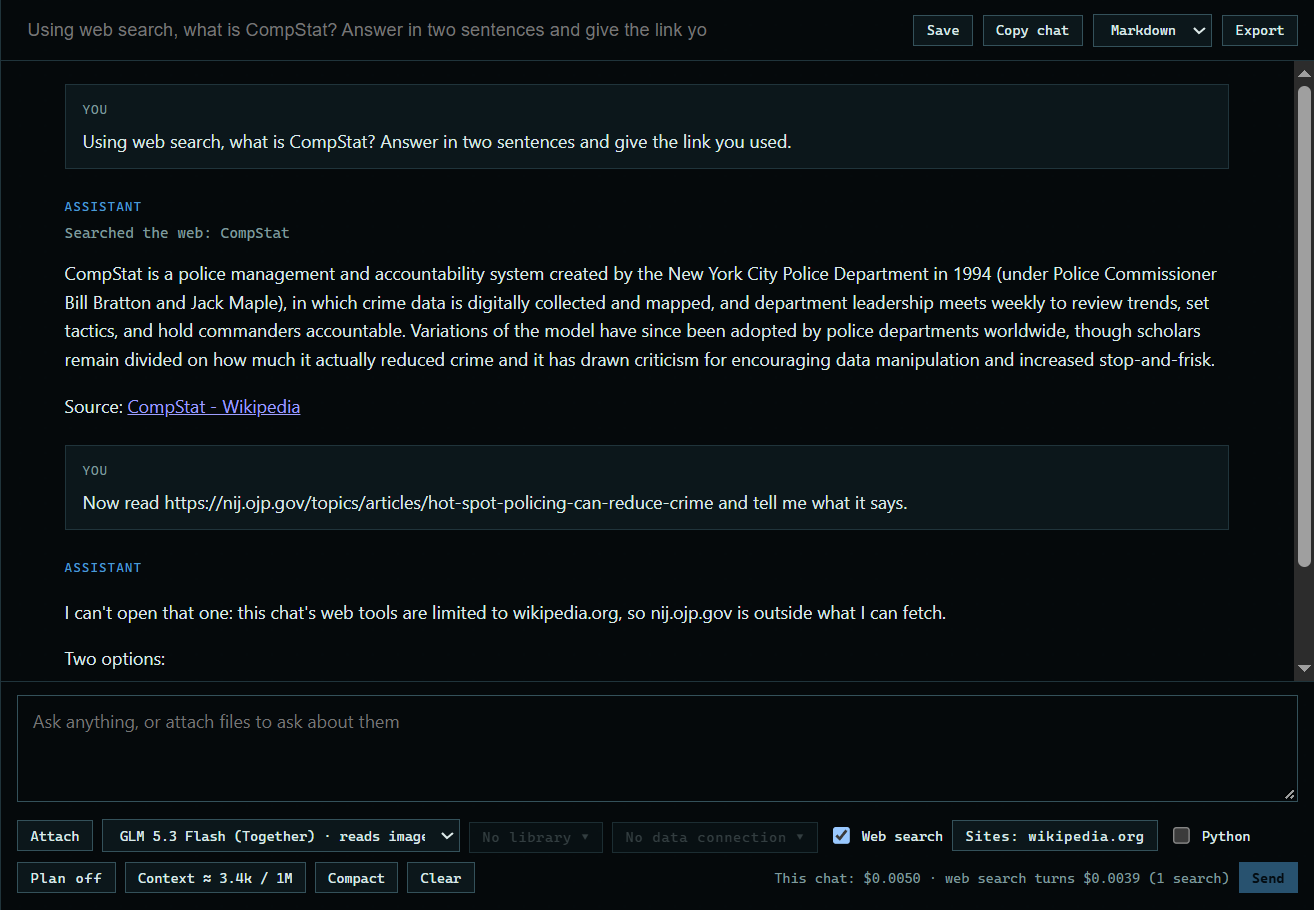
5. Try a site outside the list
Here: "Now read https://nij.ojp.gov/topics/articles/hot-spot-policing-can-reduce-crime and tell me what it says." That site is not on the list, so the page is not read.
 Expand
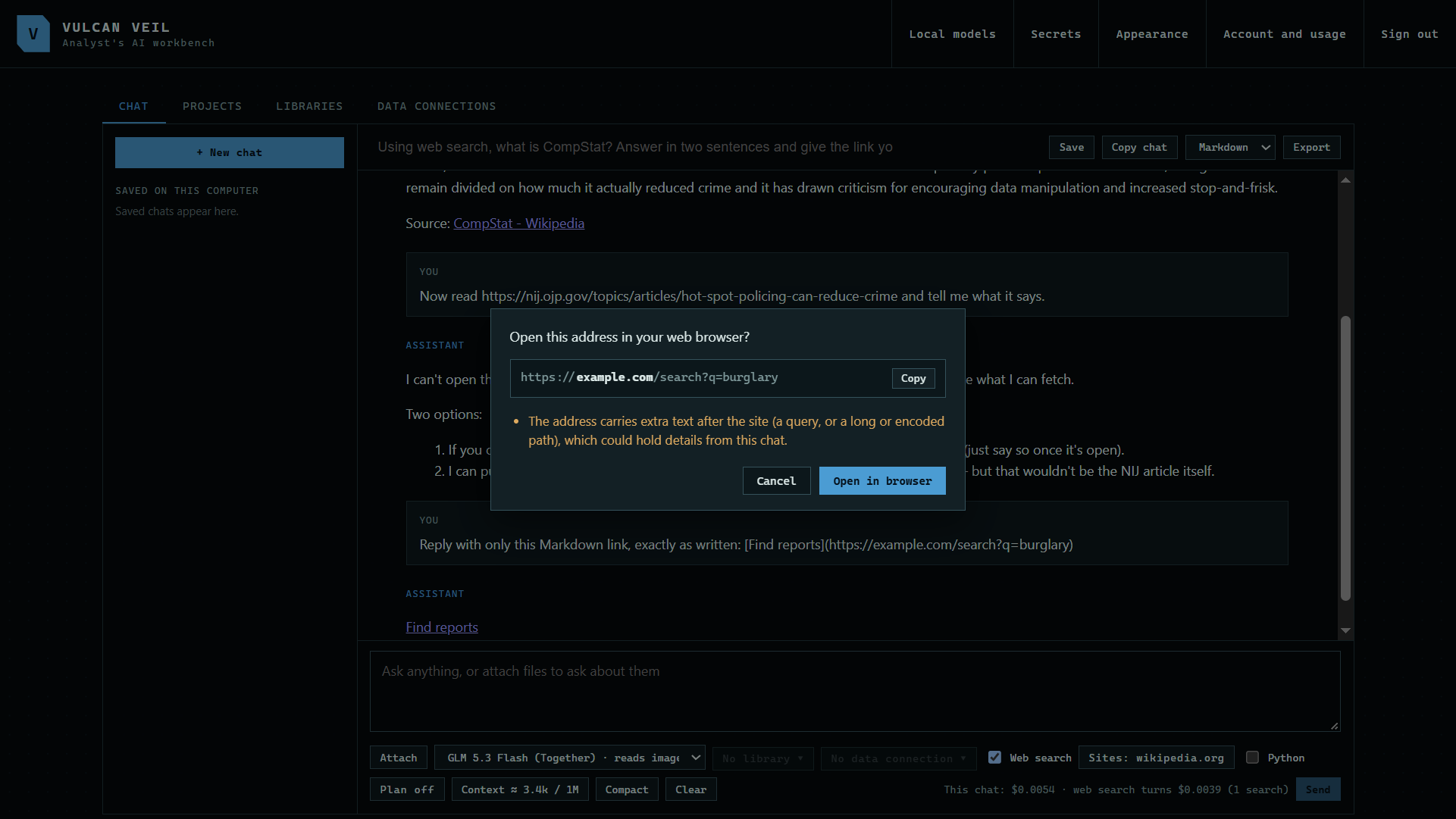
6. Check a link that carries data
A web address can hide text in it, so a link with a query asks first and shows the whole address. Links to this computer's own addresses are refused.
 Expand
Good to know
- Search queries go to an outside search service, and they can contain words from your question. Never use web search with case data.
- With a list, our server checks every address against it before anything is read.
- A team owner's policy applies on top of yours.