Scheduling updates
A local copy is only as fresh as its last update. Schedule asks Windows to run the update for you, so the copy is current when you start work. All the data on this page is made up.
1. Find the Schedule section
It is on the Lakehouse tab, under Update now. update_lakehouse.bat in the connection's folder runs the same update with the app's Python, so you can also double-click it.
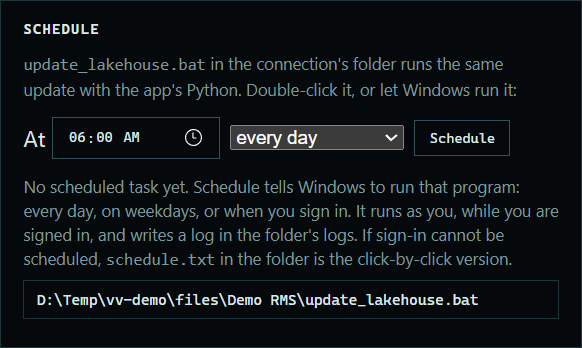 Expand
2. Choose when
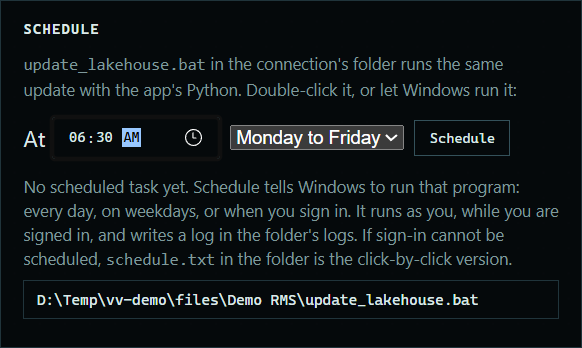
Pick a time and every day or Monday to Friday, or choose when I sign in, then press Schedule.
 Expand
3. Check the task
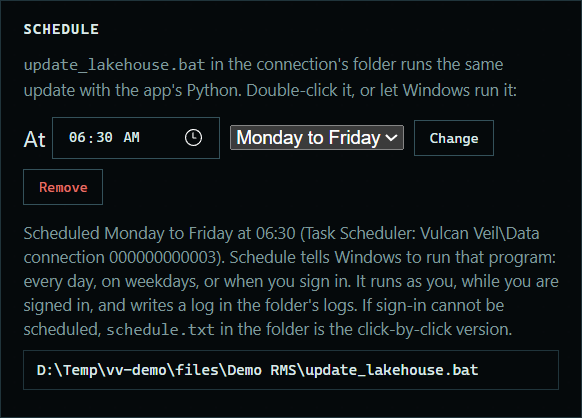
The line under the buttons says when it runs and names the task. In Windows Task Scheduler it is in the Vulcan Veil folder.
 Expand
4. Change or remove it
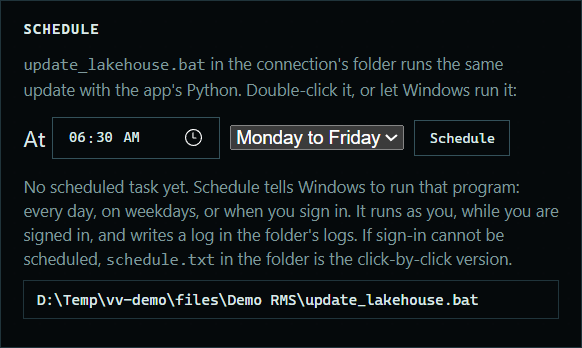
Choose another time and press Change to move it, or press Remove to delete the task from Windows.
 Expand
Good to know
- The update runs as you, while you are signed in to Windows, and writes a log in the logs folder inside the connection's folder.
- Transforms run at the end of every scheduled update, as they do after Update now.
- If Windows will not make the task,
schedule.txtin the connection's folder has the steps to make it by hand. - Removing a connection removes its scheduled task too.