Using a library in a chat
Once a library is built, any chat can read it. The assistant searches the library itself, rather than you attaching files, and its answer names the document and page. This page uses a public Raleigh police directive.
Follow along: download RaleighSearchSeizure.pdf (581 KB) and add it to a library.
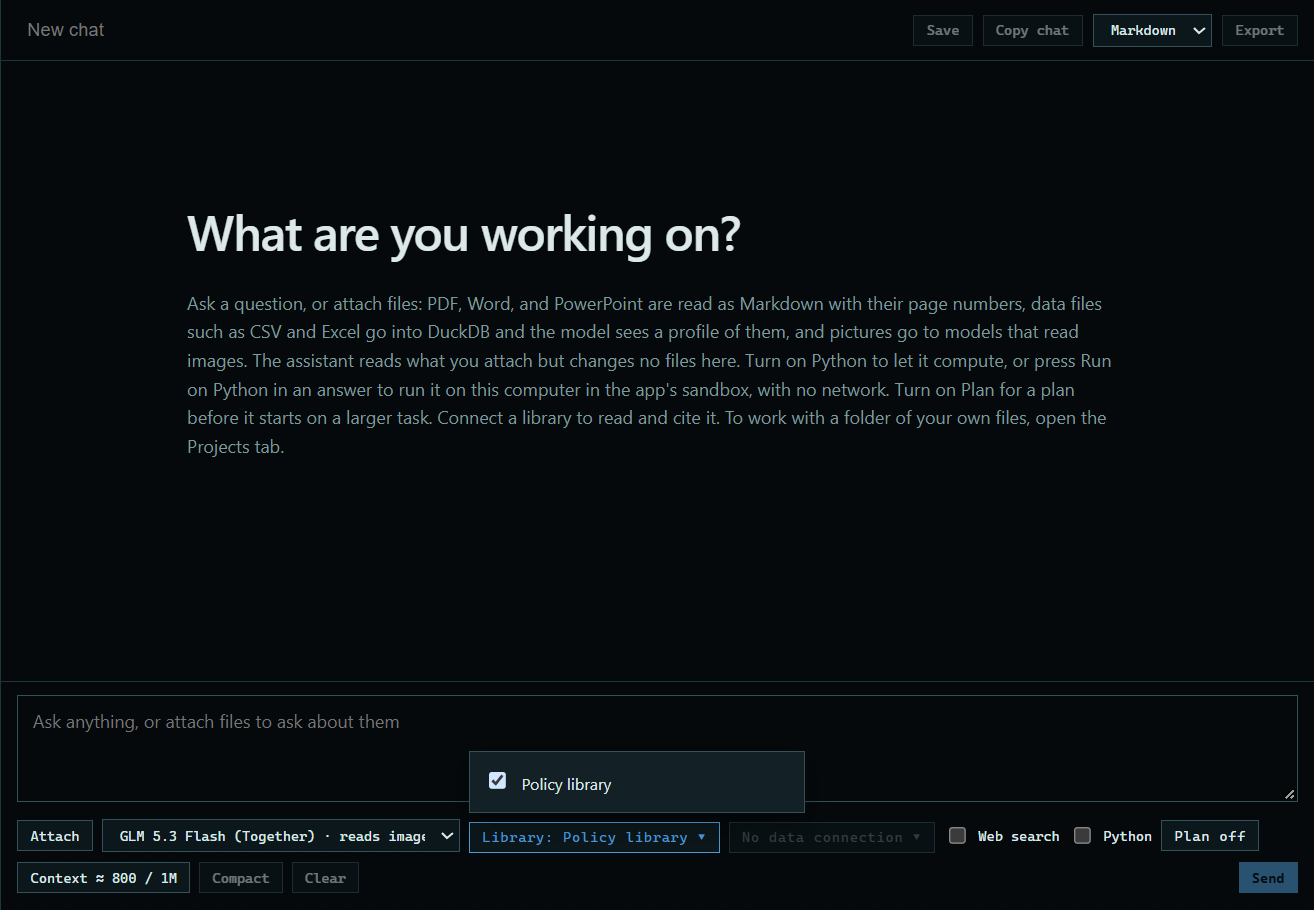
1. Choose a library
Press No library under the message box and tick one or more libraries.
 Expand
2. Ask your question
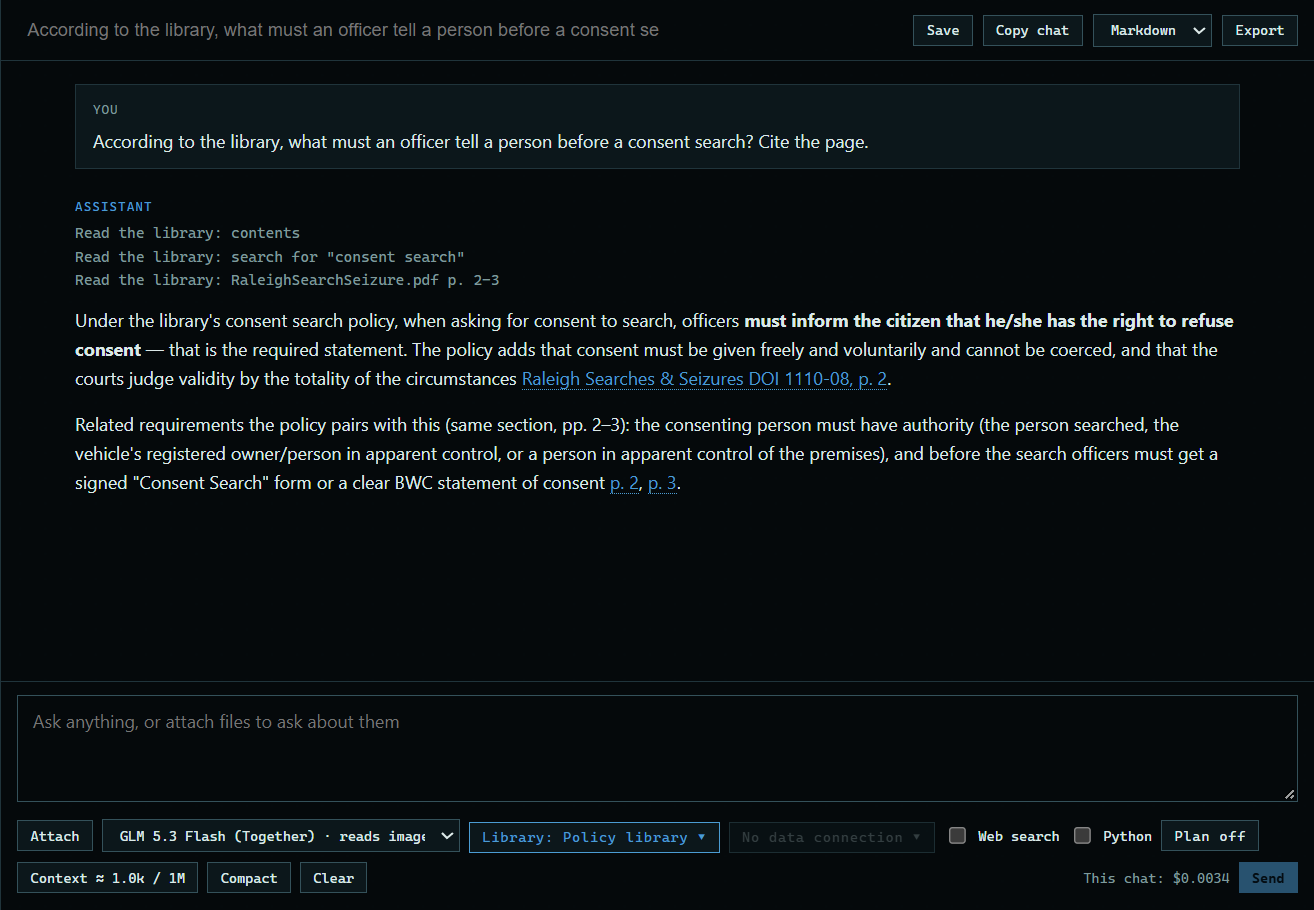
Type your question and press Send. Here: "According to the library, what must an officer tell a person before a consent search? Cite the page." The answer shows what the assistant read, and cites the document and page.
 Expand
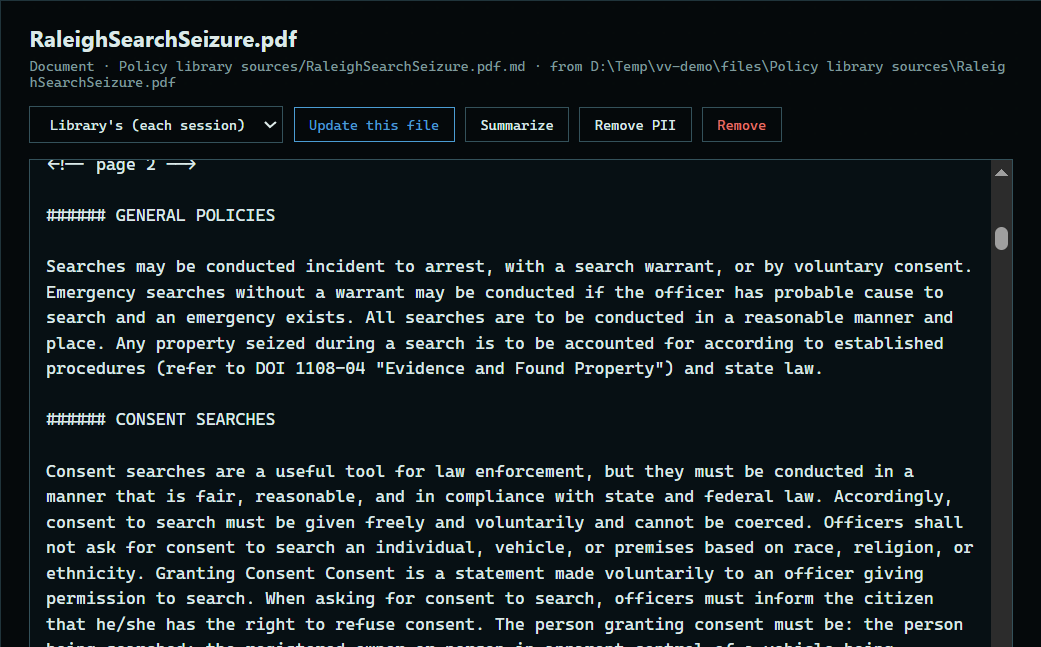
3. Open the citation
Press a citation. The document's copy opens in the Libraries tab at that page, so you can check the answer yourself. Your chat is still there under the Chat tab.
 Expand
Good to know
- Each read goes to the model with your message, like an attached file, and is another billed request.
- A library is refreshed before a chat reads it, at most once a minute, if its refresh is set to Each session.