Limiting models
Some agencies only want their staff using certain models, such as ones run on servers in the United States. The team owner picks the list, and it applies to everyone on the team. People only see the models you allow.
1. Find Models
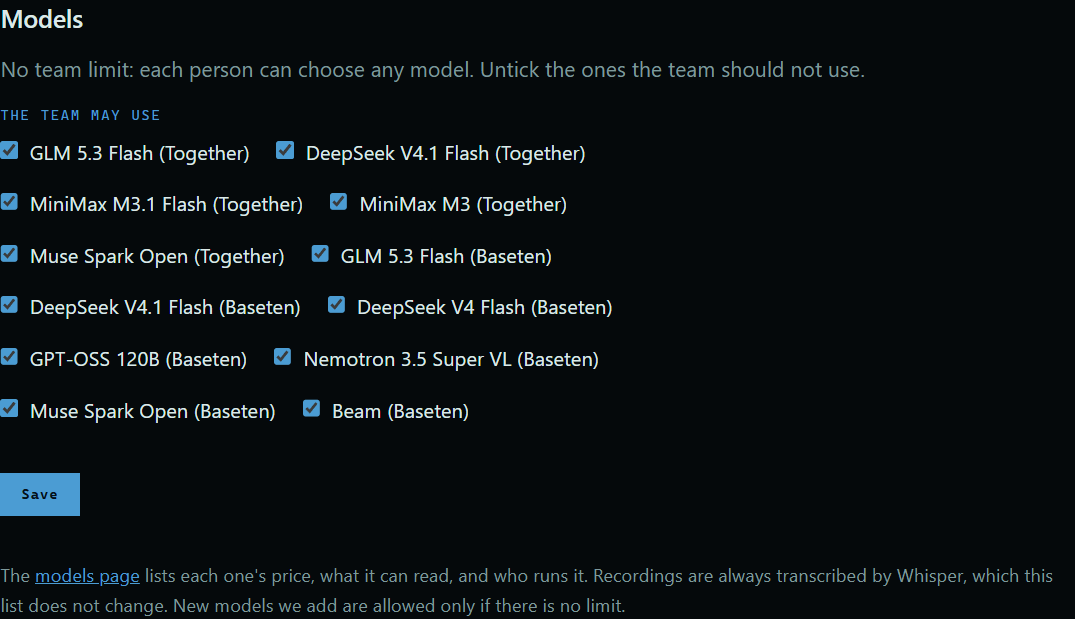
Press Team at the top of the site, and scroll to Models. Every model we offer is listed. With no limit, they are all ticked.
 Expand
2. Untick the ones to block
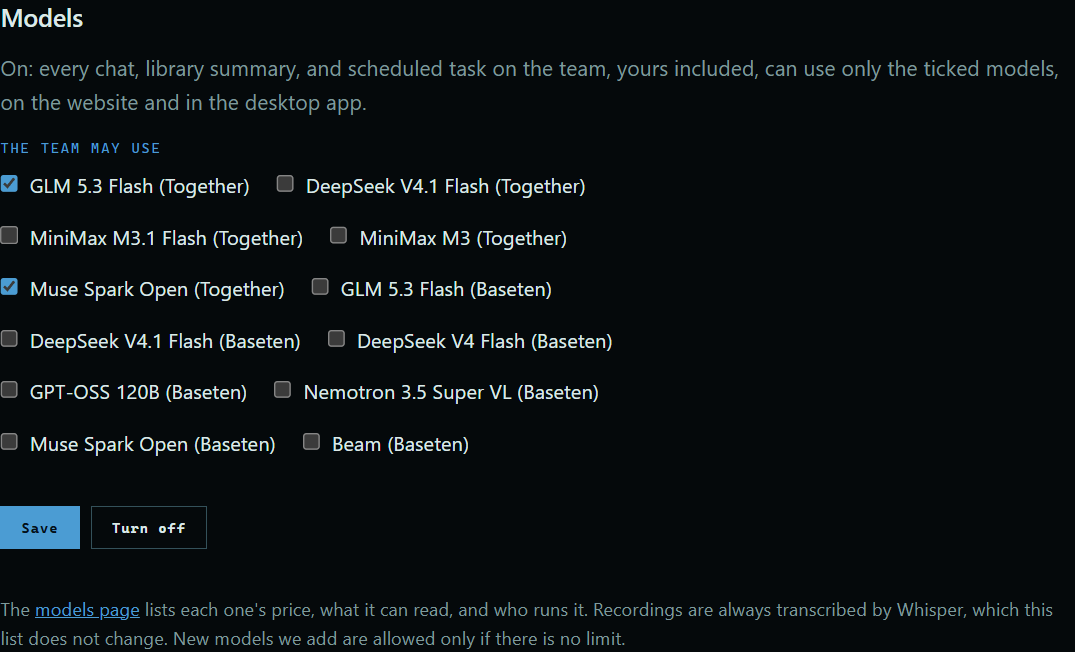
Untick the models the team should not use, and press Save. Here, the team keeps GLM 5.3 Flash and Muse Spark Open, both run by Together.
 Expand
3. What people see
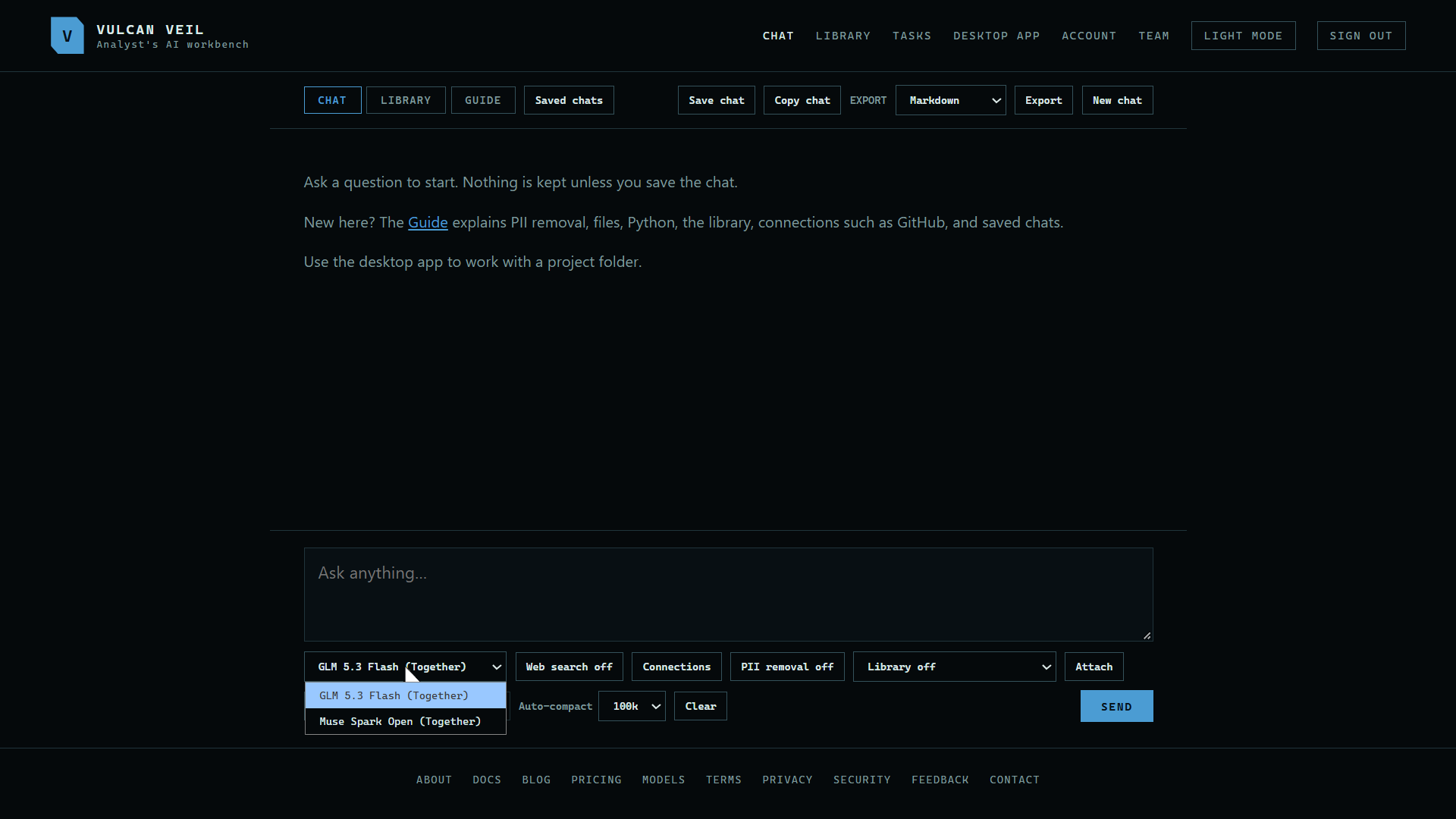
Everyone on the team now sees only those models in the model list, on the website and in the desktop app. Library summaries and scheduled tasks are held to the same list.
 Expand
4. Chat as usual
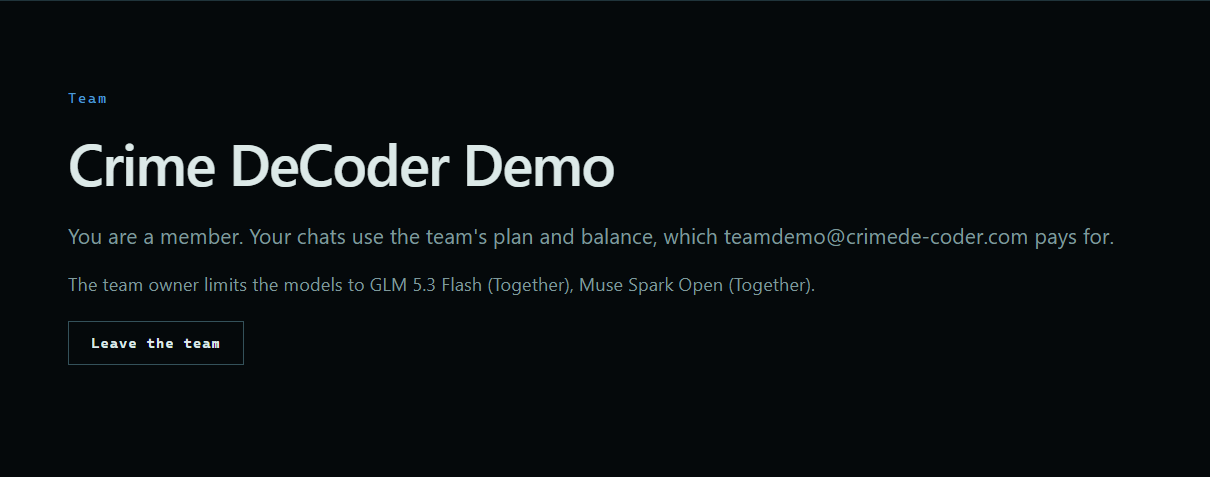
Chats work the same with the models you allow. The Team page tells each person which ones those are.
 Expand
Good to know
- The list applies to the owner too. Only the owner can change it.
- To take the limit off, press Turn off, or tick every model and press Save.
- The server checks the list on every request, so it holds in any browser and in every copy of the desktop app.
- A saved chat or scheduled task that used a blocked model moves to one the team allows.
- Models we add later are allowed only if the team has no limit. Otherwise, tick them when you want them.
- Recordings are always transcribed by Whisper, which this list doesn't change.
- The models page lists each model's price, what it can read, and who runs it.