Editing Word
Word files open in the project, and the assistant edits them like any other file. Nothing is saved until you say so. You can check each change, keep or undo it, and save a copy with the changes marked. The document on this page is made up.
Follow along: download burglary-series.docx (1 KB) and put it in a project.
1. Open the document
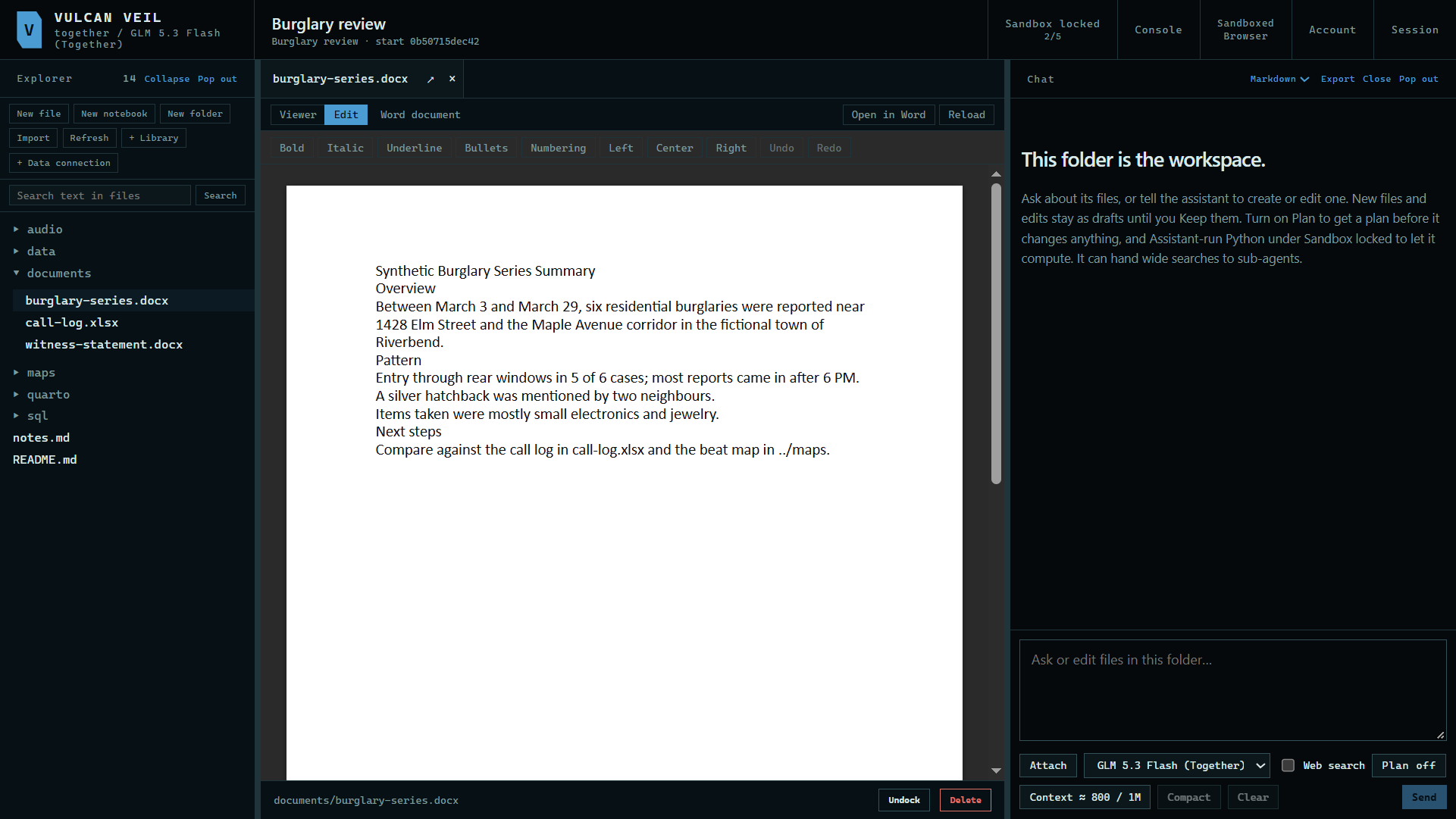
Press a Word file in the Explorer, then press Edit.
 Expand
2. Ask for a change
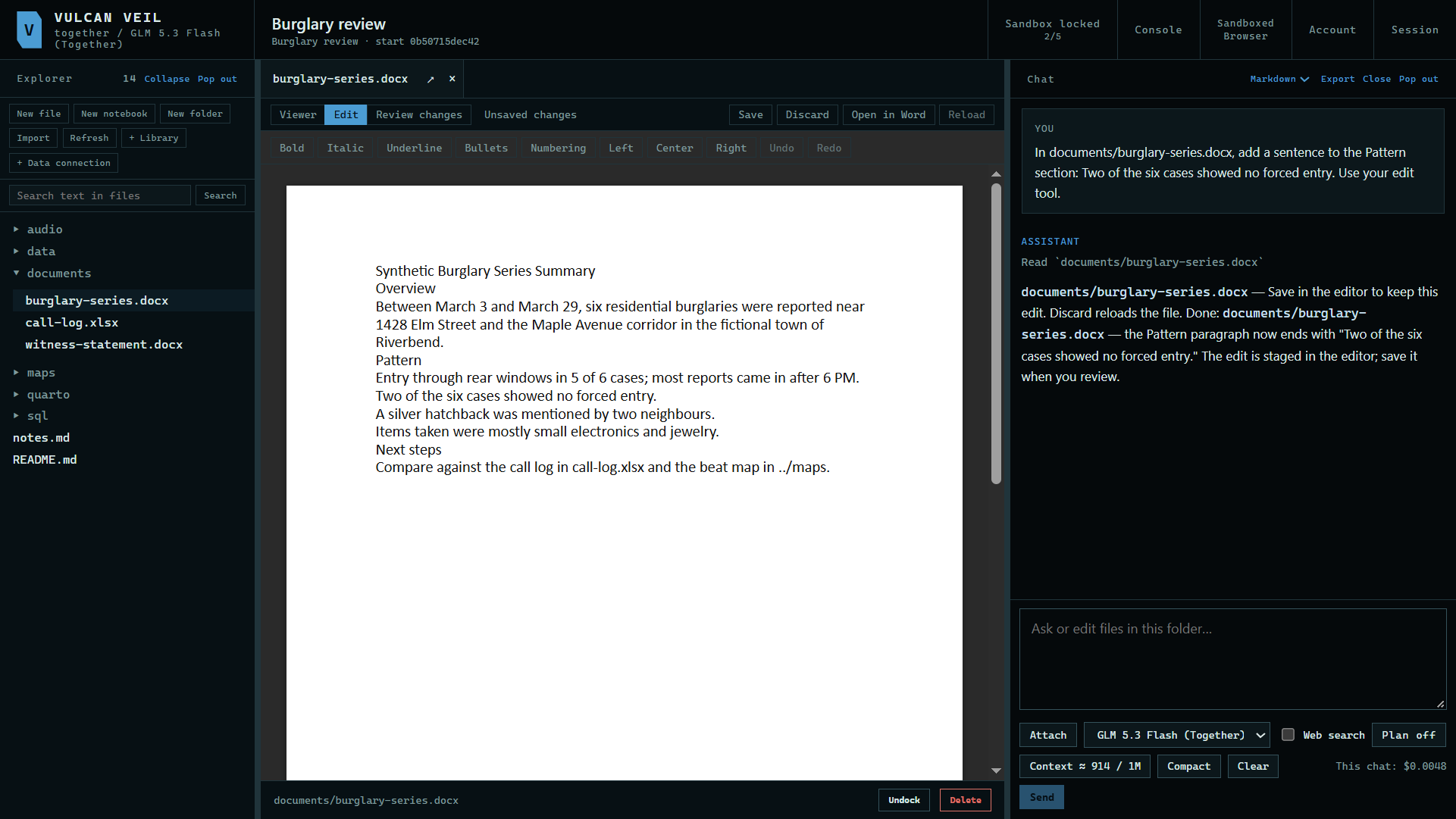
Tell the assistant what to change. Here: "In documents/burglary-series.docx, add a sentence to the Pattern section: Two of the six cases showed no forced entry. Use your edit tool." The answer says the edit is waiting in the editor.
 Expand
3. Review it
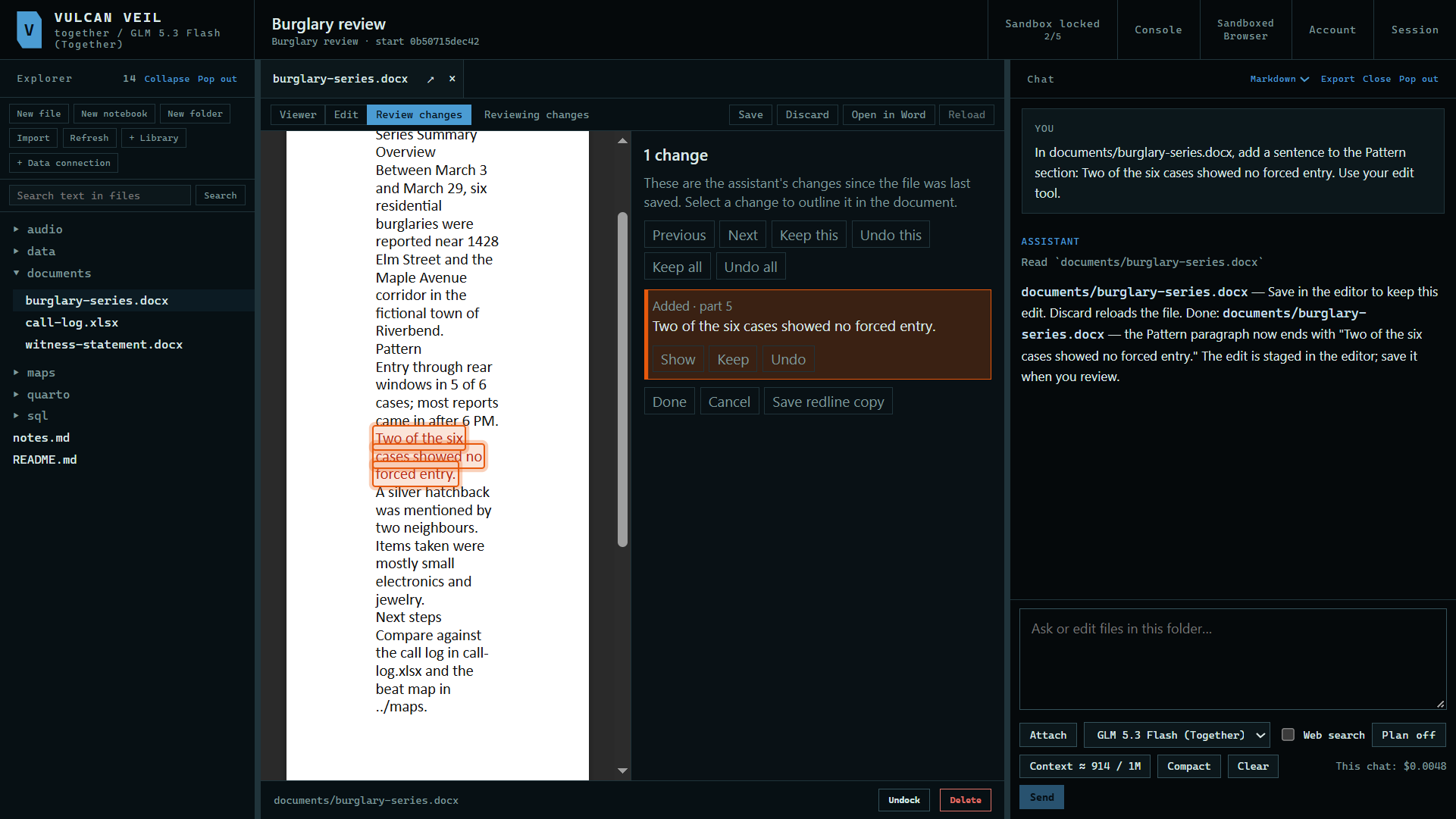
Press Review changes. The change is marked in the document and listed beside it, with Keep and Undo for each one.
 Expand
4. Save a redline copy
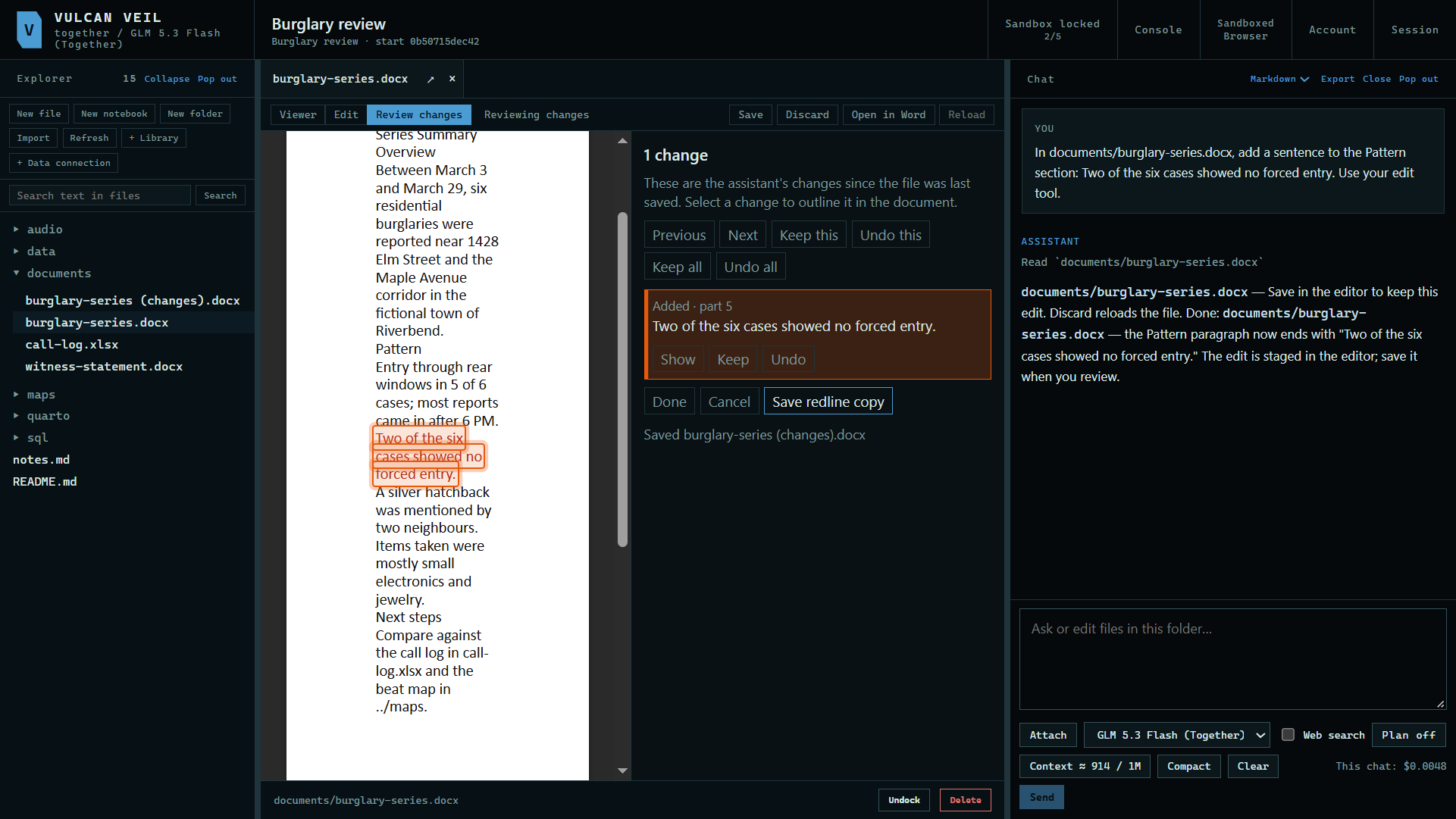
Press Save redline copy for a separate Word file with the changes tracked, ready to send to someone.
 Expand
5. Save it
Press Keep all, then Done, then Save. The file on disk changes only now.
Good to know
- PowerPoint files open here too, and the assistant can change their words. Excel files open as tables.
- Open in Word hands the saved file to Word.
- Click a picture, such as a logo, to change it: drag it to move it, drag a corner to resize it, or use the bar above the page to set its size, how text wraps around it, its alt text, to replace it with Change picture, or to delete it.
- A model that reads images can look at a page of a Word file or a slide in the folder to check how its changes look, including changes still waiting for Keep. The page is drawn in the app, without headers and footers.
- The assistant can delete a picture, float it behind or in front of the text, move, resize, or swap it. On a slide it can also add a text box or a picture anywhere, and move or delete either.