Changing what redaction looks for
Different files need different things removed. You can turn each kind of detail on or off, add your own, and run redaction again to see the change. The settings stay with the project, under a name if you want one, such as court filings. The files on this page are made up.
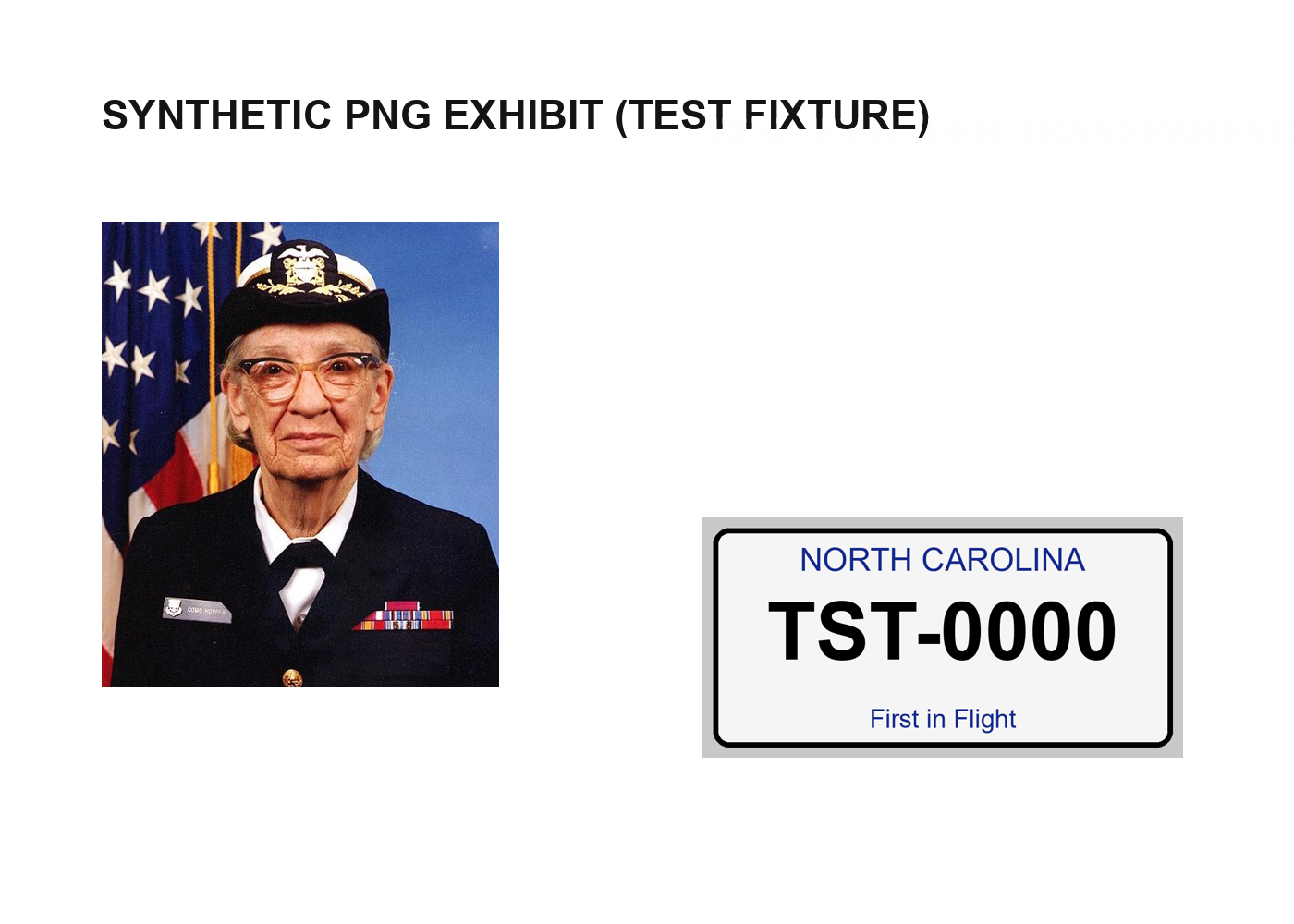
Follow along: download demo_redaction.pdf (4 KB) and demo_photo.png (452 KB) and put them in a project.
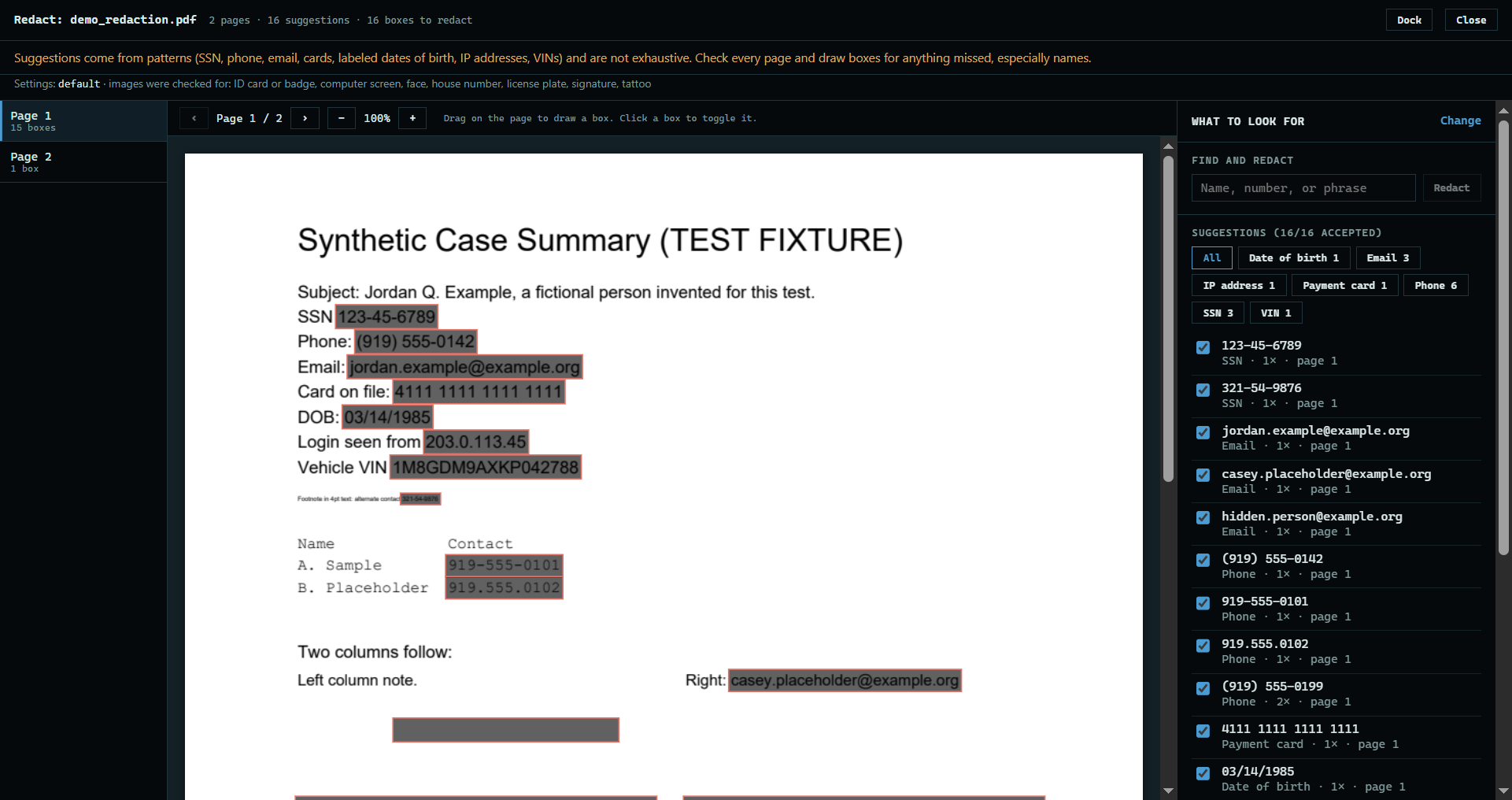
1. Open the settings
In a redaction review, press Change beside What to look for. The Redaction settings button on a PDF or picture opens the same settings by themselves.
 Expand
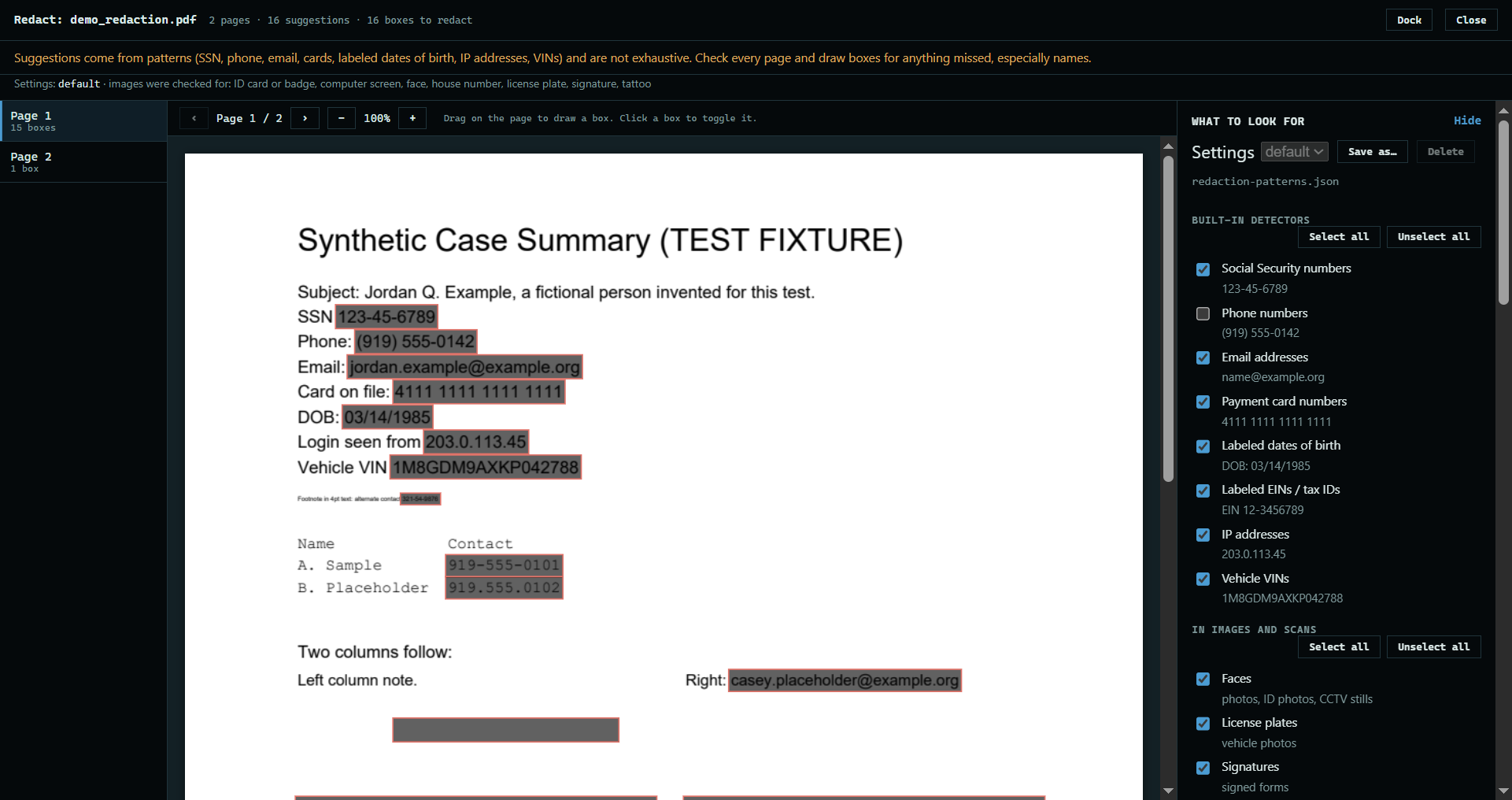
2. Turn detectors on or off
Untick any kind of detail this file does not need. Select all and Unselect all are there for starting over.
 Expand
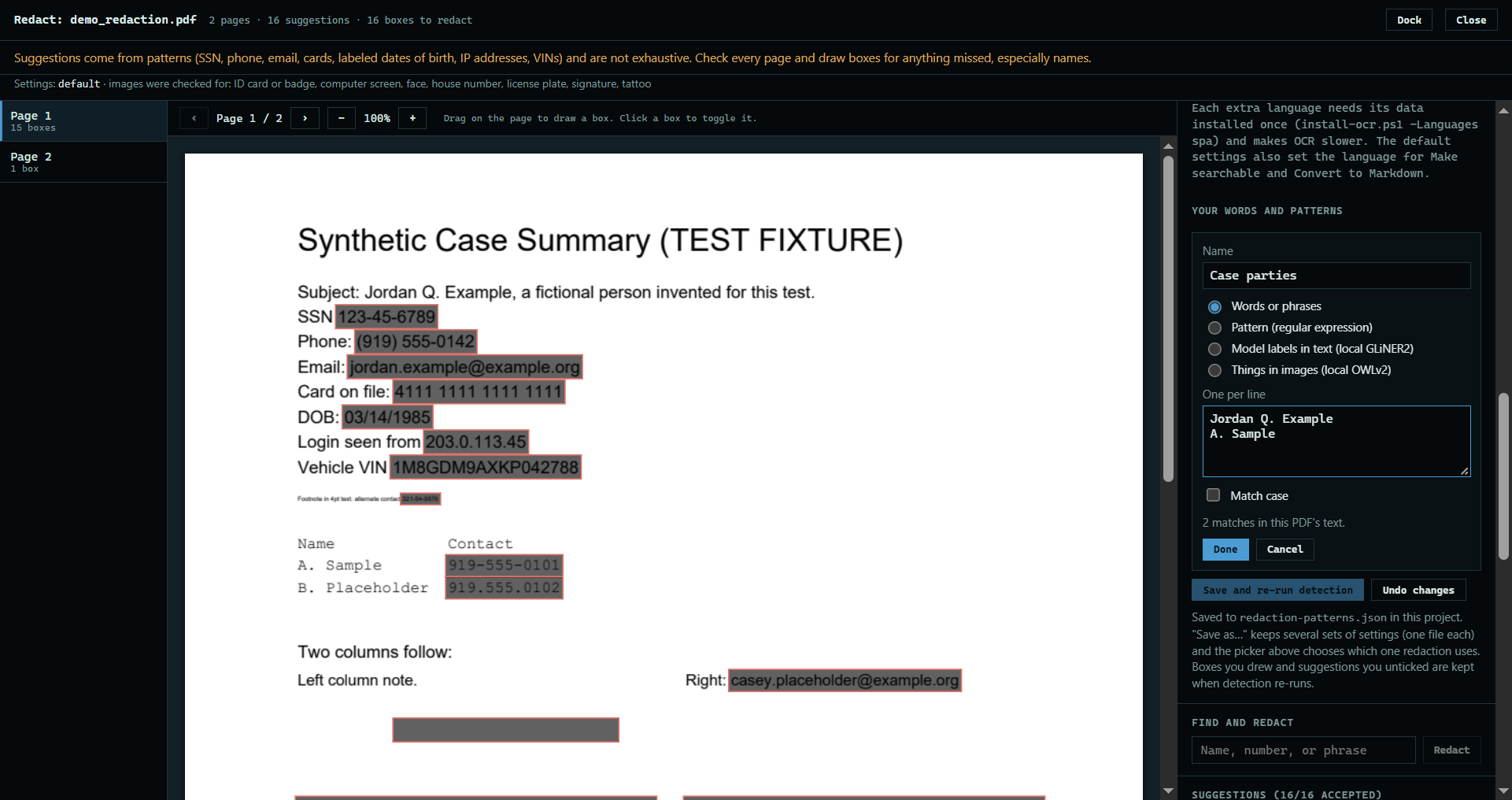
3. Add your own words
Press Add words, a pattern, or labels. Give the entry a name, and put a name or phrase on each line. The count shows how many times they appear in this PDF.
 Expand
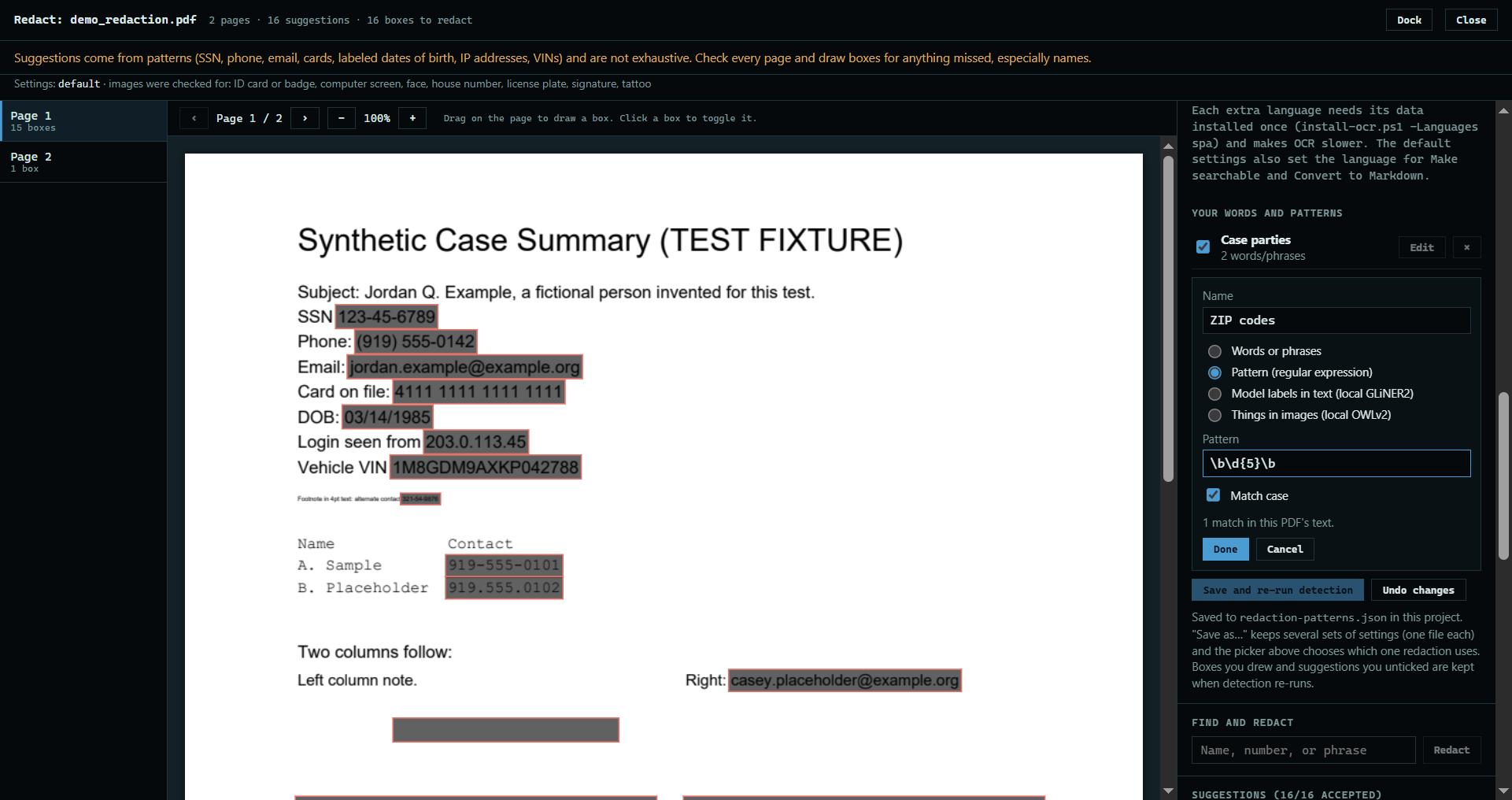
4. Add a pattern
Choose Pattern to find a format rather than exact words, such as a five-digit ZIP code, with a regular expression.
 Expand
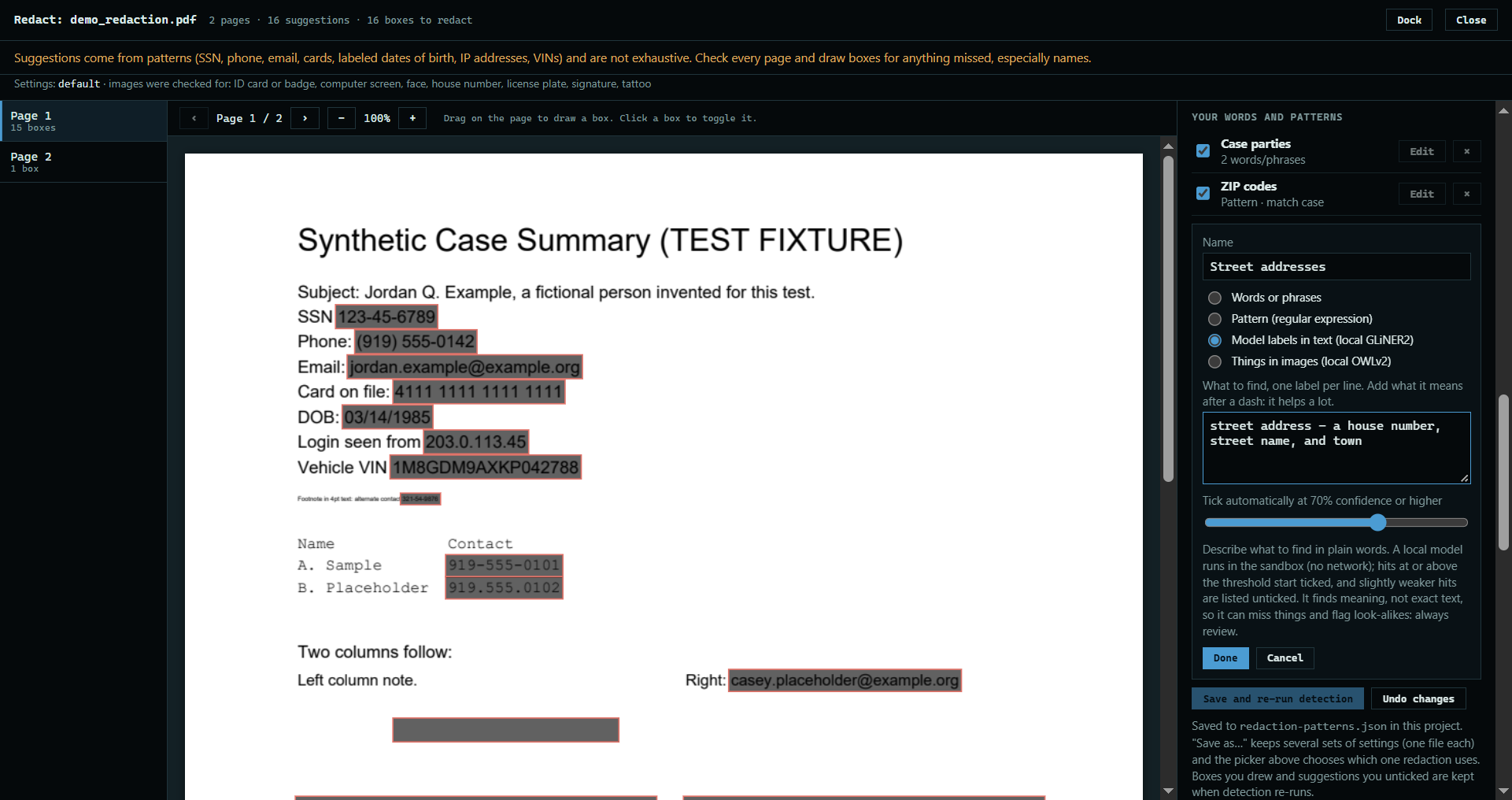
5. Describe it to a model
Choose Model labels in text and say what you want in plain words, such as street address. The slider sets how sure the model must be to tick a match. Weaker matches are still listed, unticked.
 Expand
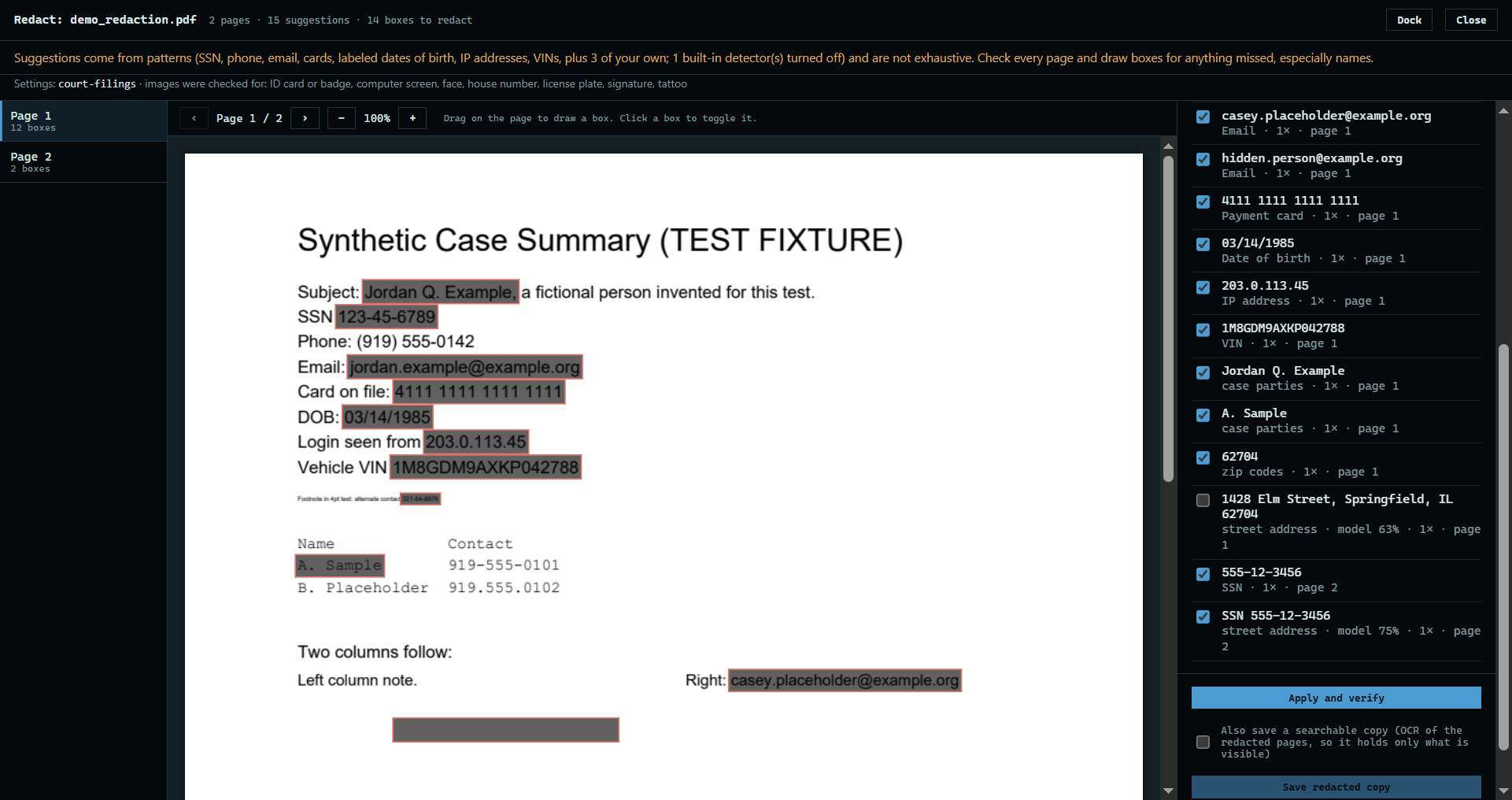
6. Save and run again
Press Save and re-run detection. Or press Save as… to keep the choices under a name, which also runs again. Boxes you drew and suggestions you unticked are kept. Here the address scored under the slider, so it is listed but waits unticked.
 Expand
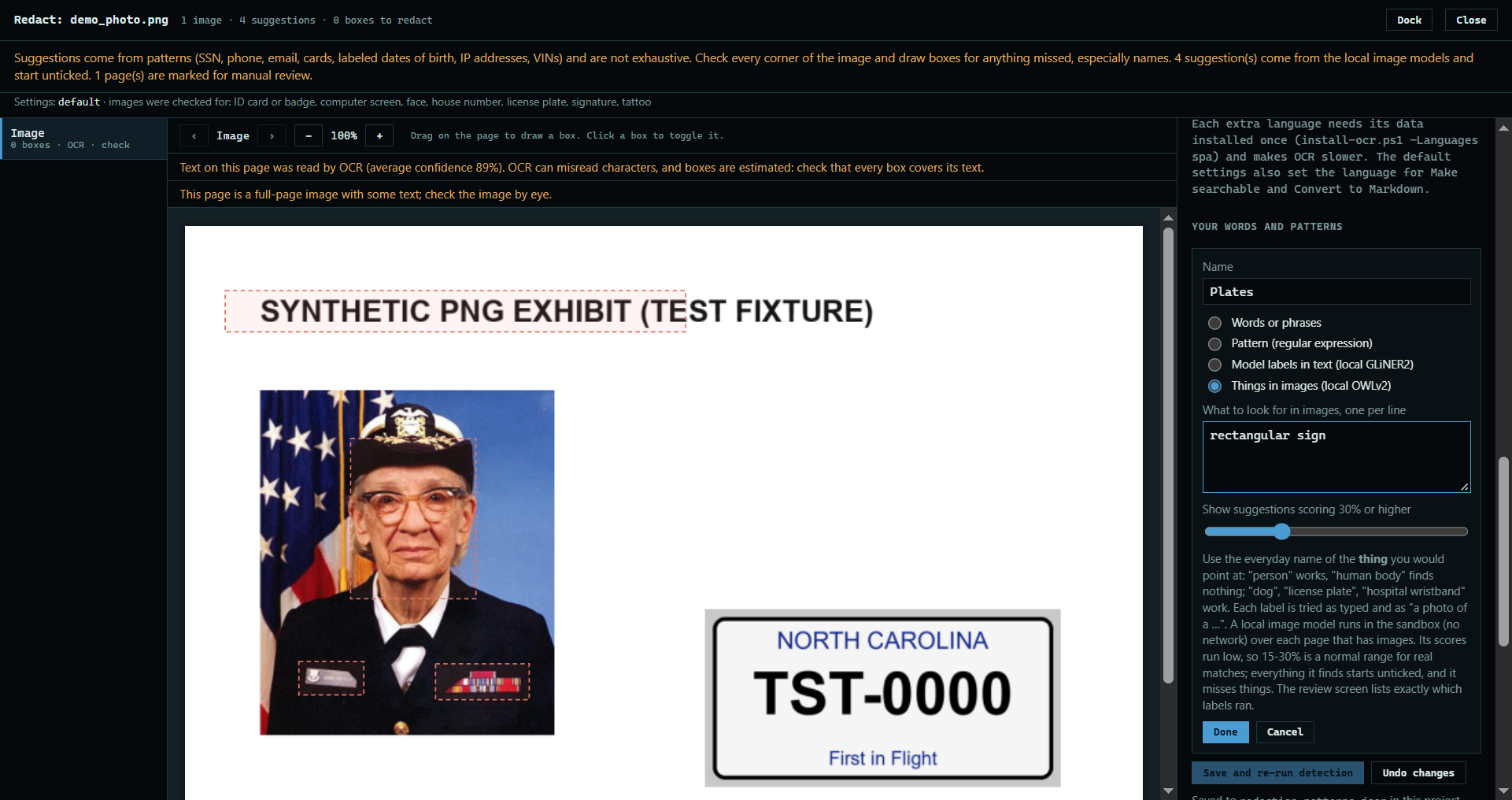
7. Do the same for pictures
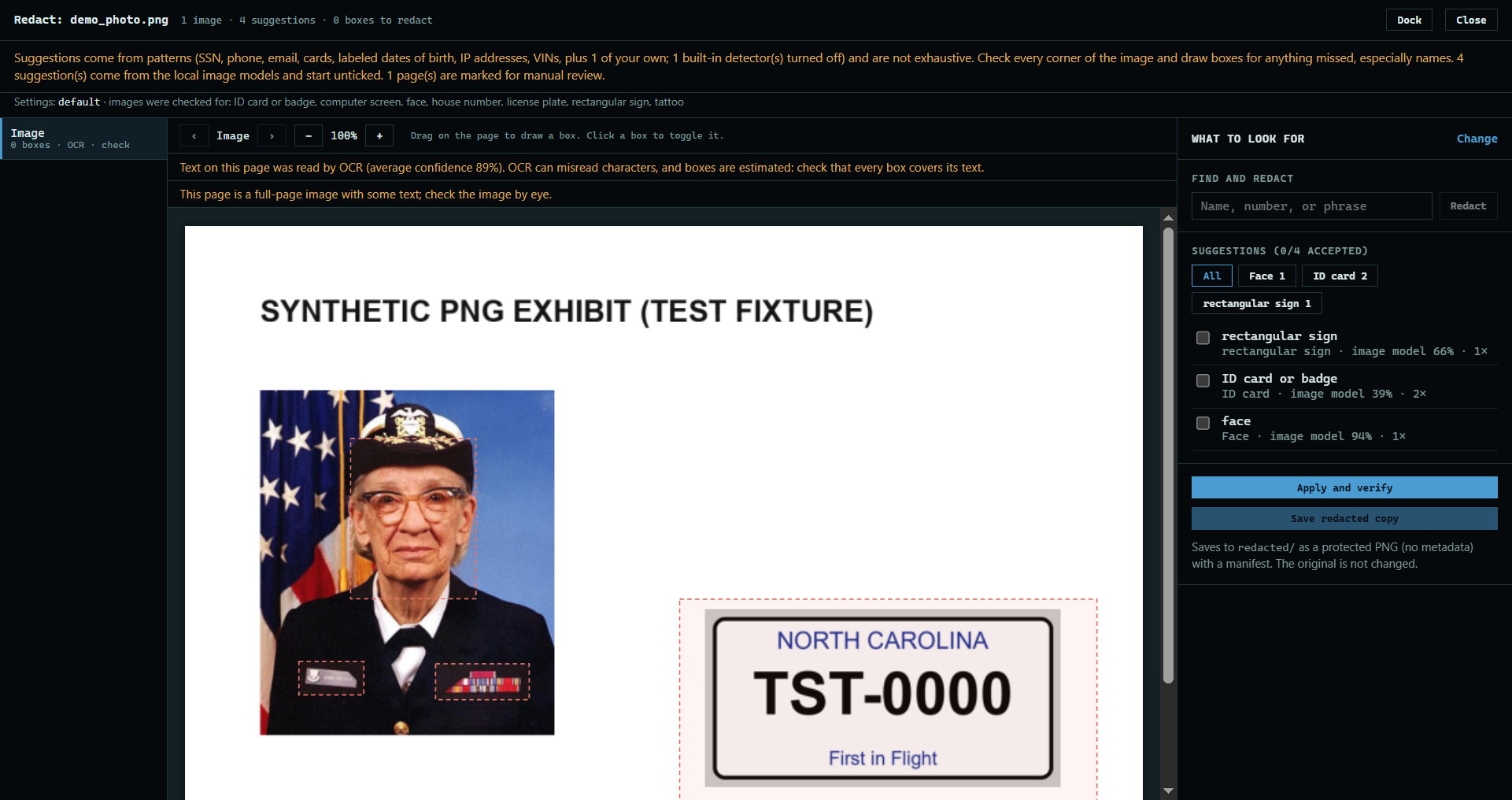
The same settings list what to find in pictures. Untick a kind that keeps going wrong, and use Things in images to add your own. The model is picky about wording, so name what you can see: it found nothing for license plate on this drawn plate, but found a rectangular sign. Its scores often run low, so 15 to 30 percent is normal.
 Expand
8. See the difference
Press Save and re-run detection. The picture is checked again with your changes, and new suggestions start unticked.
 Expand
Good to know
- The settings are saved in
redaction-patterns.jsonin the project, and each named set is a file of its own. The Settings list at the top of the panel chooses which one redaction uses. - Model labels and image labels can miss things and flag look-alikes, so read every page before you save.
- OCR languages for scanned pages are in these settings too. More languages make it slower.
- Text model for model labels chooses which model on this computer reads your labels.