Editing a PowerPoint file
Attach a PowerPoint file and turn on Edit, and the assistant can change the words on its slides. The file stays in your browser, and you see each changed slide before and after. The deck on this page is a talk on forecasting crime.
1. Attach the deck
Press Attach and choose a PowerPoint file. An Edit button appears under the message box.
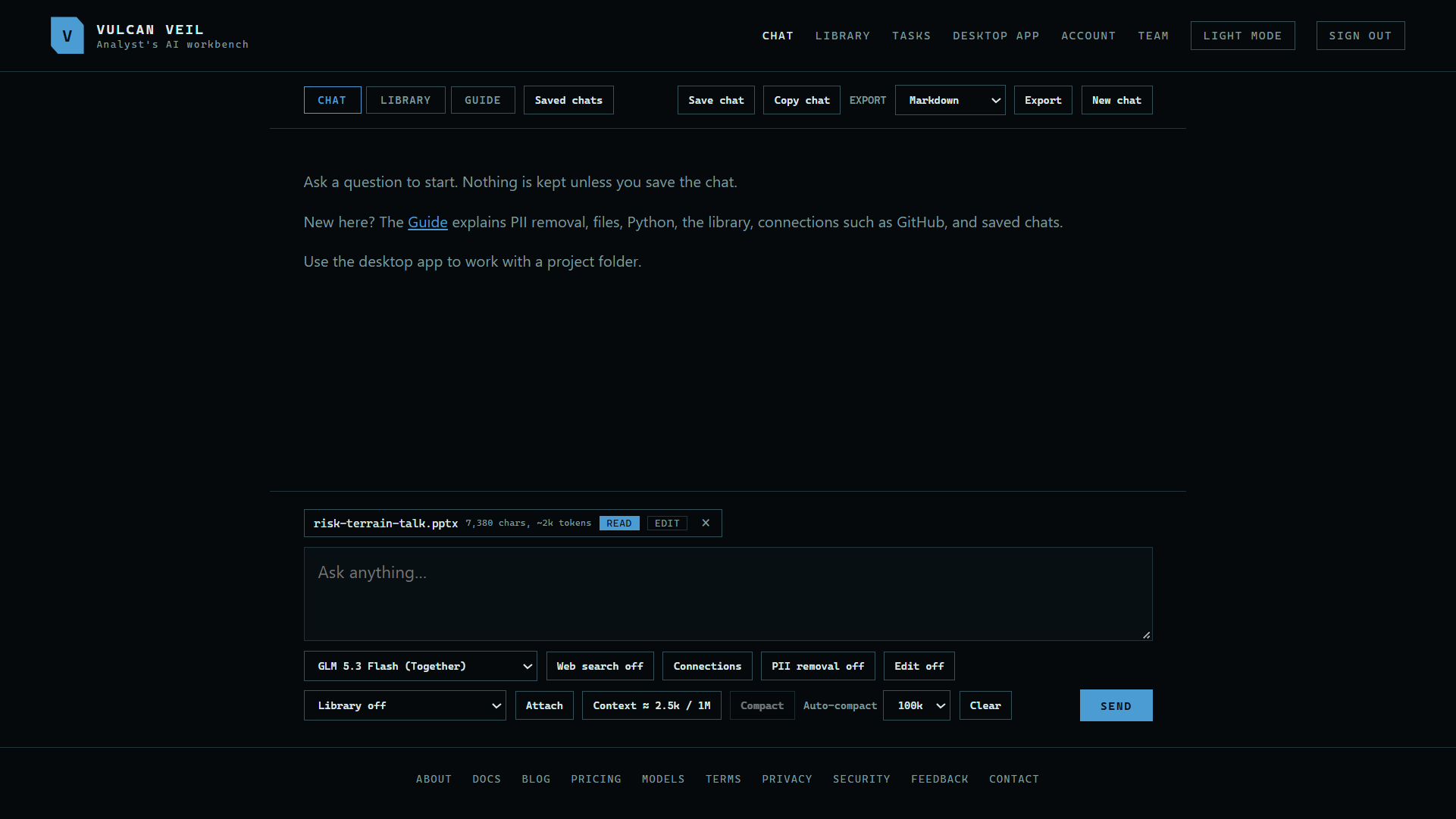 Expand
2. Turn on Edit
Press Edit off so it reads Edit on. With it off, the assistant only reads the file.
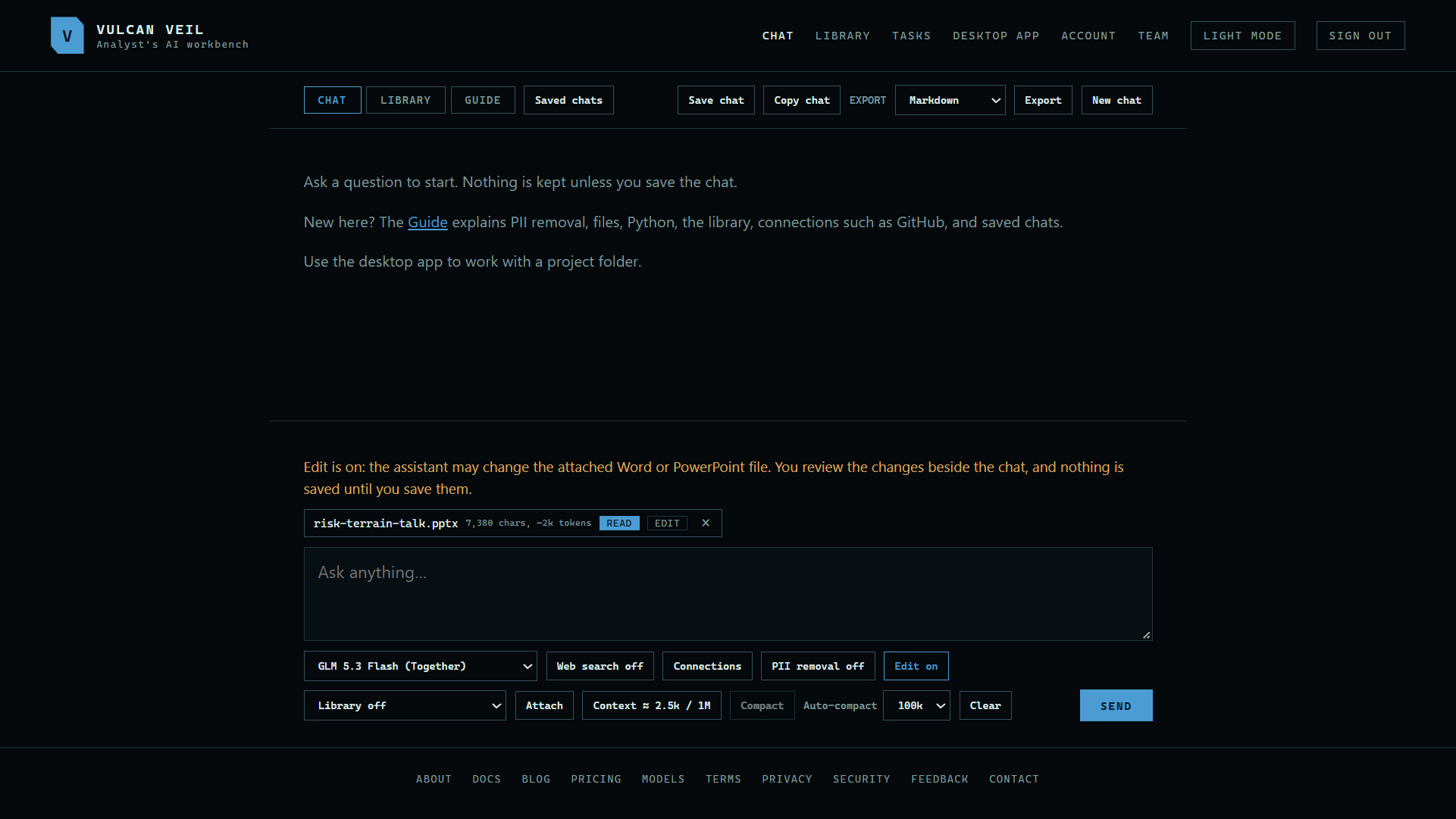 Expand
3. Ask for a change
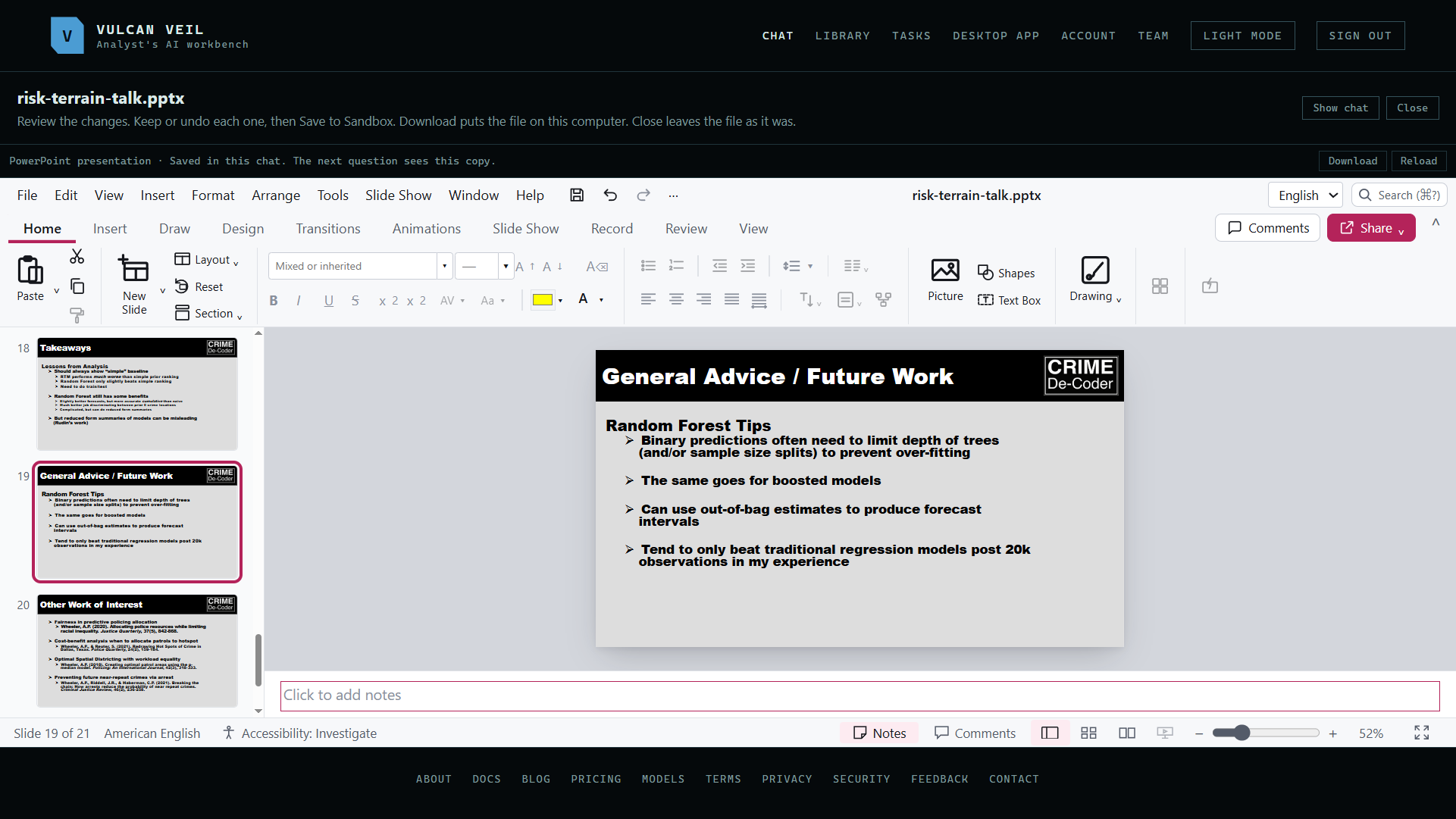
Type your request and press Send. Here: "Fix the misspelled university name on slide 2. On slide 19, change "Ditto for boosted model variants" to "The same goes for boosted models"." The slides open beside the chat, with the changes listed.
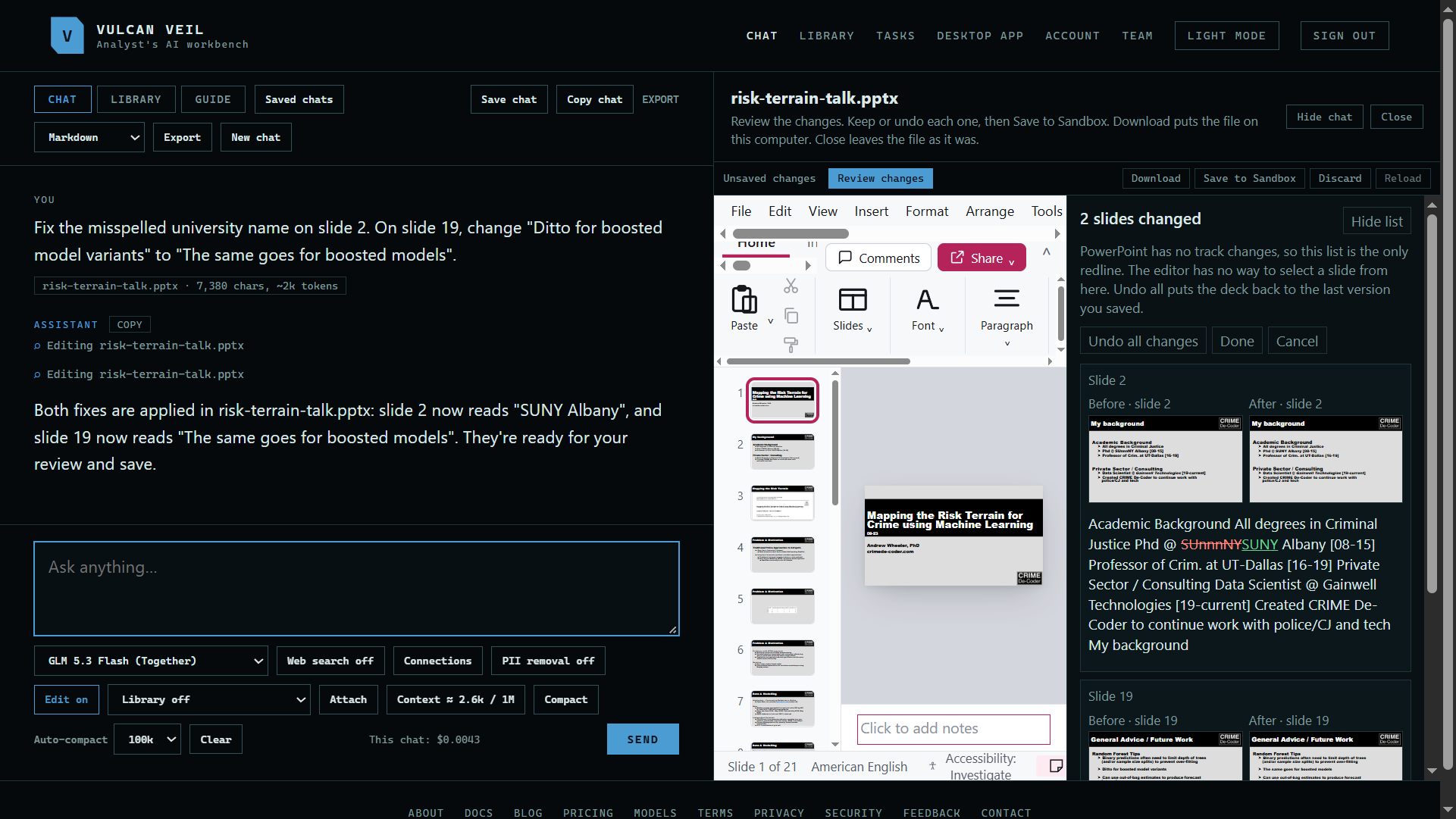 Expand
4. Check each change
Each changed slide is shown before and after, with the old words struck out and the new ones marked. Press a slide on the left to see it in the editor. Hide chat gives the slides more room.
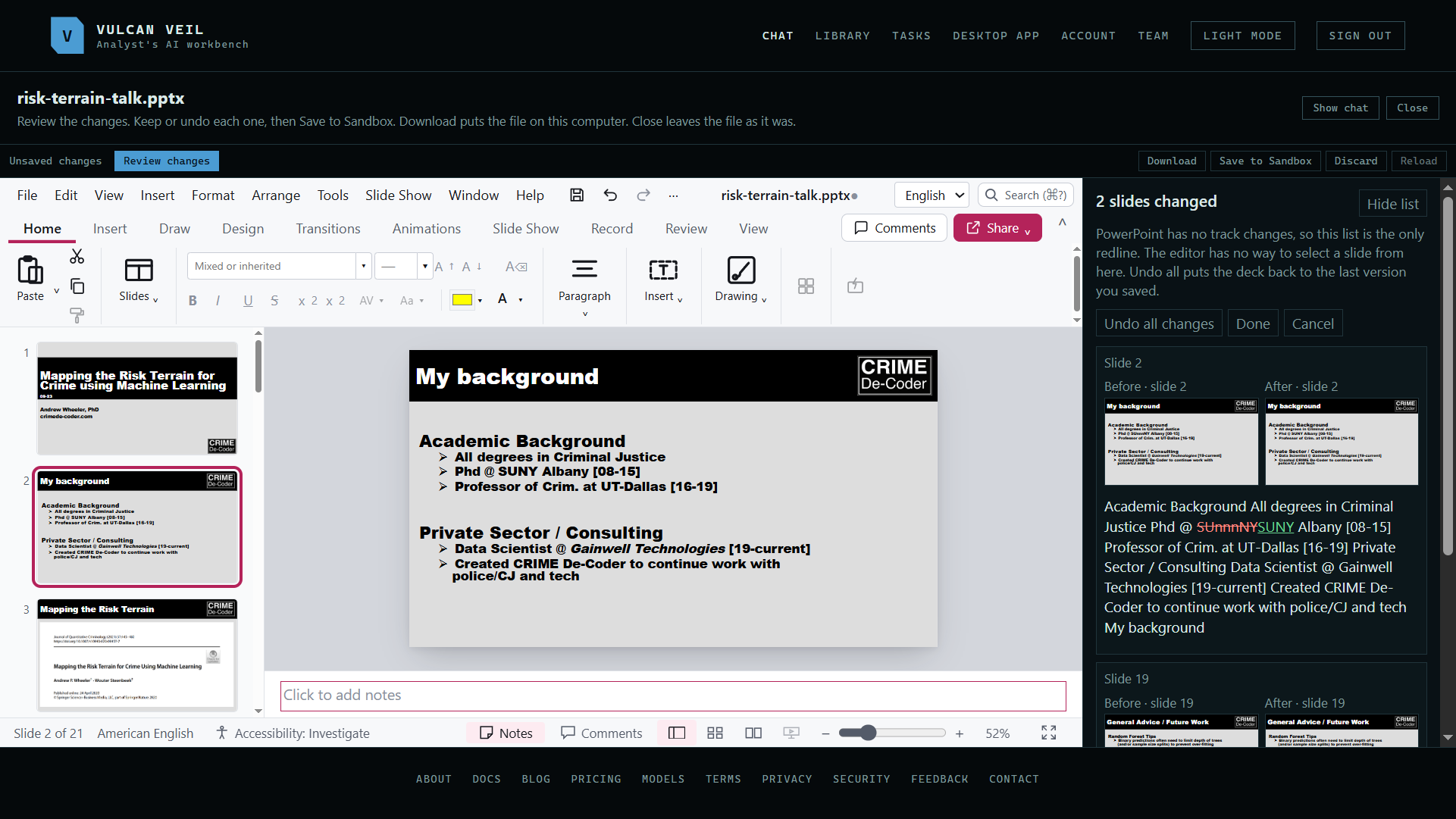 Expand
5. Keep it
Press Done when the list looks right, then Save to Sandbox to keep this copy for the chat. Press Download to put the file on your computer.
 Expand
Good to know
- PowerPoint has no track changes, so the list beside the slides is your only redline. Undo all changes puts the deck back to the last version you saved.
- The assistant changes words on a slide, adds, deletes, and moves slides, and adds a text box or a picture anywhere on a slide. It can also move, resize, layer, swap, or delete a picture, and move or delete a text box.
- Editing stays in your browser. Download the file when you are done, as it is not kept for you.
- Edit on the file under the message box opens the deck beside the chat for you to change, and turns Edit on too.
- Hide document gives the chat the full width and keeps your changes. Show document, under the message box, brings it back.
- A model that reads images can look at a slide to check how its changes look. The slide is drawn in your browser.
- On the website, Word and PowerPoint files are the only ones you can edit. To edit other files on your computer, use a desktop project.