Editing PowerPoint
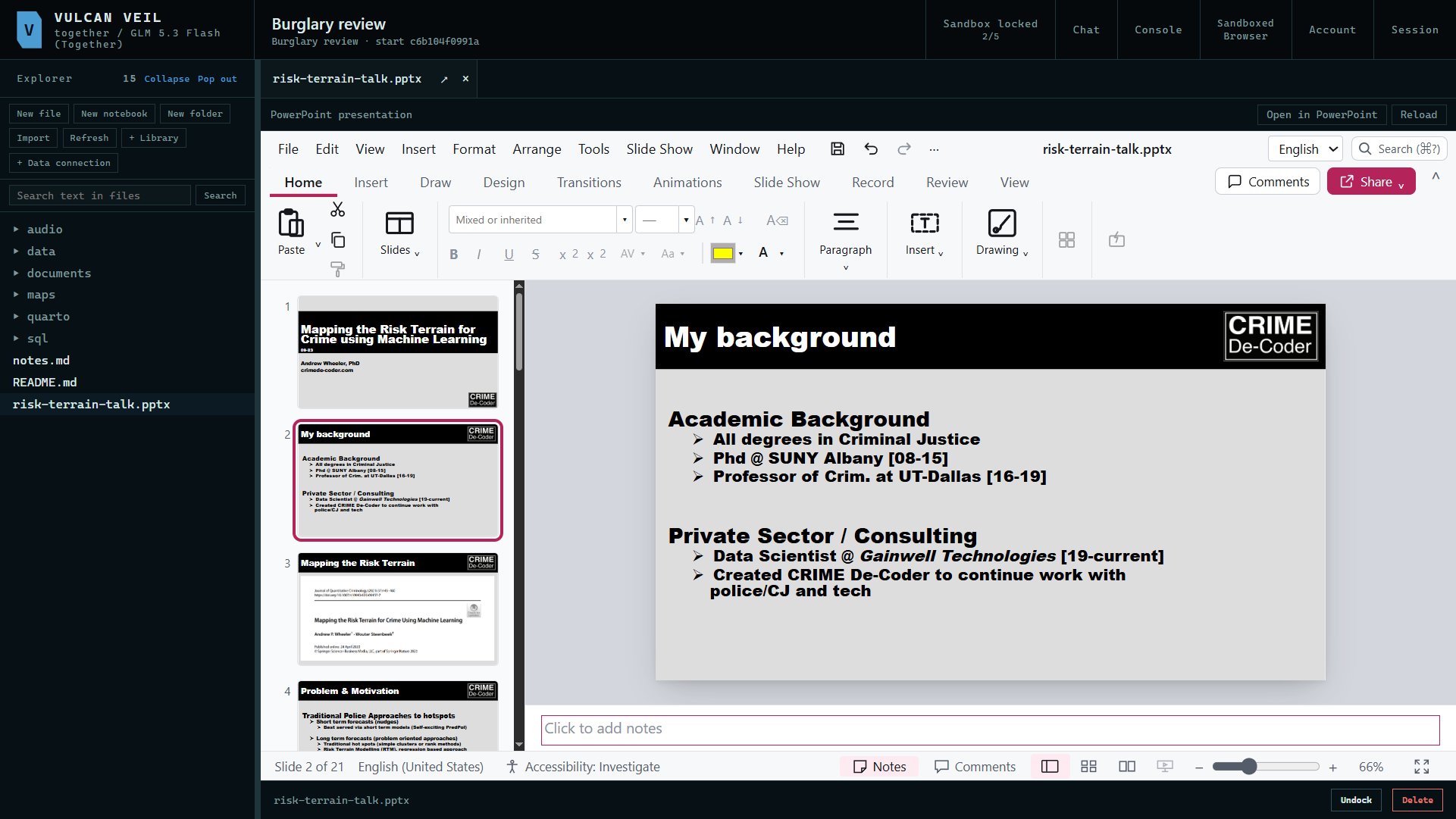
PowerPoint files open in the project in a full slide editor, and the assistant can change their words, add and delete slides, and fill new ones with bullet points and charts. Nothing is saved until you say so. You see each changed slide before and after, and you can undo a change. The deck on this page is a talk on forecasting crime.
1. Open the deck
Press a PowerPoint file in the Explorer. It opens in the slide editor, where you can also make changes yourself.
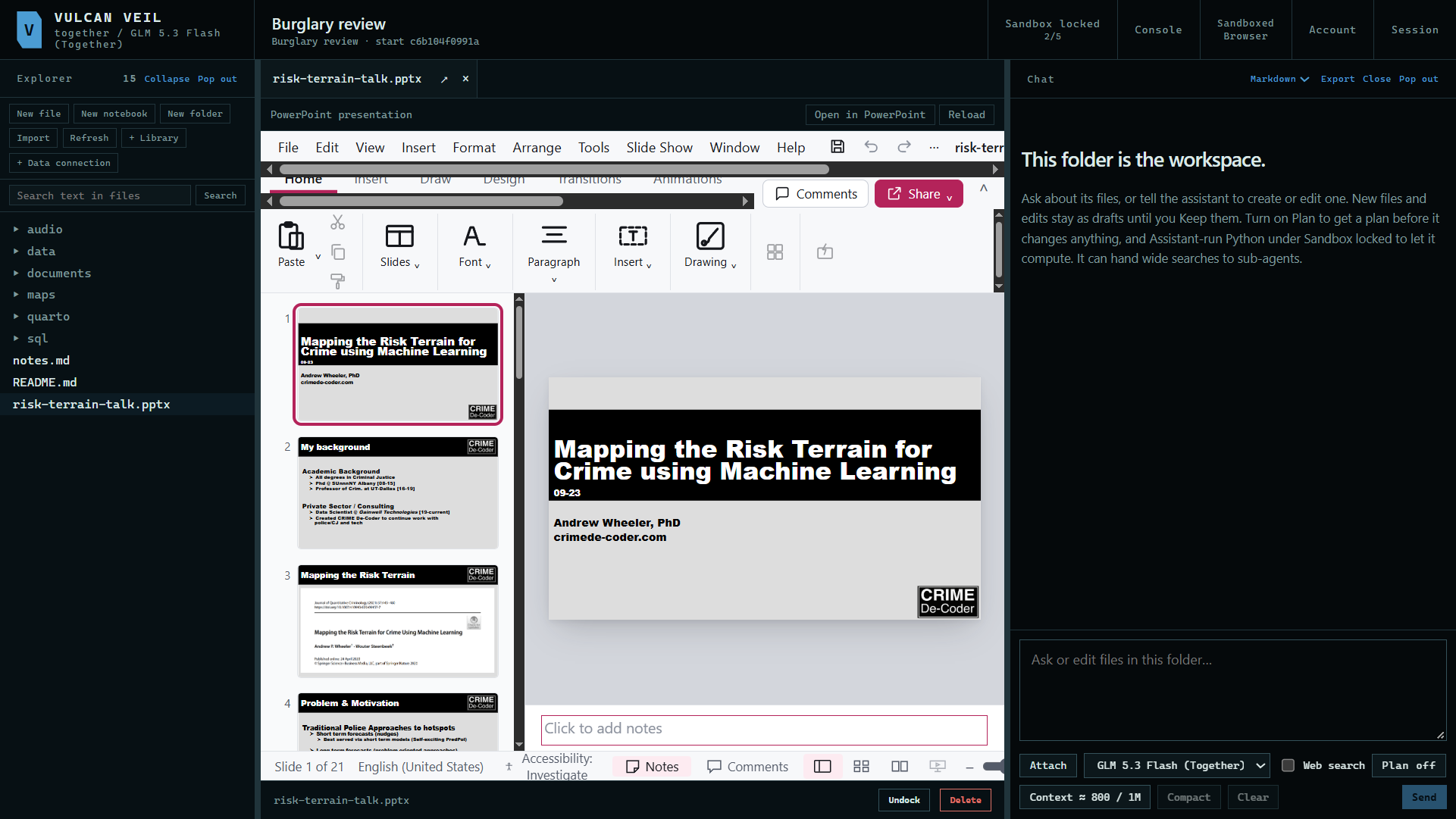 Expand
2. Ask for a change
Tell the assistant what to change. Here: "Edit risk-terrain-talk.pptx. Fix the misspelled university name on slide 2. On slide 19, change "Ditto for boosted model variants" to "The same goes for boosted models"." The edits wait in the editor, and the file on disk has not changed yet.
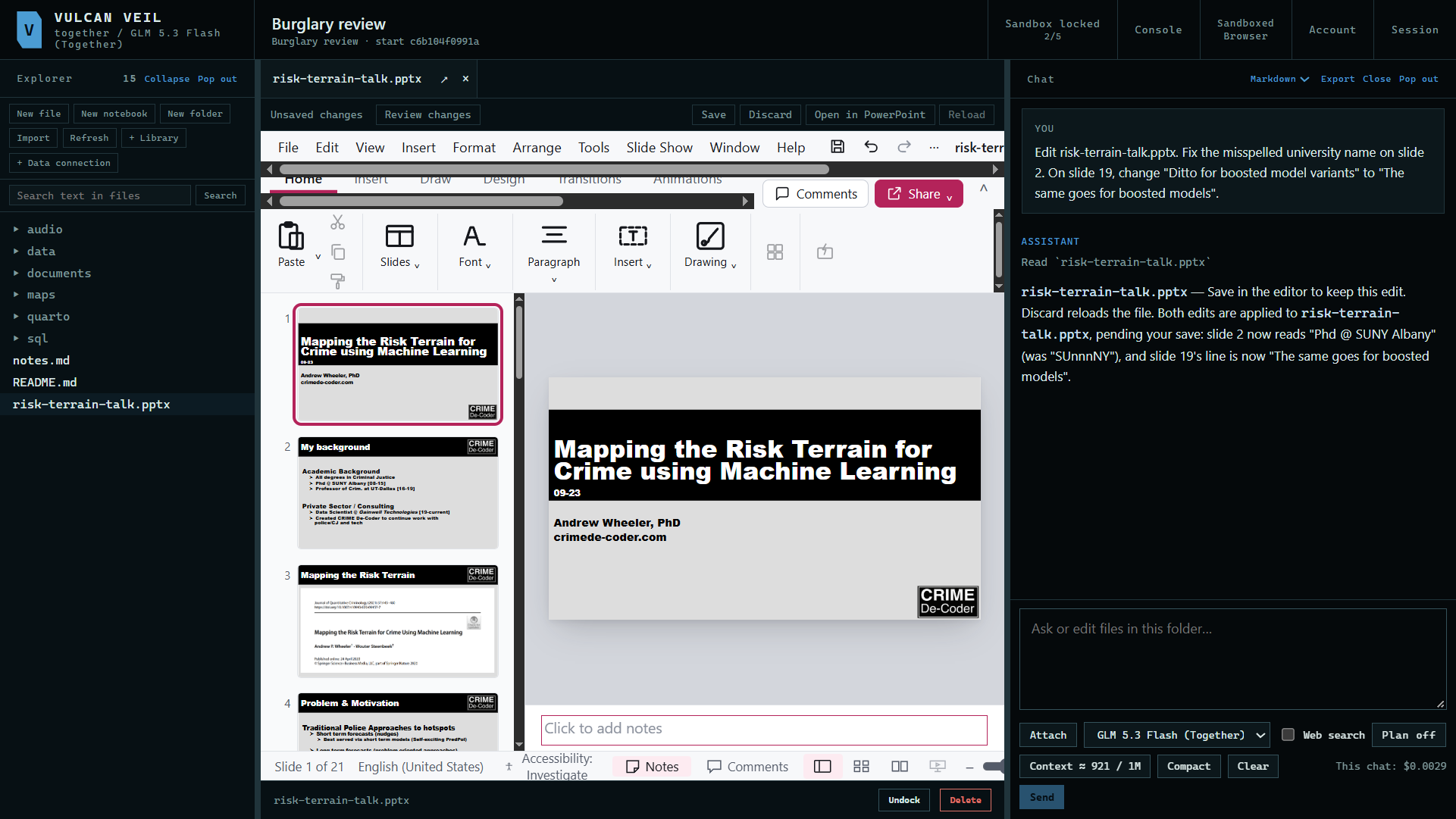 Expand
3. Review it
Press Review changes. Each changed slide is shown before and after, with the old words struck out and the new ones marked. Press a slide on the left to see it in the editor. Close, at the top of the chat, gives the slides more room.
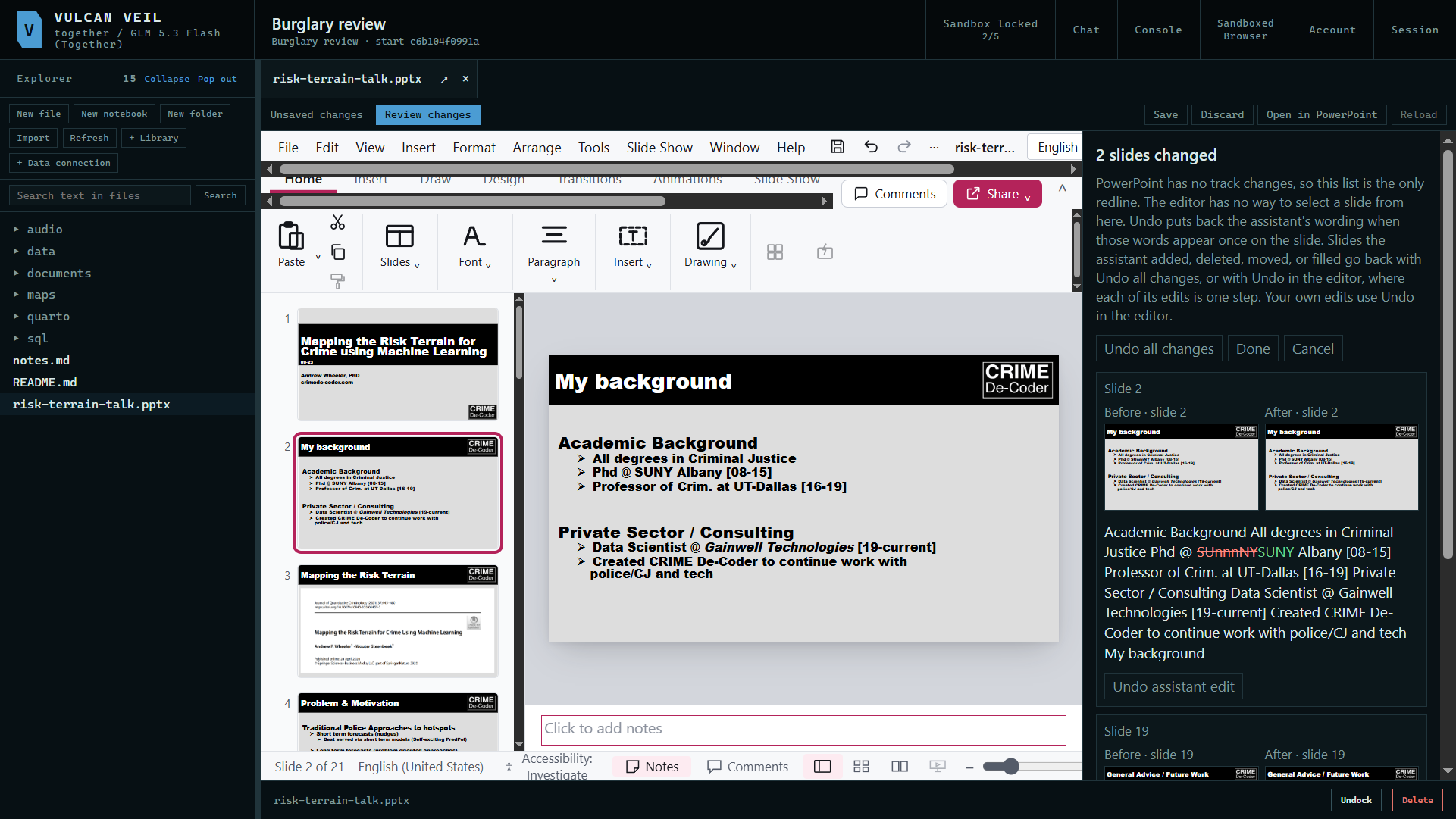 Expand
4. Undo what you don't want
Press Undo assistant edit on a slide to put its words back. The list updates, and the other change stays.
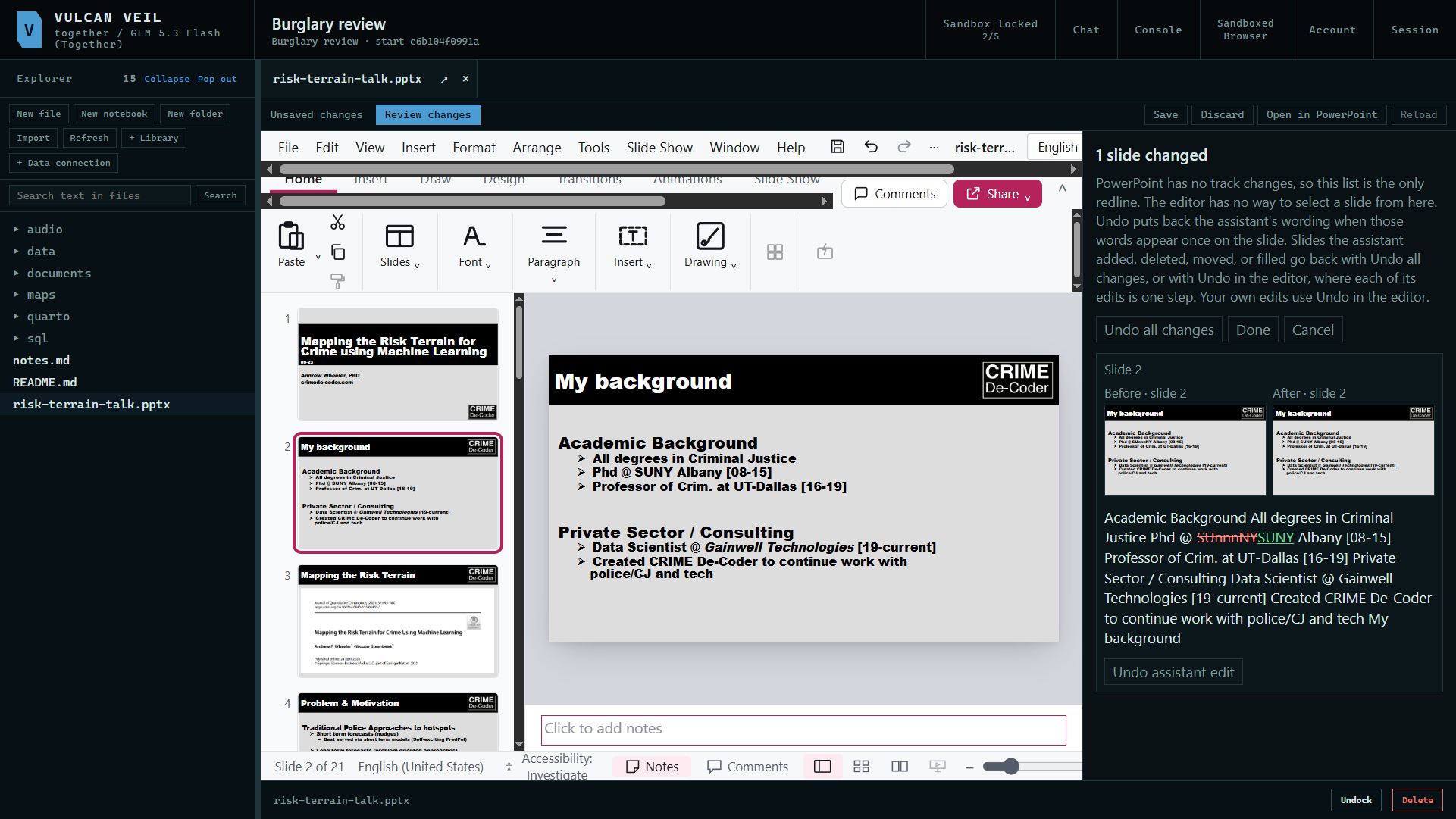 Expand
5. Save it
Press Done, then Save. The file on disk changes only now.
 Expand
6. Add and delete slides
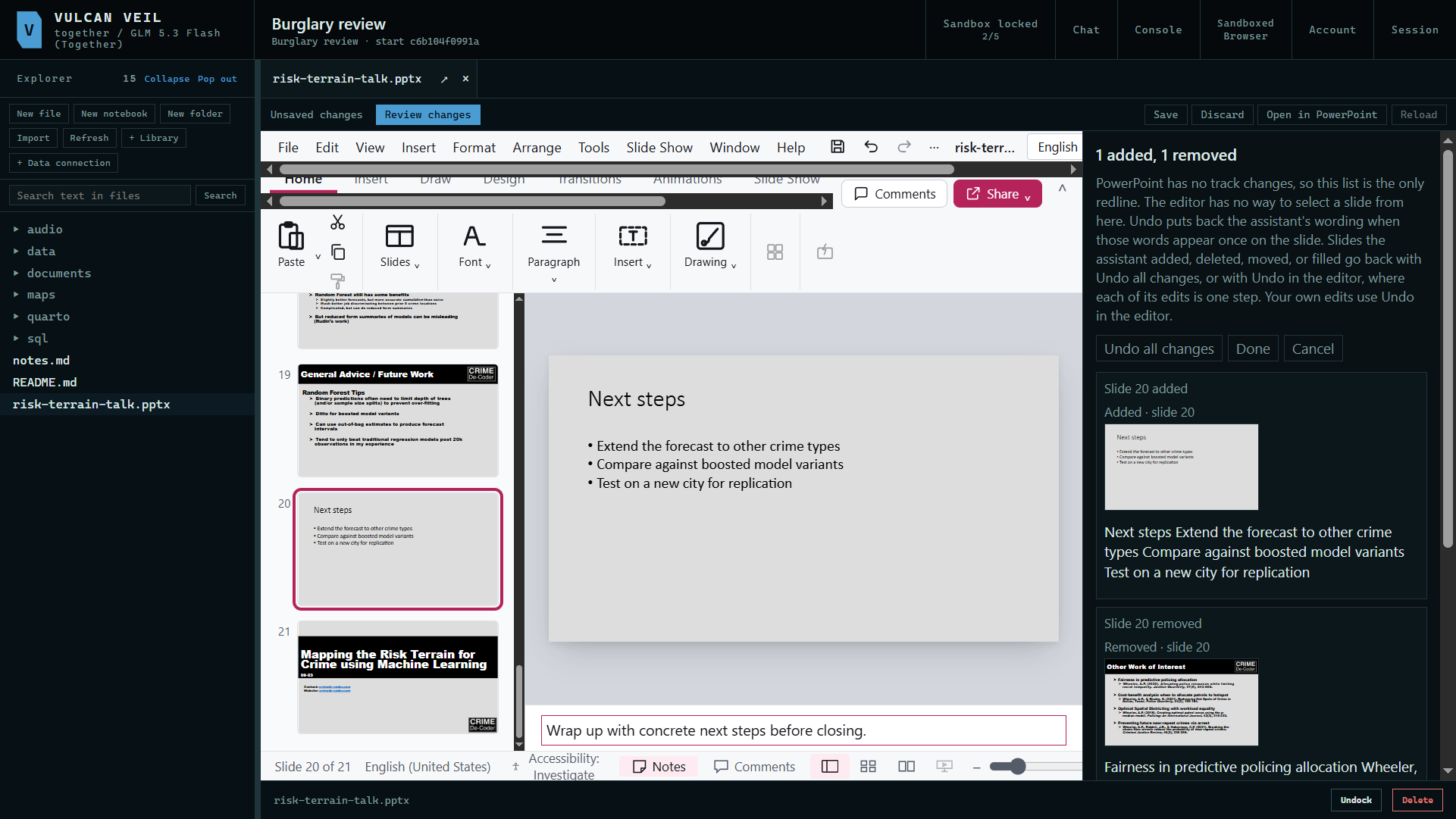
Press Chat to open the chat again and ask for slides. Here: "In risk-terrain-talk.pptx, add a slide after slide 19 titled "Next steps" with three short bullets on what to try next, and delete slide 20." Review changes lists the new slide and the deleted one, each with its picture. Press Done, then Save, as before.
 Expand
Good to know
- PowerPoint has no track changes, so the list is your only redline. Unlike Word, there is no redline copy to save.
- The assistant can also move slides, change a slide's title, bullets, or picture, and put a chart that Python saved in the folder on a slide. New slides use the deck's own layouts. Text too long for its box is made smaller to fit, and the assistant is told.
- Undo assistant edit is for changed words. A slide the assistant added, deleted, or moved goes back with Undo all changes, or with Undo in the editor.
- Undo assistant edit needs the new words to appear once on the slide. Otherwise, use Undo in the editor. Undo all changes puts the deck back as it was.
- Open in PowerPoint hands the saved file to PowerPoint.