What projects are for
Use a project when you want the assistant to work on real files. A project is one folder on your computer: the assistant can read and edit what is in it, and nothing outside it. Every change it makes stays a draft until you accept it.
1. Open a project
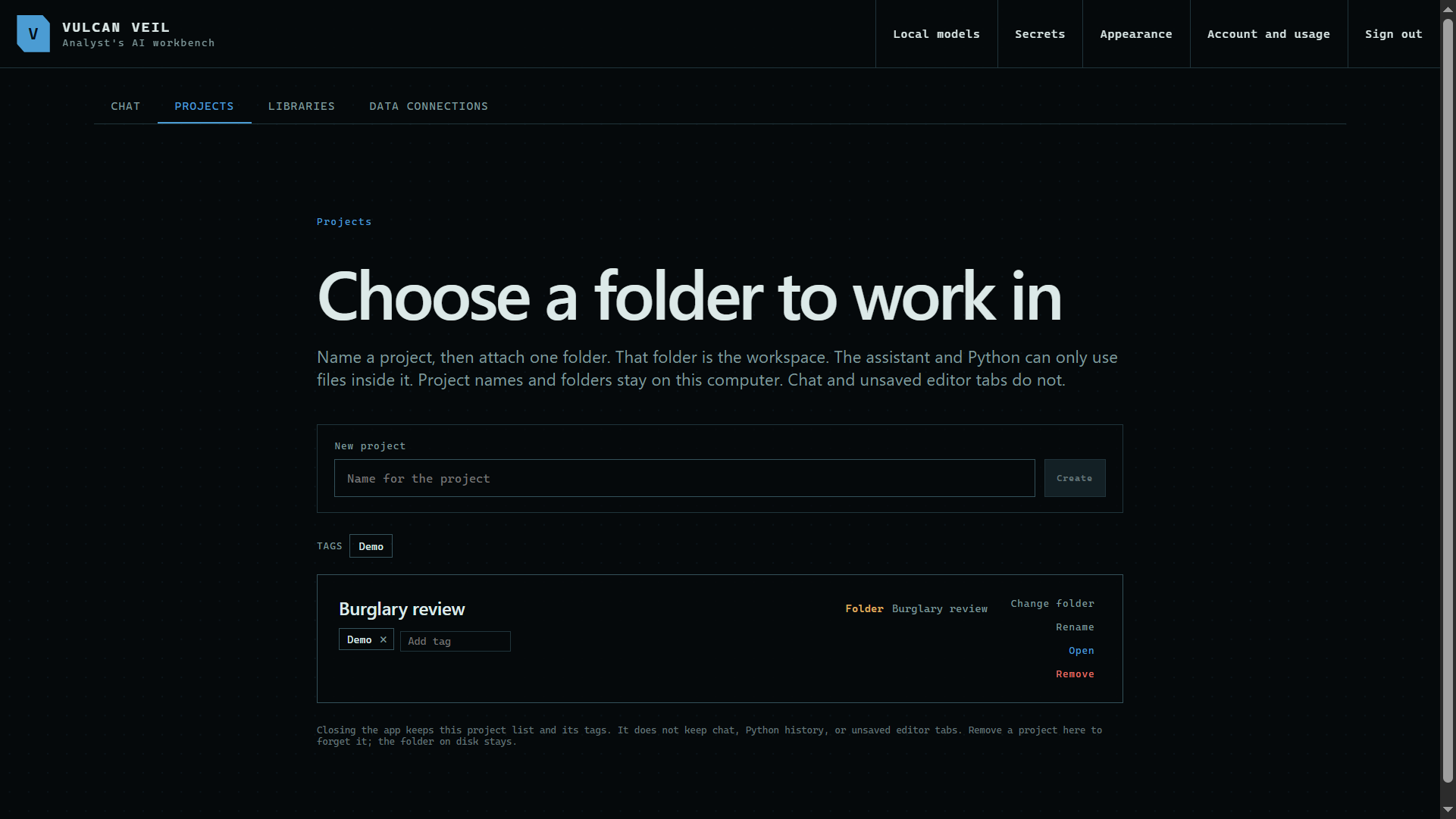
Open the Projects tab, name a project, and choose its folder. After that, it is listed here with its tags.
 Expand
2. Find your way around
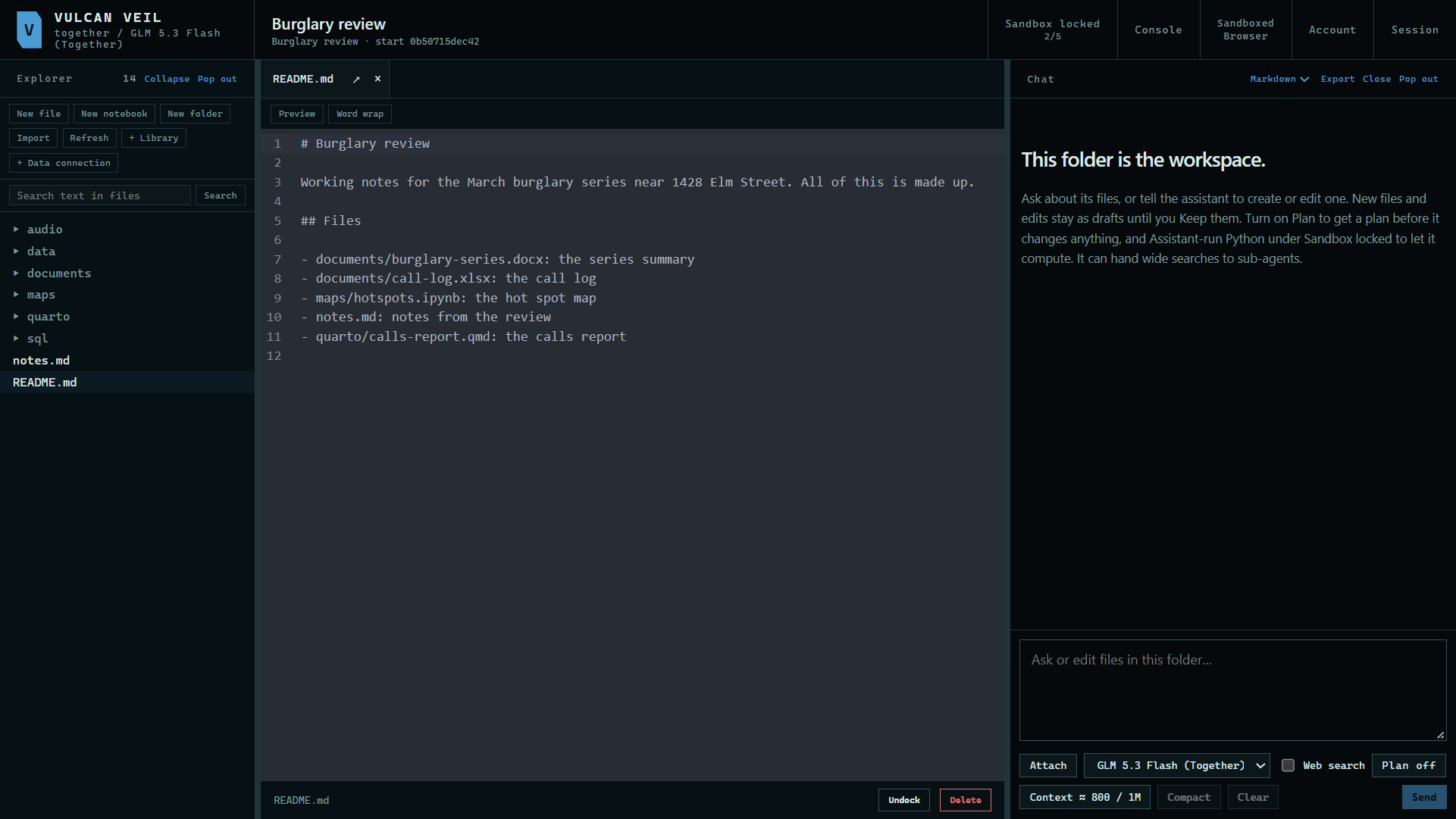
The folder's files are on the left, the file you open is in the middle, and the chat is on the right.
 Expand
3. Ask for a change
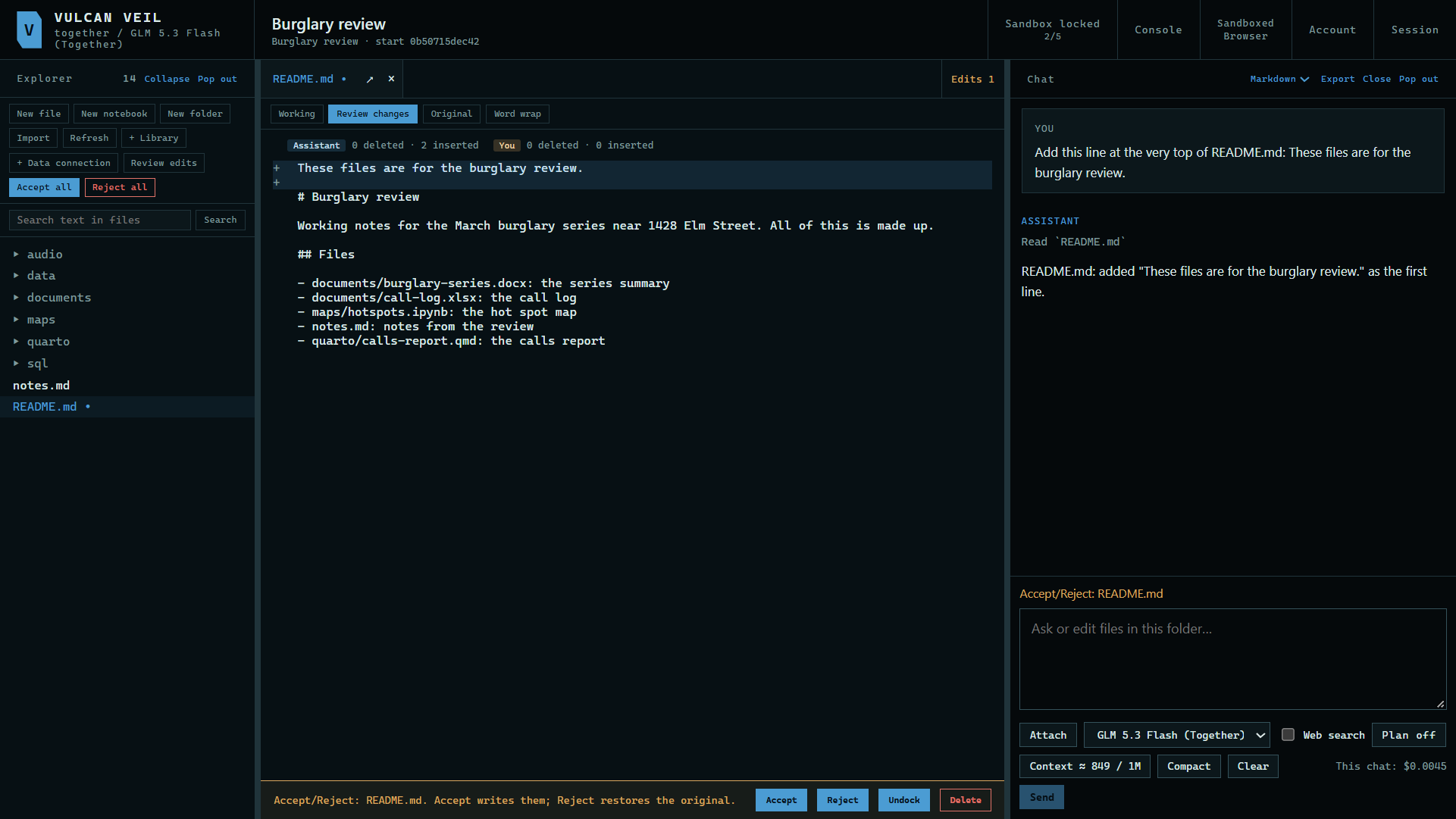
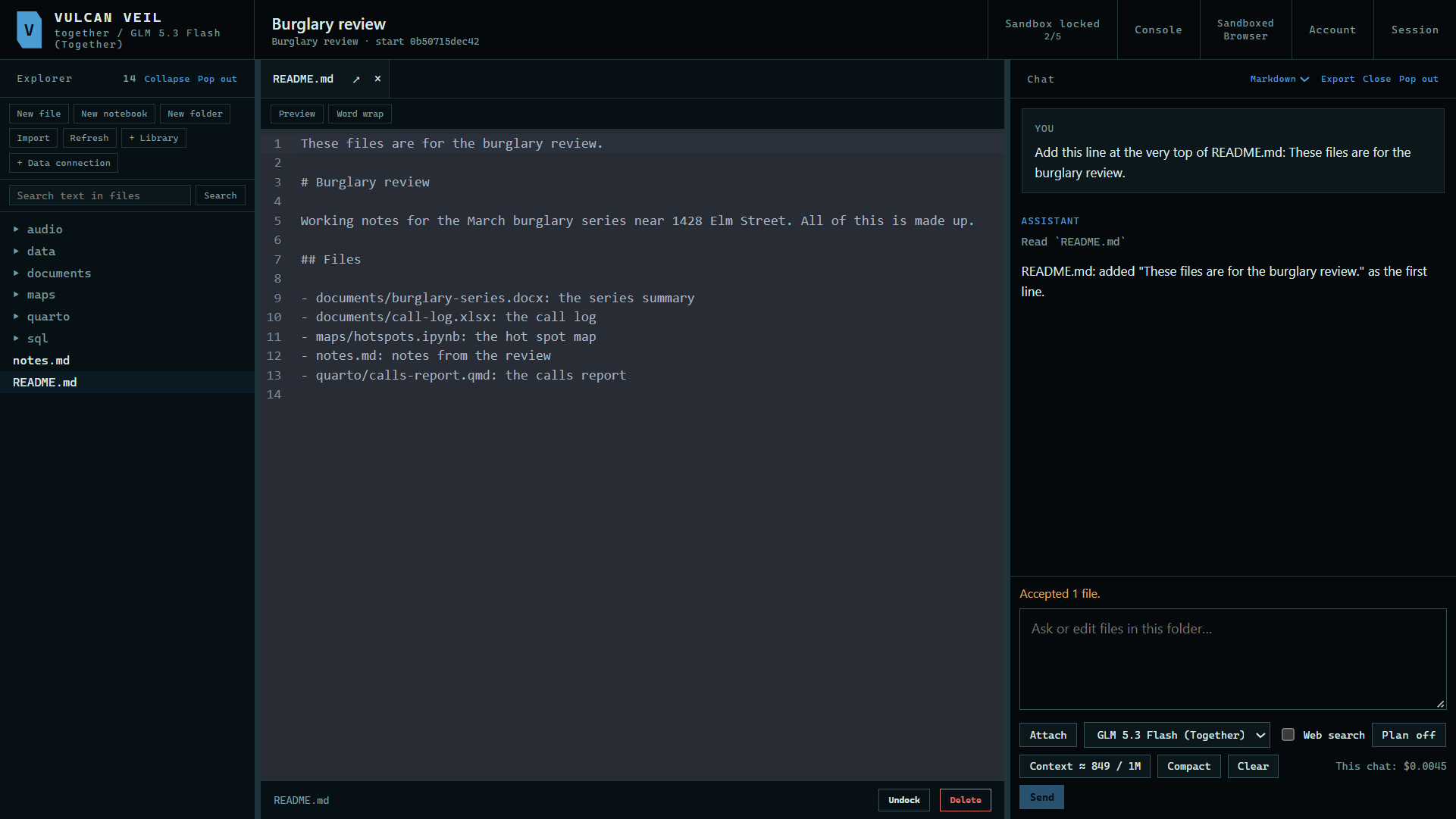
Tell the assistant what to change. Here: "Add this line at the very top of README.md: These files are for the burglary review." The edit is a draft, and the file on your disk has not changed.
 Expand
4. Review it
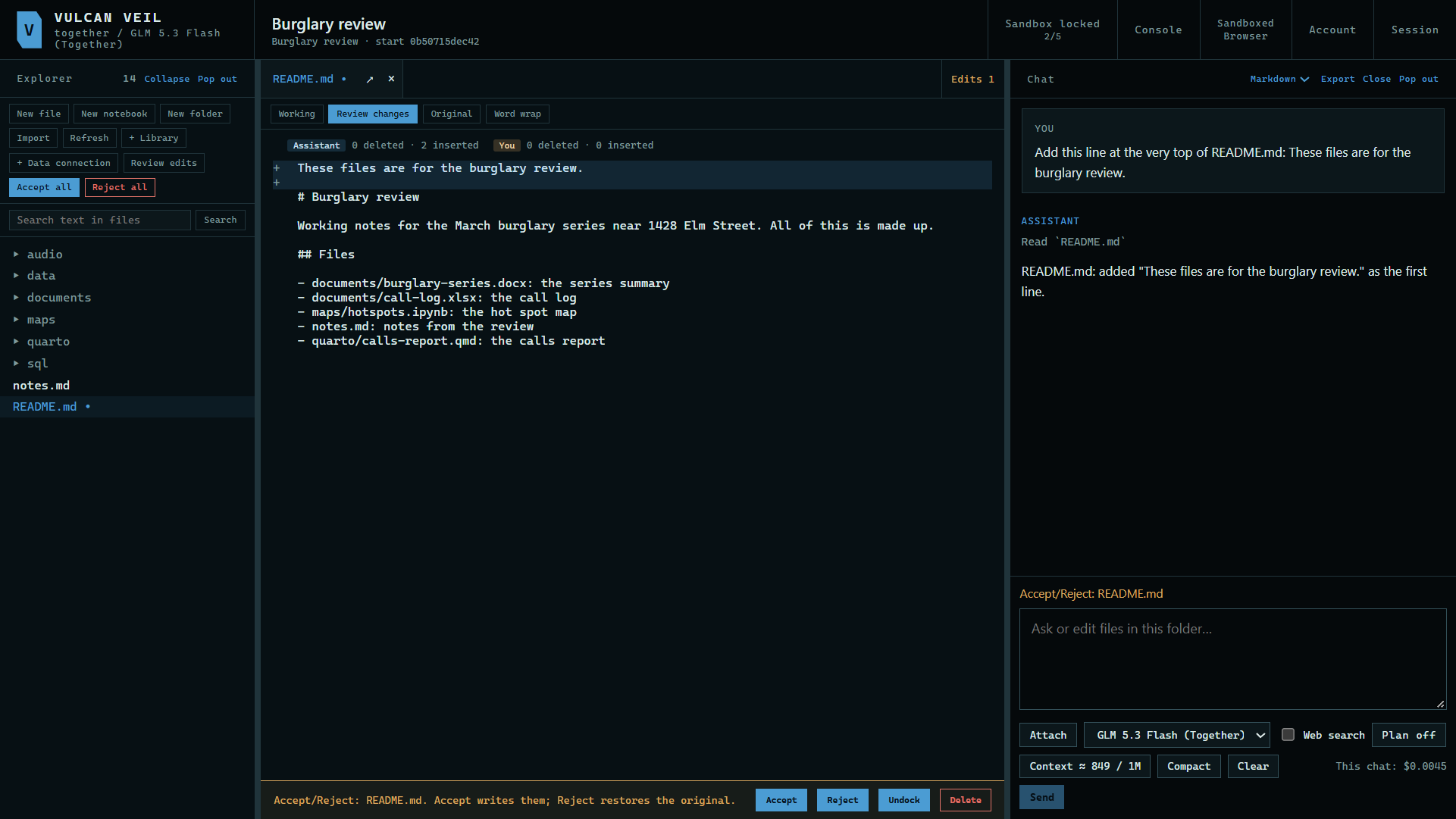
Press Review changes above the file to see exactly what changed.
 Expand
5. Accept or reject it
Press Accept all to write the change to your file, or Reject all to drop it.
 Expand
Good to know
- You can turn on Accept assistant edits automatically in the Sandbox panel, if you would rather review changes afterward.
- Revert session under Session returns the folder to how it was when you opened the project.