Running Python in the background
Some scripts take minutes or hours: a model fit, a simulation, a big download. With background tasks on, the assistant starts one, keeps talking with you while it runs, and reads the result when it ends. Everything the script prints is saved in a log in the project.
1. Turn on background tasks
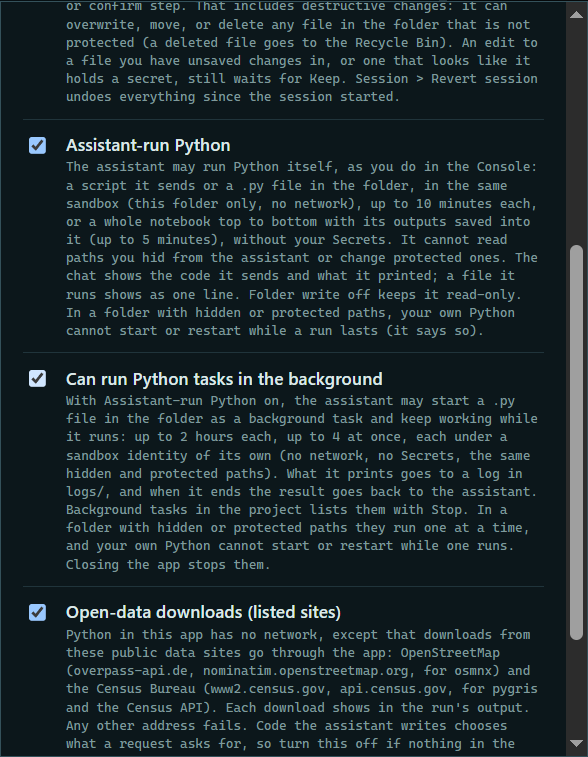
Press Sandbox locked at the top of the project, then tick Assistant-run Python and Can run Python tasks in the background.
 Expand
2. Ask for a task
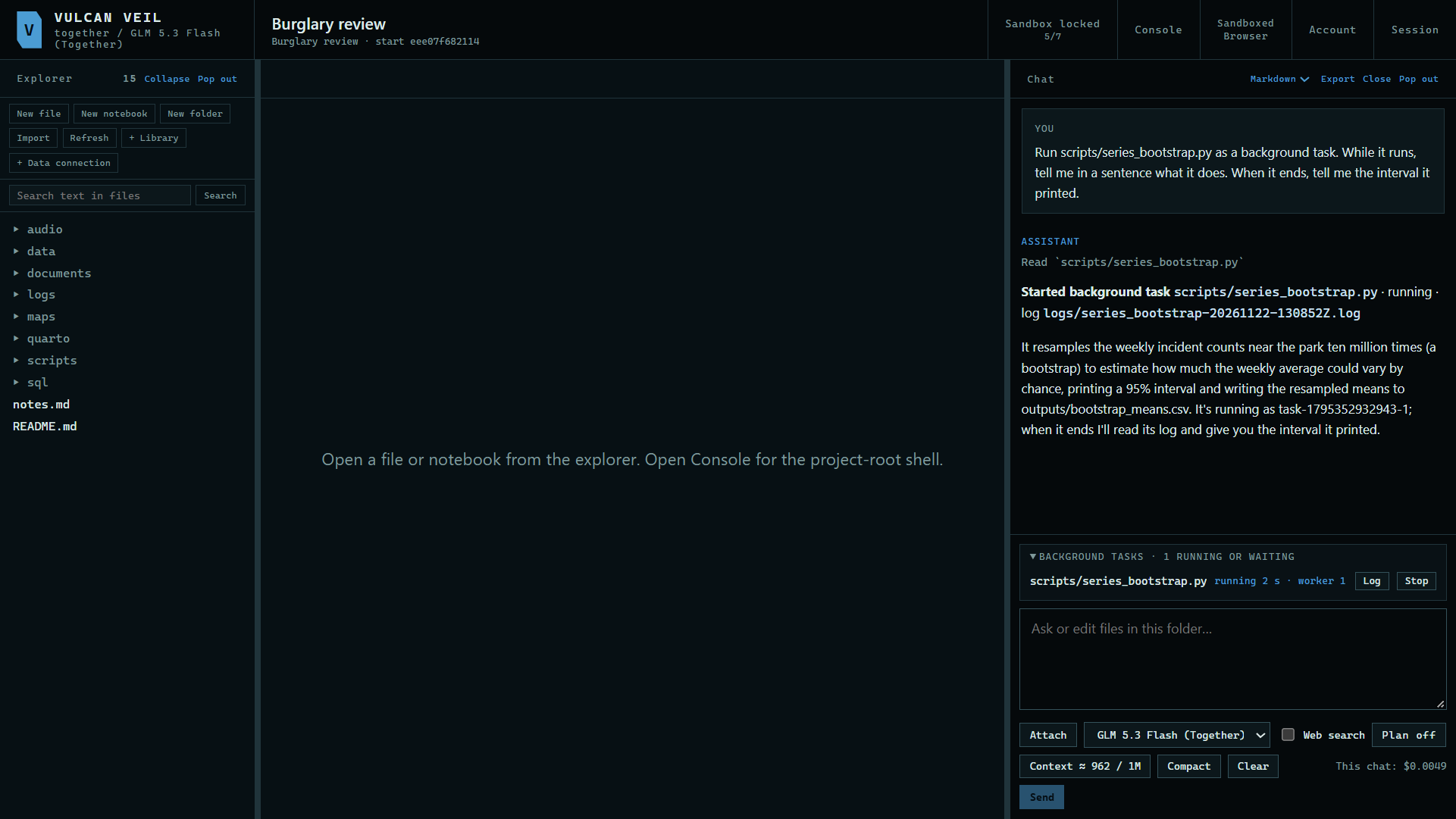
Name the script and say what you want back. Here: "Run scripts/series_bootstrap.py as a background task. While it runs, tell me in a sentence what it does. When it ends, tell me the interval it printed."
 Expand
3. Hear back when it ends
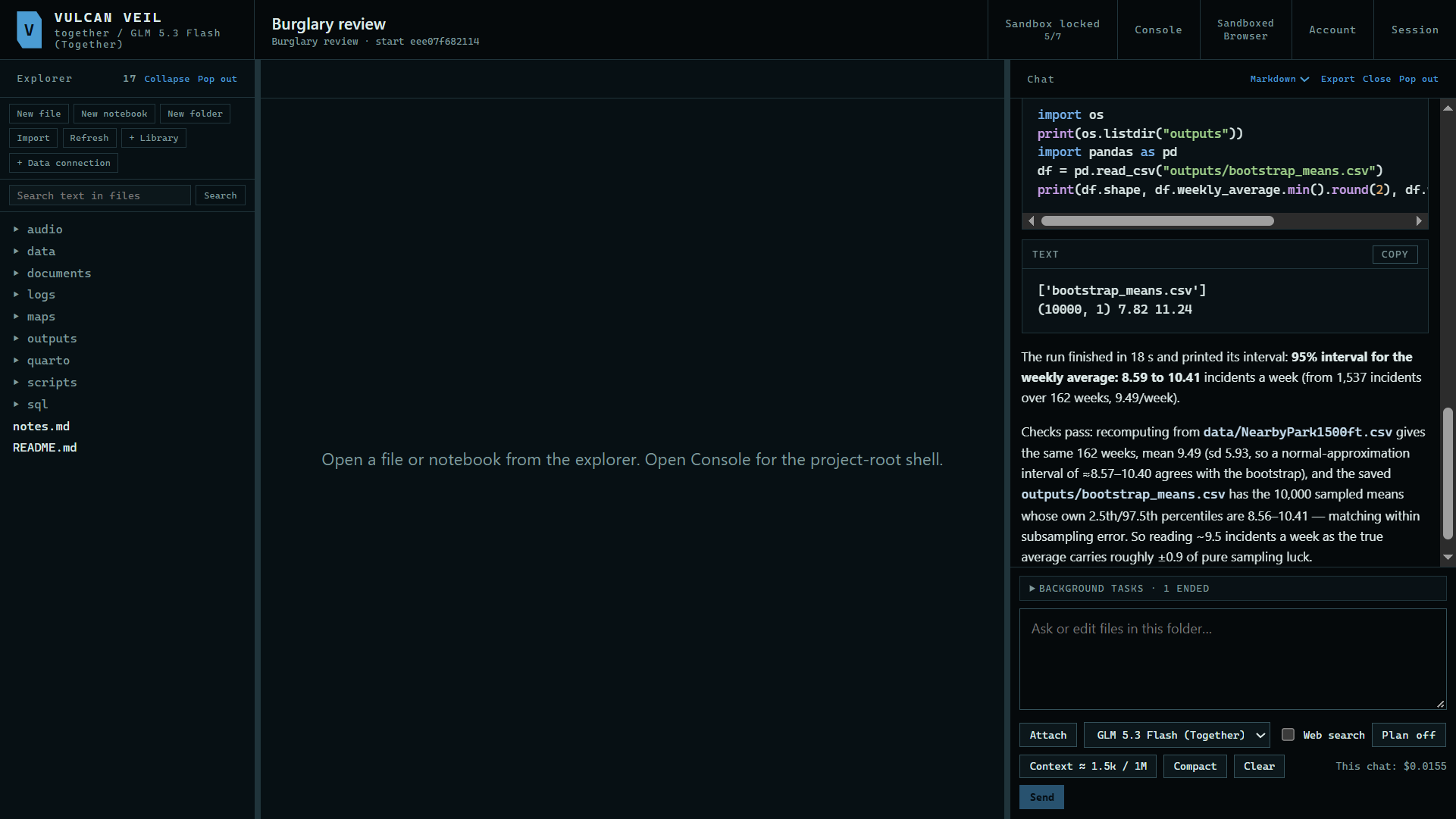
When the task ends, the app tells the assistant, which reads the end of the log and answers. Here the interval is 8.59 to 10.41 incidents a week.
 Expand
4. Read the log
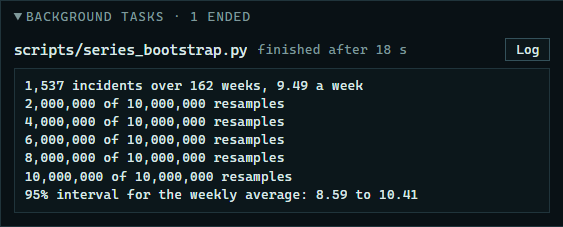
Press a task's name to see the end of what it printed, or Log to open the whole log. Logs are kept in the project's logs folder, named after the script and the time it started.
 Expand
Good to know
- A task may run for up to 2 hours, and up to 4 run at once. More wait their turn.
- Each task runs in a sandbox of its own: this folder only, no network but the open-data downloads, and none of your Secrets. Hidden and protected paths apply as usual.
- In a folder with hidden or protected paths, tasks take turns, and your own Python waits until one ends.
- Press Stop beside a task to end it. Closing the app stops every task.
- If an answer comes back without starting the task, ask again.