Working in notebooks
Notebooks open right in the project and run in the app's sandbox, with no network. The assistant can edit cells too, and you review each change before it is saved. This notebook's data is made up.
1. Open a notebook
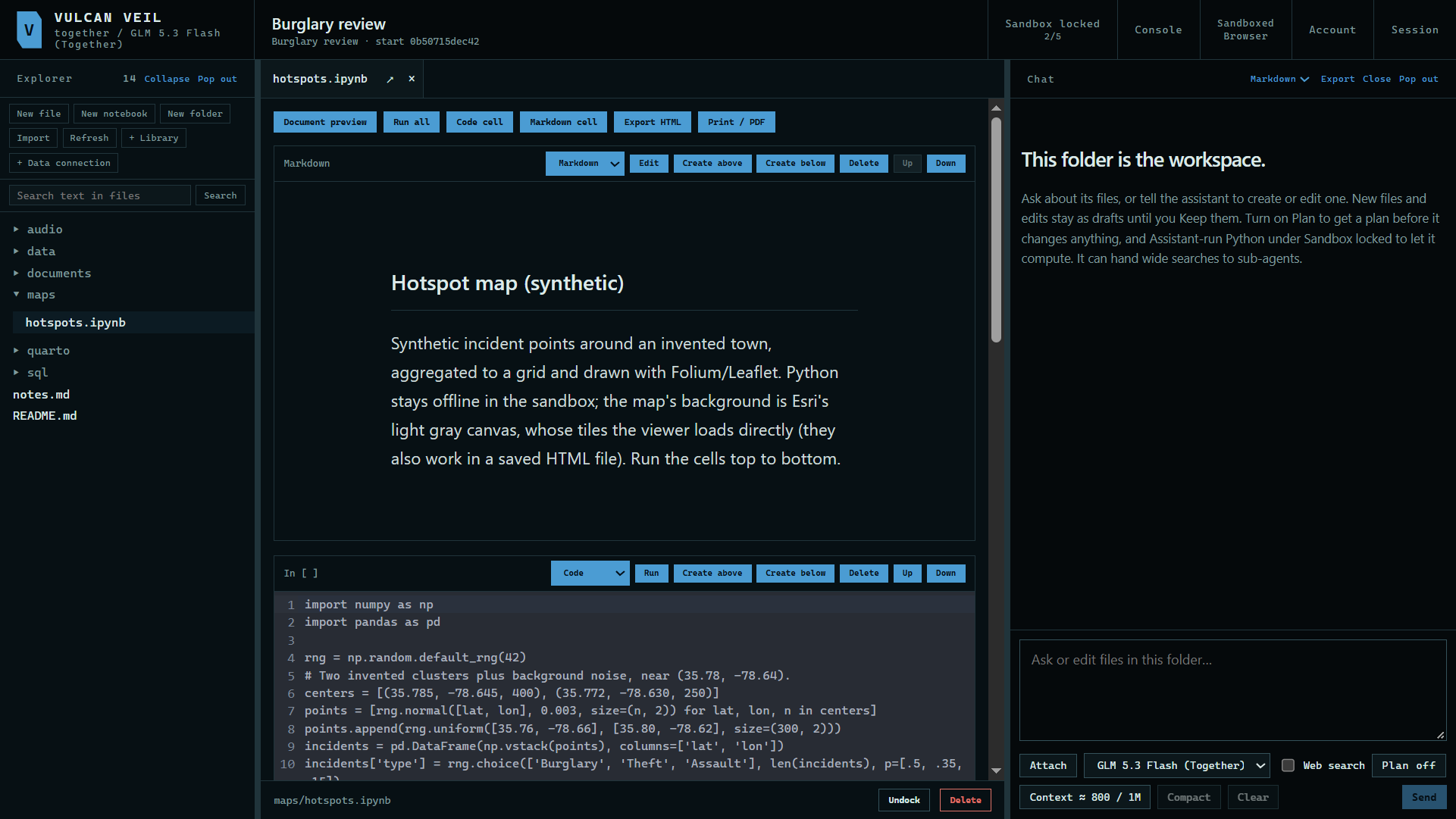
Press a .ipynb file in the Explorer. Each cell has its own Run button, and Run all goes from top to bottom.
 Expand
2. Run it
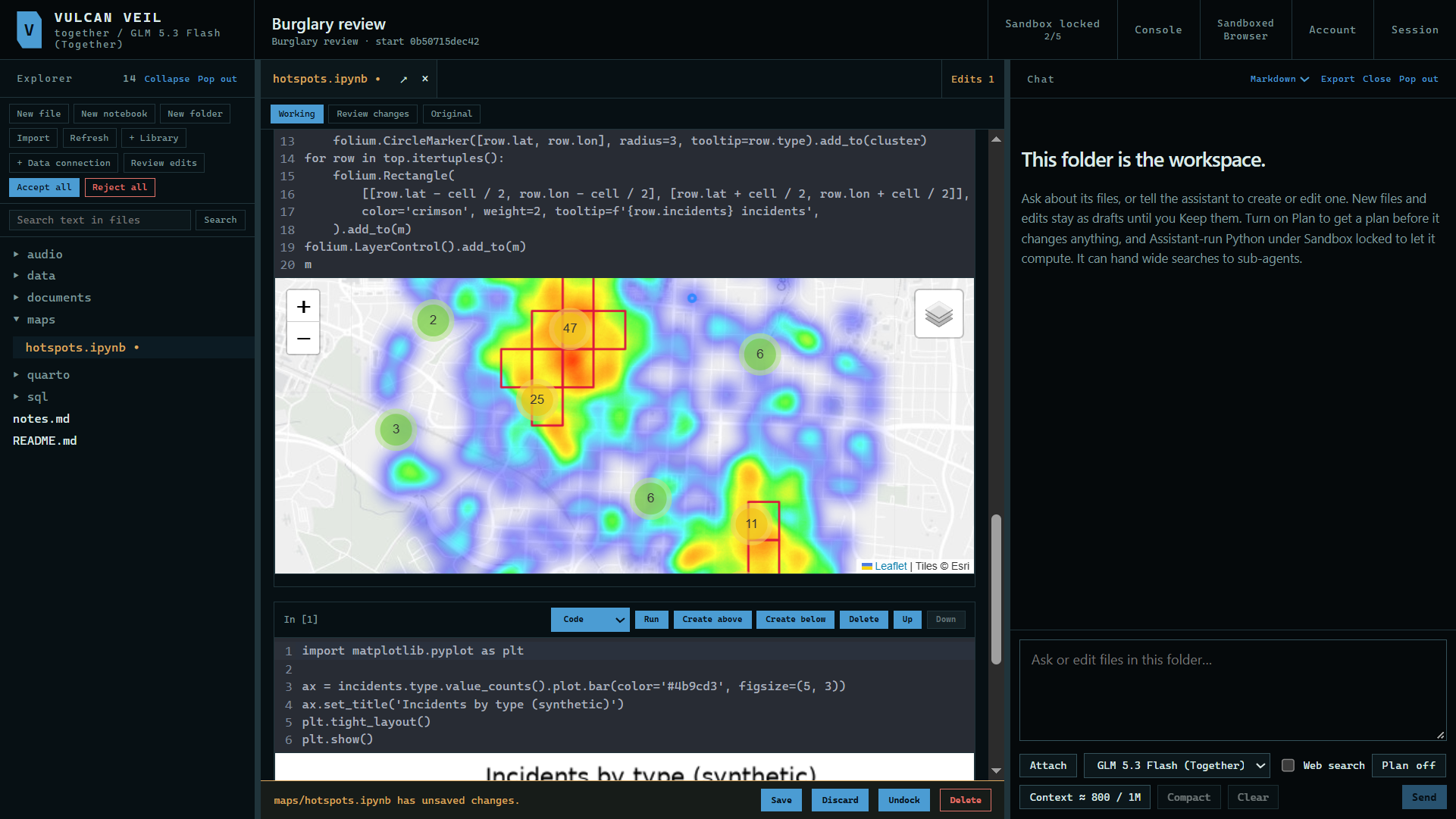
Press Run all. Tables, charts, and maps show under their cells.
 Expand
3. Ask for a change
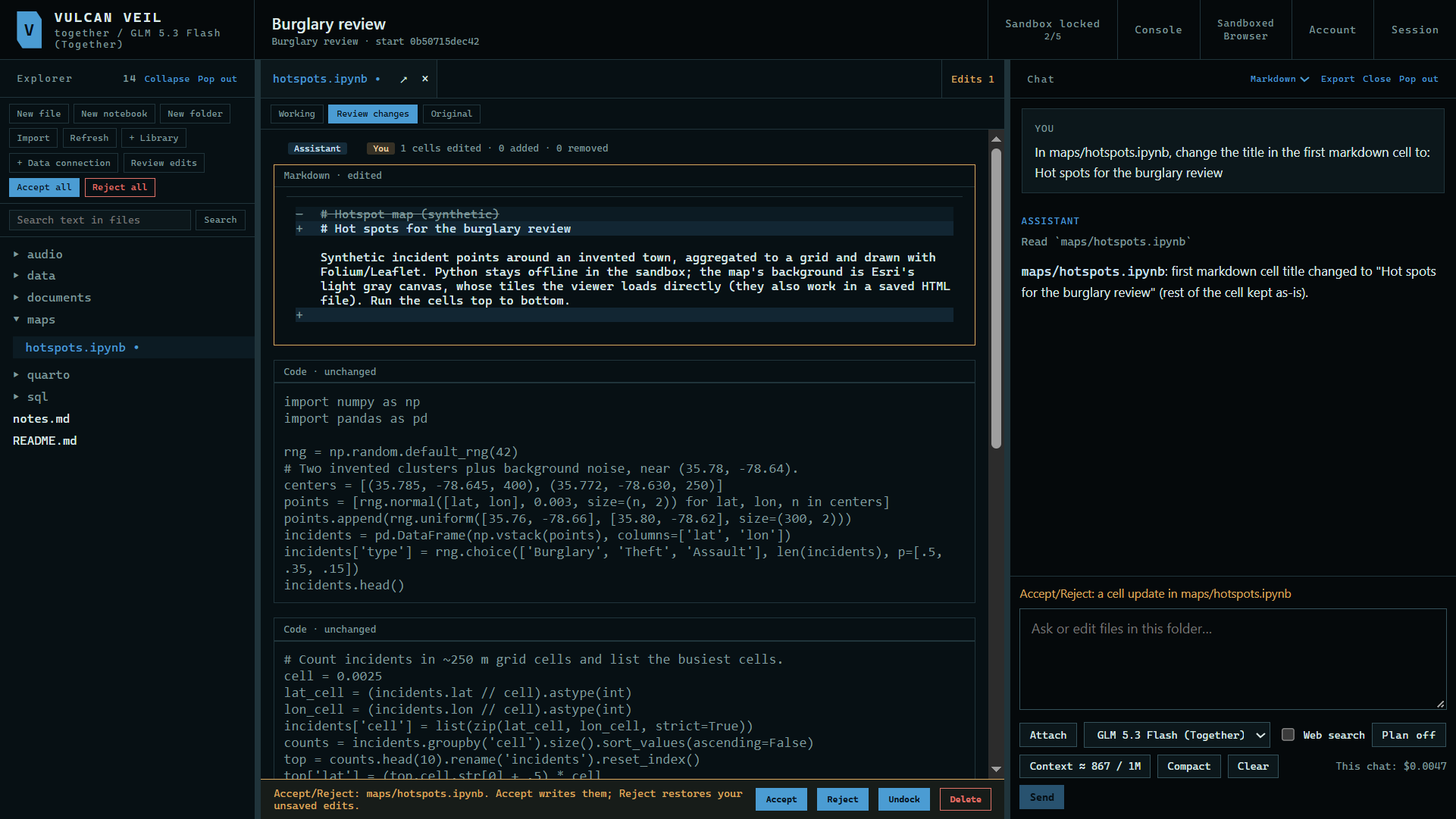
Tell the assistant what to change. Here: "In maps/hotspots.ipynb, change the title in the first markdown cell to: Hot spots for the burglary review"
 Expand
4. Review it
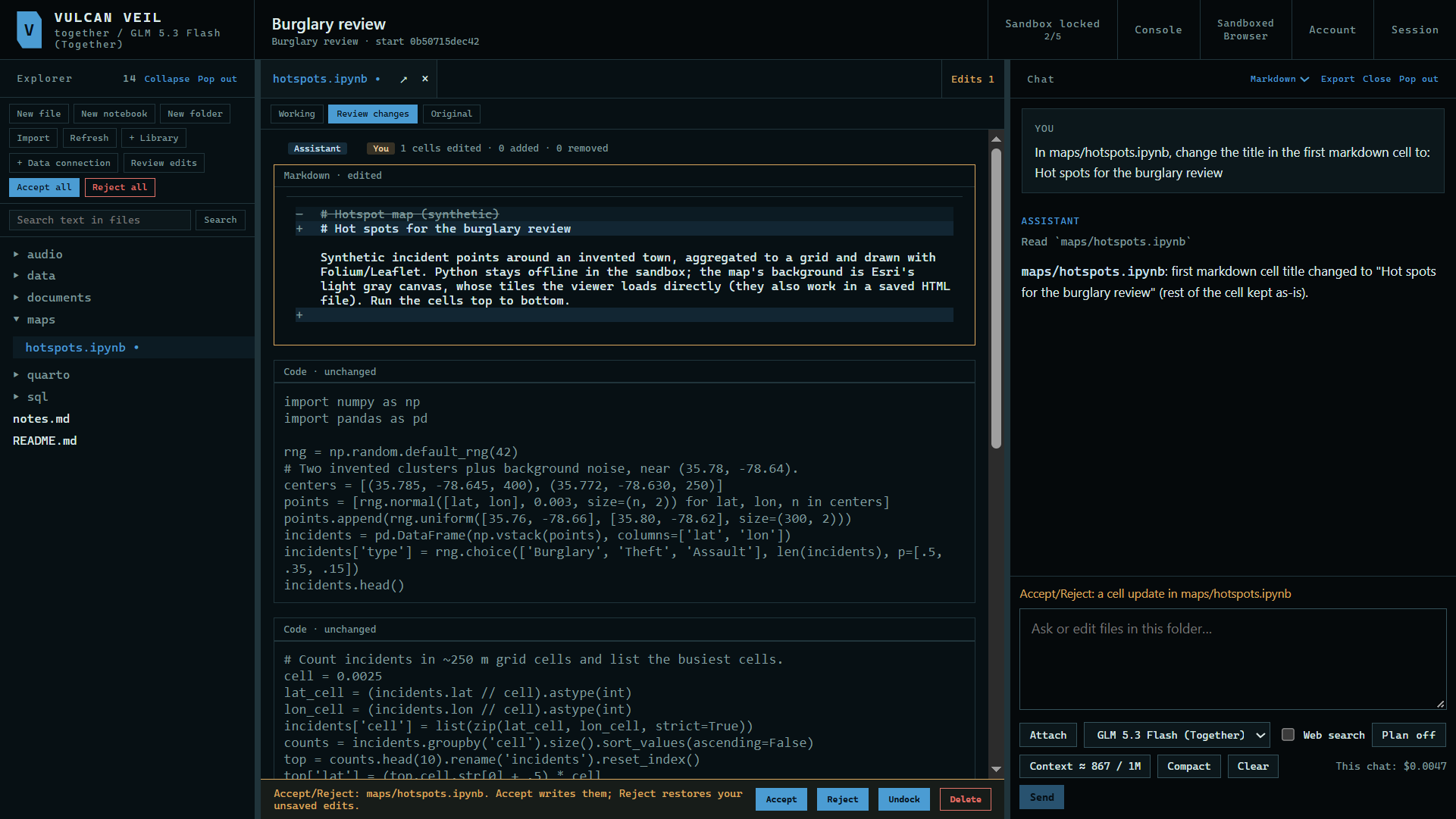
Press Review changes to see each cell marked as edited or unchanged, with old and new text. Press Accept to keep the edit, or Reject to drop it.
 Expand
Good to know
- Export HTML saves the notebook as one page with its charts and maps.
- The assistant can add and delete cells too. With Assistant-run Python on, it can run the notebook itself.
- Python here cannot reach the network, so it reads only what is in the project.